AirTags · Volume 6
AirTags Volume 6 — How to Use Them: The Full AirTag Lifecycle
One-tap pairing and Apple-ID binding; the Find My Items tab; Precision Finding (UWB) walkthrough; Lost Mode and the NFC contact path; sharing up to five people (iOS 17+); CR2032 battery replacement; and the honest account of Apple-ecosystem lock-in — this volume is the operational manual the theory volumes (Vols 2–4) built toward
6.1 About this Volume
Vols 2 through 4 built the theory: Vol 2 dissected the BLE advertising and the rotating P-224 key chain; Vol 3 covered Ultra-Wideband Precision Finding; and Vol 4 closed the loop on NFC, Lost Mode, and the anti-stalking / separated-state behavior. If you read those, you know how an AirTag works at the radio and cryptographic level. This volume is what you do with one.
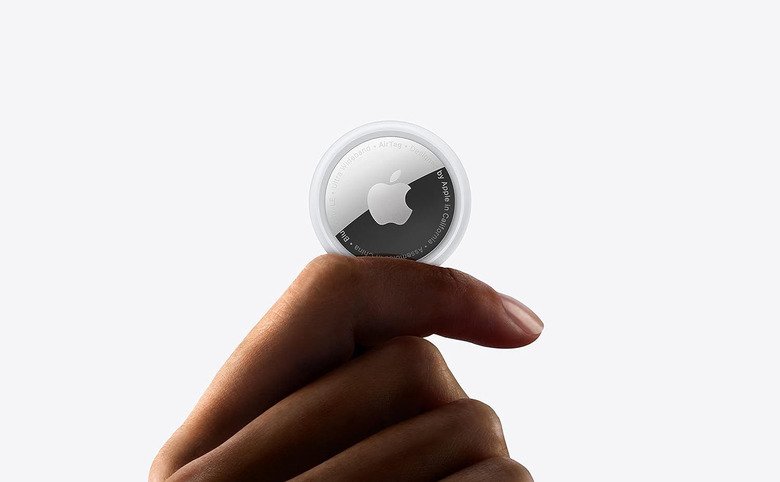
What this volume covers. Pairing a new tag to an Apple ID (§3); navigating the Find My Items tab and every action it exposes (§4); the Play Sound workflow and its BLE range dependency (§5); a walked-through Precision Finding session with a candid account of what the UWB guidance can and cannot do (§6); enabling and disabling Lost Mode and the NFC contact path a finder uses (§7); sharing a tag with up to five people on iOS 17+ (§8); replacing the CR2032 (§9); and the Apple-ID binding mechanism that makes a stolen or second-hand tag unusable until the original owner releases it — an anti-theft feature that is also a real operational constraint (§10). Section §11 is an explicit limitations table with no marketing gloss.
What this volume defers. The cryptographic machinery underneath pairing (the NIST P-224 master keypair $d_0, P_0$ and symmetric secret $SK_0$ exchanged at setup) is Vol 2 §4.2 — this volume treats pairing as an opaque UX flow and links there for anyone who wants the internals. The UWB ranging algorithm and the U1/U2 silicon architecture behind Precision Finding are Vol 3. The NFC / NDEF mechanics of the found.apple.com tap and the full Lost Mode design are Vol 4 §2–§3 — §7 here is the operational walkthrough. The android-user question (“can I own an AirTag with an Android phone?”) is Vol 9 — the short answer, cited throughout this volume, is no.
Spec-sourced. As of 2026-06-25 no AirTags are on the bench. UI flows and exact menu labels are per Apple’s published support documentation^[Apple Support, “Set up your AirTag” — https://support.apple.com/en-us/HT212154. Pairing sequence, requirements, and naming steps. iOS version thresholds cited in this volume are from Apple’s support pages; Apple does not publish implementation-level details, so they are described functionally.] and are subject to change across iOS releases. Where a specific menu label or iOS-version threshold is uncertain, this volume describes the function and attributes the source to Apple’s documentation rather than asserting a specific build number. A bench pass with a real tag would confirm the exact current string labels.
6.2 Before You Pair
6.2.1 What you need
Pairing an AirTag requires the following. All items in the table below are hard requirements — not one can be relaxed.
Table 1 — 2.1 What you need
| Requirement | Minimum | Notes |
|---|---|---|
| iPhone or iPod touch | iOS 14.5 or later | AirTags were introduced with iOS 14.5 (April 2021). iPad can manage AirTags in Find My but cannot complete initial pairing via the tap-proximity method. |
| Apple ID | Any valid iCloud-signed-in account | The tag binds to the account, not to the device. You can manage the tag from any device signed in to the same Apple ID. |
| Bluetooth | ON, not restricted by MDM | The initial pairing handshake runs over BLE. Bluetooth must be active; “Airplane mode” with Bluetooth manually re-enabled works. |
| Internet connectivity | Wi-Fi or cellular, at pairing time | iCloud registration of the new tag requires a live internet connection at the moment you tap “Connect.” Subsequent use (playing sound, Find Nearby) works offline for BLE-range operations, but map and network-locate functions need connectivity. |
| Two-Factor Authentication | Enabled on the Apple ID | Apple requires 2FA on the account used for Find My and AirTag registration. If 2FA is not set up, the pairing flow will prompt you to enable it first. |
| AirTag with battery | CR2032, positive side up | New units ship with the battery installed and a plastic pull-tab preventing contact. |
Feature-by-iOS-version reference. Features were added to Find My / AirTag across iOS releases; the full picture is needed throughout this volume:
Table 2 — Feature-by-iOS-version reference. Features were added to Find My / AirTag across iOS releases; the full picture is needed throughout this volume
| Feature | iOS minimum | iPhone hardware minimum | Notes |
|---|---|---|---|
| AirTag pairing, ownership, Find My Items tab | iOS 14.5 | iPhone 6s or later | Apple ID + Bluetooth + internet required at setup |
| Play Sound (BLE range) | iOS 14.5 | Any | Piezo speaker in the tag; BLE range only (~10–30 m typical) |
| Find Nearby — BLE proximity only (no UWB) | iOS 14.5 | iPhone X and earlier / SE (all gen.) | No directional arrow; proximity + sound guidance only |
| Precision Finding (UWB — directional arrow + distance + haptics) | iOS 14.5 | iPhone 11 or later (U1 / U2 chip) | Requires the U1/U2 UWB radio; see Vol 3 for the ranging theory |
| Directions (Maps hand-off to last-known location) | iOS 14.5 | Any | Routes to last-known location, not real-time position |
| Notify When Left Behind | iOS 14.5 | Any | Configurable per tag; trusted-location exclusions available |
| Mark As Lost / Lost Mode | iOS 14.5 | Any | Cross-ref Vol 4 §3 for the NFC contact path |
| AirTag Sharing — up to 5 people | iOS 17 | Any (owner + invitees both need iOS 17) | Co-owners’ phones suppress anti-stalking alerts; see §8 |
| Found Moving With You / Unknown Accessory alerts | iOS 14.5 | Any iPhone | Background detection; no app needed on the detecting device |
6.2.2 What an AirTag is not
Setting expectations early avoids support confusion later. These are common misconceptions, stated plainly:
- Not a real-time GPS tracker. The AirTag has no GPS radio and no cellular modem. It shouts a BLE advertisement; a nearby stranger’s Apple device encrypts that observation and uploads it; you poll the result later. In a city the lag is minutes; in a rural or sparsely-populated area it can be hours or longer, or zero fixes altogether. If you need real-time tracking, you need a different product category — cellular GPS tracker, Apple Watch with cellular, etc.
- Not cross-platform for the owner. An Android user cannot register, pair, or use Find My to locate an AirTag. Android can detect a potentially-unwanted AirTag (via native Android alerts or the AirGuard app — see Vol 11) and can read a found tag over NFC (see Vol 4 §2.4), but it cannot be the owning device. The full cross-platform picture is Vol 9.
- Not geofence-capable natively. Find My does not offer “alert me if this tag enters or exits a geographic zone.” The Notify When Left Behind feature is a simple separation alarm (you left somewhere without the item), not a configurable perimeter fence.
- Not recharge-capable. The CR2032 is a primary cell. When it dies, you replace it; there is no USB or wireless charging path. See §9.
6.3 Pairing Step by Step
6.3.1 Activating the tag and the Connect sheet
The first-time pairing experience is deliberately frictionless: bring the tag close to the iPhone and iOS does the rest. Here is the full sequence, including failure diagnostics:
   AirTag pairing sequence — from unboxing to registered
   ═══════════════════════════════════════════════════════

   [New AirTag: pull the white plastic tab from the battery well]
   [Used AirTag (known-clean): install a fresh CR2032, +side up]
                  │
                  ▼  AirTag plays a 3-note welcome chime (confirms battery contact)
   ┌──────────────────────────────────────────────────────────────┐
   │  PRECONDITIONS — all must hold before you approach:          │
   │  • iPhone running iOS 14.5+                                  │
   │  • Signed in to Apple ID with 2FA enabled                   │
   │  • Bluetooth ON                                              │
   │  • Active internet (Wi-Fi or cellular)                       │
   └──────────────────────────────────────────────────────────────┘
                  │
                  ▼  hold AirTag within ~10 cm of the iPhone (unlocked)
   ┌──────────────────────────────────────────────────────────────┐
   │         CONNECT SHEET  auto-appears on screen                │
   │   (BLE proximity — no app launch needed,                     │
   │    no NFC write, no scanning — it just pops up)              │
   │                                                              │
   │        ╭────────────╮                                        │
   │        │  [AirTag   │                                        │
   │        │   image]   │                                        │
   │        ╰────────────╯                                        │
   │             "AirTag"                     [Connect]           │
   └──────────────────────────────────────────────────────────────┘
                  │
                  │  Tap "Connect"
                  ▼
   ┌──────────────────────────────────────────────────────────────┐
   │  "What are you tracking?"                                    │
   │   Scrollable preset list  ── OR ──  "Custom Name" text entry │
   │                                                              │
   │   Keys  ●  Wallet  ●  Backpack  ●  Luggage  ●  Jacket       │
   │   Bike  ●  Scooter  ●  Purse  ●  Camera  ●  Remote  …       │
   │   (exact list varies by iOS version and locale)             │
   └──────────────────────────────────────────────────────────────┘
                  │
                  │  Select preset OR type custom name → Confirm
                  ▼
   ┌──────────────────────────────────────────────────────────────┐
   │  iOS registers the AirTag to your Apple ID / iCloud:         │
   │  • exchanges pairing seed material with the tag              │
   │    (the master keypair d0/SK0 — see Vol 2 §4.2 for crypto)  │
   │  • writes the Apple-ID binding to iCloud                     │
   │  • assigns the chosen name + a matching emoji icon           │
   └──────────────────────────────────────────────────────────────┘
                  │
                  ▼  AirTag plays a second completion chime
   ══════════════════════════════════════════════════════════════
   Tag now visible in  Find My → Items tab
   Shows last-known location; all actions available (§4)
   ══════════════════════════════════════════════════════════════

   FAILURE: Connect sheet does not appear
   ───────────────────────────────────────
   Check →  iOS version below 14.5?
            iPhone locked or screen off?
            Bluetooth disabled?
            AirTag battery not seated (+side up, no coating contact issue)?
            AirTag still linked to a previous Apple ID? (§10)
            If all of the above pass and no sheet: restart Bluetooth,
            restart iPhone, try again. If the tag emits no welcome chime
            at all, the battery is likely dead or backwards.
6.3.2 Naming your tag
The naming step is purely organizational — the name appears in the Find My Items list and in Notify When Left Behind alerts. Apple provides a scrollable preset list so the tag gets a recognizable emoji icon alongside the name. Common preset categories include: Keys, Wallet, Backpack, Bag, Luggage, Jacket, Bike, Bike Helmet, Scooter, Purse, Glasses, Camera, Remote, Earbuds, Headphones. The list is curated by Apple and grows over iOS releases.
Table 3 — 3.2 Naming your tag
| Name type | How to set | Icon | Editable later? |
|---|---|---|---|
| Preset (e.g. “Keys”) | Tap the item in the scrollable picker | Emoji assigned automatically (e.g. 🔑) | Yes — rename any time via the tag’s item page in Find My |
| Custom text | Tap “Custom Name,” type up to ~32 characters | Generic AirTag icon 🏷 | Yes |
| Custom text + custom emoji | On the custom name entry screen, tap the emoji field | Your chosen emoji | Yes |
The name is stored in your iCloud account, not on the tag itself. Renaming does not affect the BLE pairing or the key material — it is purely a label in Apple’s system.
6.3.3 What pairing does under the hood
For an EE who has read Vol 2, the operational summary: at pairing time, the iPhone generates the master keypair $(d_0, P_0)$ on NIST P-224 and the initial symmetric secret $SK_0$, exchanges the material with the AirTag over a proprietary BLE connection, and registers the binding in iCloud. From that moment the AirTag derives all future advertising keys from that seed (Vol 2 §4.2), and only the Apple ID that paired it can query and decrypt the location reports the Find My network gathers. The binding to the Apple ID is the load-bearing security property: one AirTag is registered to exactly one Apple ID at any moment, and it cannot be moved to a different account without the original owner actively removing it (§10).
One AirTag — one Apple ID. The tag can only be paired to a single Apple Account at a time. Pairing to a second account without first removing it from the first account is blocked — the tag will respond to the Connect sheet approach but will refuse to complete registration, displaying a message indicating it is linked to another Apple ID. This is not a bug; it is the anti-theft and anti-stalking mechanism that makes a found or stolen AirTag useless to a new owner without the original owner’s cooperation. See §10 for the full account.
6.4 The Find My App — Items Tab
6.4.1 The Items tab at a glance
Find My on iOS has four tabs at the bottom: People, Devices, Items, and Me. Items is where every paired AirTag (and other Find My–network accessories) lives. Each item in the list shows the tag’s name, its emoji icon, and a brief location description — typically a place name or address and a relative time (“3 minutes ago,” “1 hour ago,” “now”).
Tapping a listed item opens its detail view: a full map with a pin on the last-known location, the item name and icon at the top, and the action buttons below the map. The detail view is the main control surface for everything in §4–§7.
6.4.2 The action sheet — every control explained
Tapping a tag in the Items list opens the item detail. The map occupies most of the view; below it is a horizontally-scrollable row of action buttons. The set of buttons visible depends on the iPhone model (Precision Finding requires iPhone 11+) and the tag’s current state (Lost Mode changes the Mark As Lost button to a “turn off” option).
Find My action reference table — the complete set of controls on the item detail view:
Table 4 — Find My action reference table — the complete set of controls on the item detail view
| Control | What it does | Available on | Notes |
|---|---|---|---|
| Play Sound | Commands the tag to sound its piezo speaker. Requires the tag to be within Bluetooth range (~10–30 m typical). | All iPhones, iOS 14.5+ | BLE-range limited; see §5. If the tag is out of range, the button still appears but the command queues for next contact. |
| Find Nearby / Precision Finding | Opens the UWB-guided homing screen: directional arrow, distance estimate, haptics, audio guide. Tapping this label covers §6 in full. | iPhone 11 and later (U1/U2 chip) only | On older iPhones (pre-11) the button may say “Find” or “Find Nearby” without UWB capability and provide BLE proximity feedback only — no arrow, no accurate distance. |
| Directions | Hands off to Apple Maps, routing to the last-known location of the tag. | All iPhones, iOS 14.5+ | Routes to a location, not to the moving tag. If the tag has moved since the last fix, the route may lead to the wrong place. See §4.3. |
| Notifications | Opens the Notify When Left Behind settings for this tag. | All iPhones, iOS 14.5+ | Configure separation alerts and safe locations. See §4.4. |
| Mark As Lost / Lost Mode | Enables Lost Mode: arms the found.apple.com NFC-tap contact sheet and turns on lost-item notifications. When Lost Mode is already on, this button reads “Turn Off Lost Mode.” | All iPhones, iOS 14.5+ | Requires internet at the time of enabling. Cross-ref Vol 4 §3 for the NFC mechanics. See §7 here for the UX walkthrough. |
| Remove Item | Unpairs the AirTag from your Apple ID entirely. Prompts for confirmation. The tag plays a chirp to confirm removal and can then be paired to a new Apple ID. | All iPhones, iOS 14.5+ | Irreversible without re-pairing. Do this before selling or giving away a tag. If you remove a tag by mistake, it can be re-paired immediately. See §10.3. |
The exact button labels and their arrangement vary slightly across iOS versions; Apple has updated the wording in several releases (e.g. “Find Nearby” was reworded across minor versions). The functions described above are stable; exact label text is attributed to Apple’s documentation and may differ from what appears on-screen at a given iOS point release.
6.4.3 Directions — last-known-location hand-off to Maps
Tapping Directions on the item detail view opens Apple Maps and draws a route from your current position to the tag’s last-known location — the most recent Find My network fix. This is useful when the tag is not within BLE range and Precision Finding is not available: navigate to where the network last saw it, then use Play Sound or Precision Finding to close the final distance.
The important caveat is on the word last-known: if the tag is in motion (someone else is carrying it, it is on a vehicle, or the Find My network has not reported a fresh fix because no Apple devices have been nearby), the location Apple is routing you to is a historical position, not the current one. The map view within Find My shows the timestamp of the fix; read that before committing to a drive. If the fix is hours old and you suspect the item is in transit, it is worth waiting for a fresher fix rather than chasing a stale one.
Maps uses the tag’s last-known latitude/longitude — the decrypted values from the Find My network (Vol 2 §6.3) — and knows nothing about the tag in real time. There is no live tracking breadcrumb in Maps. Once Maps launches, it has only the destination pin and routes normally.
6.4.4 Notify When Left Behind
Notify When Left Behind sends a push notification to your iPhone when you leave a location without the tagged item — you departed, but the tag stayed behind. The notification reads something like “Keys left behind” and appears as you move away from the last location where the tag was detected.
Configuring it:
- Items tab → tap the tag → Notifications button → toggle Notify When Left Behind on.
- Apple offers to add safe locations (“Notify me, except when I’m here”) — places where you routinely leave the tag and don’t need an alert. Home and work are the common examples. The phone suggests locations from your Significant Locations; you can also pin a custom address.
The mechanics under the hood: iOS continuously monitors whether the tag’s BLE beacon is in range of your iPhone. When you leave a known location without the tag and are no longer near it, the notification fires. This is a proximity alarm on your device — it is not the Find My network (no finders or servers involved); it is the direct BLE relationship between your phone and the tag.
Trusted safe locations (the detail that matters): the safe-location list is per-tag and per-iPhone. If you share an AirTag with a family member (§8), each person must configure their own safe-location exceptions — they do not share the same exclusion list.
6.5 Playing a Sound
6.5.1 When and how to use Play Sound
Play Sound is the most direct action in Find My: tap the button, and if the AirTag is within Bluetooth range, it plays a brief audible alert through its onboard piezo speaker. The intended use is close-range finding — “I know it’s somewhere in this room; make it chirp so I can zero in.” Steps:
- Find My → Items tab → tap the tag → Play Sound.
- The button shows a brief “playing” animation. Within about a second, if the tag is in BLE range, it plays a sequence of tones.
- Tap Stop Sound (the same button, now relabeled) to silence it early, or it stops after several seconds on its own.
If the tag is out of BLE range when you tap Play Sound, the command is queued in iCloud. The next time the tag comes within Bluetooth range of your iPhone (not a stranger’s — the command is account-specific), iOS delivers it and the tag sounds. This queued behavior is silent on your end until the tag is found — there is no “the command will fire when the tag is found” confirmation message in the current UI.
6.5.2 Range and the BLE dependency
Play Sound is fundamentally BLE-range limited. BLE in open air reaches perhaps 30–50 m under ideal conditions; walls, metal furniture, and RF-dense environments (offices, airports) reduce this to 10–20 m or less in practice. The tag’s nRF52832 advertises at a power level set by Apple’s firmware (Vol 5 covers the power budget); the round-trip command goes iPhone → BLE connection → tag → piezo output.
Table 5 — 5.2 Range and the BLE dependency
| Condition | Typical range | Notes |
|---|---|---|
| Open-air line of sight | ~30–50 m | Theoretical maximum; real-world results lower |
| Indoor, one drywall wall | ~15–25 m | Standard residential construction |
| Indoor, multiple walls / steel framing | ~5–15 m | Dense construction, parking garages |
| In a bag inside another bag, fabric layers | ~5–20 m | Fabric is effectively transparent; depends mostly on walls |
| Tag in a metal enclosure (gun safe, car trunk with metal lid) | Very short / zero | Metal blocks BLE severely; use Precision Finding to approach first |
Play Sound is most effective as the final-five-meter tool — you’ve used the map to get to the right room, Precision Finding to get to the right piece of furniture, and Play Sound to identify which pile of clothing it’s under. Do not expect it to guide you from across a building.
6.6 Precision Finding (UWB)
6.6.1 When Precision Finding appears
Precision Finding is the UWB-based short-range homing mode. It replaces the BLE-only “Find Nearby” mode on iPhones that carry the U1 or U2 UWB chip — every iPhone from iPhone 11 onward. Precision Finding initiates over BLE contact — your phone must be within BLE range of the tag to hand it into UWB mode; useful directional guidance then covers roughly 10–30 m in open air (see §6.4 for practical limits; Vol 3 covers the UWB ranging theory). iOS opens the Precision Finding screen.
The button label varies by iOS version: it may read “Find Nearby,” “Find,” or “Precision Finding” depending on the iOS release and whether the iPhone has UWB hardware. Functionally, on iPhone 11+, this button triggers the UWB-guided experience described in §6.2.
Precision Finding requires iPhone 11 or later. The U1 chip (iPhone 11 through iPhone 14 Pro Max) and U2 chip (iPhone 15 and later, per the hardware generations covered in Vol 3) provide the UWB radio that makes Precision Finding work. iPhones before the 11 (iPhone XS, XR, X, SE, 8, and earlier) do not have UWB hardware and receive BLE proximity + Play Sound only — no directional arrow, no accurate distance figure. Check the §6.3 table before relying on Precision Finding in a deployment.
6.6.2 The Precision Finding screen walkthrough
The Precision Finding screen replaces the standard Find My map view with a dedicated full-screen homing interface. The screen’s elements, from top to bottom, as Apple has documented them:^[Apple Support, “Use Precision Finding with your AirTag” — https://support.apple.com/en-us/HT212322. UI elements and behavioral description sourced from Apple’s documentation; exact label text and layout are subject to iOS version changes.]
   Precision Finding screen — element layout (iPhone 11+, UWB active)
   ══════════════════════════════════════════════════════════════════

   ┌─────────────────────────────────────────────────────────────────┐
   │                                                                 │
   │   "Searching…"  →  becomes  "X m"  or  "X ft"                 │
   │   (distance to the tag, updated at UWB cadence, ~several Hz)   │
   │                                                                 │
   │                         ▲                                       │
   │                        ╱│╲                                      │
   │   DIRECTIONAL          ╱ │ ╲                                    │
   │   ARROW —            ╱   │   ╲                                  │
   │   points toward      ▼   │   ▼                                  │
   │   the AirTag;           │                                      │
   │   rotates in real time  │  (arrow rotates as you               │
   │   as you move the       │   physically rotate the phone        │
   │   phone around          │   or walk around the tag)            │
   │                                                                 │
   │   [Play Sound]  ◀─── button to trigger the speaker             │
   │                       while in Precision Finding mode          │
   │                                                                 │
   │   Haptic feedback:                                              │
   │   • buzzes increase in intensity as distance decreases         │
   │   • at "Here" range (~0.5–1 m): strong haptic + "Here" label  │
   │                                                                 │
   │   Optional audio guide (toggle in Accessibility):              │
   │   • spoken distance decrements as you approach                 │
   │   • tone frequency increases as you close in                   │
   │                                                                 │
   └─────────────────────────────────────────────────────────────────┘
How to work the screen in practice:
- Tap “Find Nearby” / “Precision Finding.” The screen opens; hold the iPhone in front of you at chest height like a compass.
- The arrow indicates which direction to walk. Turn in place until the arrow points straight up — that direction is toward the tag.
- Watch the distance figure decrease as you walk. The UWB triangulates angle-of-arrival; the system needs you to move a meter or two to get a good angular fix — stay mobile, don’t stand still.
- Haptics intensify with proximity. When you are within about half a meter, the display may show “Here” (or a similar confirmation string per the iOS version), and the haptic is strong and sustained.
- The Play Sound button remains accessible on the Precision Finding screen — use it when you are very close to pinpoint the exact location under clothing, in a bag pocket, etc.
6.6.3 Precision Finding vs Play Sound — capability by iPhone model
The single most important table in this volume for anyone deploying AirTags in a mixed-device household. If some family members have iPhones older than the 11, they cannot use Precision Finding; they must rely on BLE proximity + Play Sound.
Table 6 — 6.3 Precision Finding vs Play Sound — capability by iPhone model
| iPhone generation | UWB chip | Precision Finding | Directional arrow | Distance estimate | Haptic guide | Play Sound (BLE) |
|---|---|---|---|---|---|---|
| iPhone 15 and later | U2 | Yes | Yes | Yes | Yes | Yes |
| iPhone 14 / 14 Plus / 14 Pro / 14 Pro Max | U1 | Yes | Yes | Yes | Yes | Yes |
| iPhone 13 / 13 mini / 13 Pro / 13 Pro Max | U1 | Yes | Yes | Yes | Yes | Yes |
| iPhone 12 / 12 mini / 12 Pro / 12 Pro Max | U1 | Yes | Yes | Yes | Yes | Yes |
| iPhone 11 / 11 Pro / 11 Pro Max | U1 | Yes | Yes | Yes | Yes | Yes |
| iPhone XS / XR / X | None | No | No | No (BLE proximity only) | No | Yes |
| iPhone SE (all generations) | None | No | No | No (BLE proximity only) | No | Yes |
| iPhone 8 and earlier | None | No | No | No | No | Yes |
| Android (any) | n/a | No (cannot own/register AirTag) | No | No | No | No^[Android users cannot use Find My to play sound or control an AirTag; they cannot register or own the tag. Android’s role is as a Find My finder (contributing location reports anonymously) and as an unwanted-tracker detector (Android native alerts / AirGuard app). See Vol 9 for the full cross-platform picture.] |
The U1-vs-U2 difference (iPhone 11–14 vs 15+) provides improved spatial awareness in Vol 3’s terms — the U2 is more accurate and has better multi-path performance — but for practical AirTag use the difference in the Precision Finding experience is modest. Both chip generations provide the directional arrow, distance figure, and haptics. Vol 3 §3 covers the UWB silicon differences at the radio level.
6.6.4 Honest limits of Precision Finding
Precision Finding is impressive technology but has real operational limits an EE will want quantified:
Range. UWB works at short range. Precision Finding is a terminal homing tool, not a long-distance navigator. Expect useful directional guidance when you are within roughly 10–30 m of the tag in open air; outside that range the Find My map and Directions (§4.3) are the right tools. The UWB band (6.5–8 GHz, per Vol 3 §2) has high path loss; walls, metal, and wet materials attenuate it significantly more than BLE does at 2.4 GHz.
Line-of-sight behavior. UWB time-of-flight ranging assumes a mostly-direct path. When the tag is in another room with a concrete wall between you and it, the directional arrow will often point toward the wall rather than along the actual walking path. Precision Finding does not know your floor plan. The practical technique: let the arrow guide you toward the wall, go through the doorway, and re-evaluate. It works; it just requires a few seconds of re-orientation at each obstruction.
Tag must be awake. The AirTag’s U1 transceiver is not continuously active — it powers up when commanded over BLE by the Find My framework on your iPhone. If the tag is in deep power-saving mode or has a very weak battery (see Vol 5 for the power management details), Precision Finding may be sluggish or intermittent.
Precision is not sub-centimeter. The distance readout is accurate to within a meter or two at close range, which is sufficient for “it’s in this bag pocket” versus “it’s in that bag pocket” — but it is not a laser rangefinder. Treat it as a “hot / warm / cold” game with numbers attached, not an engineering measurement.
Not available when the tag is in Lost Mode and out of BLE range. If the tag is being located purely by the Find My network (no iPhone nearby), Precision Finding is unavailable — you must navigate to the vicinity using the map-based fix first, then switch to Precision Finding when you are close enough for BLE contact.
6.7 Lost Mode
6.7.1 Enabling Lost Mode
Lost Mode is the owner’s explicit signal: “I no longer have this item; help me get it back.” Enabling it changes what anyone who finds the tag sees when they NFC-tap it (§7.2) and arms owner-notification when the Find My network locates the tag (§7.3). The full cryptographic and NFC mechanics are Vol 4 §3; this section is the operational walkthrough.
To enable Lost Mode:
- Find My → Items tab → tap the tag → tap Mark As Lost (or the equivalent button label in your iOS version — “Lost Mode,” “Mark as Lost,” depending on the release).
- Apple prompts: “If you’d like to receive a notification when this item is found, add your contact information.” You can enter a phone number, an email address, or both, with an optional custom message (e.g. “Found my bag — please call, reward offered”). The contact and message are the text a good Samaritan sees when they tap the tag.
- Optionally, Apple may offer a partial-masking option — showing only the last digits of the phone number to the finder rather than the full number — giving the owner some privacy control over how much they expose.
- Tap Activate (or the current-label equivalent). Lost Mode is now on.
The whole flow takes under a minute and requires an internet connection at the time of enabling (the Lost Mode state is written to iCloud and found.apple.com, not to the tag). If you have no connectivity, you cannot enable Lost Mode until you regain it — which is worth remembering if you discover a bag is missing while on a plane.
What Lost Mode does NOT do: it does not change the BLE offline-finding mechanism — the tag still advertises its rotating P-224 key chain exactly as described in Vol 2. Lost Mode is a server-side and NFC-side state, layered on top of the unchanged BLE beacon. The tag does not “advertise that it is lost” in any way that changes the key derivation chain or the Find My network reporting. It changes only what Apple’s servers display at found.apple.com and what your iPhone shows when the network locates the tag.
6.7.2 What the finder sees — the NFC contact path
When a good Samaritan finds a tagged item, they tap the top of their phone to the AirTag (NFC tap — cross-ref Vol 4 §2 for the full NDEF mechanics). What they see depends on whether Lost Mode is active:
Table 7 — When a good Samaritan finds a tagged item, they tap the top of their phone to the AirTag (NFC tap — cross-ref Vol 4 §2 for the full NDEF mechanics). What they see depends on whether Lost Mode is active
| Tag state | What the NFC tap shows the finder | Owner contact visible? |
|---|---|---|
| Normal — Lost Mode OFF | The tag’s serial number; a note that it is linked to an Apple Account; instructions for disabling it | No |
| Lost Mode ON | Serial number plus the owner’s chosen contact information (phone/email, often partially masked) plus the owner’s custom message | Yes (owner-chosen, possibly masked) |
| Dead battery | NFC still works — the reader’s 13.56 MHz field powers the NFC front-end passively (Vol 4 §2.1). Same display as above depending on mode. | Depends on mode |
The critical design point (from Vol 4 §2.3): the AirTag’s NFC tag stores a URI record pointing to found.apple.com. The found.apple.com server decides what to show based on the tag’s current Lost Mode state in iCloud — the contact information is never stored on the tag itself. A finder who clones the NDEF gets only the serial number and the URL; the owner’s phone number lives in Apple’s account record and is surfaced only when the owner has enabled Lost Mode and chosen to show it.
This is also why the NFC path works on Android and iPhone equally (Vol 4 §2.4) — any NFC phone’s standard browser handles the HTTPS URI, opens found.apple.com, and renders the server-side content. No app required.
6.7.3 Owner notification when the tag is located
With Lost Mode active, the Find My network works exactly as it always does (anonymous finders encrypt observations, Apple stores ciphertext indexed by key hash, owner queries and decrypts — see Vol 2 §5–§6), but two additional notification triggers arm:
Table 8 — With Lost Mode active, the Find My network works exactly as it always does (anonymous finders encrypt observations, Apple stores ciphertext indexed by key hash, owner queries and decrypts — see Vol 2 §5–§6), but two additional notification triggers arm
| Trigger | What the owner receives | Mechanism |
|---|---|---|
| Find My network locates the tag | A push notification: “Your [name] was found” with a fresh map fix | The standard BLE-finder report path (Vol 2 §5–§6); Lost Mode makes Apple send the push rather than leaving the owner to check manually |
| NFC tapped by a finder | A notification: “Someone found your [name]” or equivalent | The found.apple.com server registers the tap and pushes a notification to the owner’s Apple devices |
| Tag comes within BLE range of owner’s iPhone | Notification or automatic location update | Standard BLE proximity detection; reuniting puts the tag back in the paired state |
The notifications arrive on all devices signed in to the same Apple ID (all your iPhones, iPads, and Macs). This is the active recovery half of the Find My system: instead of periodically checking the map and hoping for a fix, Lost Mode turns the network into an event-driven notification service.
6.7.4 Disabling Lost Mode
Once the item is recovered, turn off Lost Mode:
- Find My → Items tab → tap the tag → the Mark As Lost button now reads “Turn Off Lost Mode” (or equivalent label).
- Tap it and confirm.
- The found.apple.com page for the tag returns to the “normal” view (serial only, no contact info).
- Network-locate notifications stop.
The tag’s BLE beacon behavior is unchanged throughout — there was no behavioral change at the radio level when Lost Mode was enabled, so there is no radio-level change when it is disabled.
6.7.5 The lost-item decision tree
The decision logic for what to do when an item isn’t where you expected:
   "I can't find something with an AirTag — what should I do?"
   ════════════════════════════════════════════════════════════

   Open Find My → Items tab
             │
             ▼
   Is there a recent map fix?
             │
      ┌──────┴──────────────────────┐
      │                             │
     Yes (fix < ~1 hour)    No fix / very stale fix
      │                             │
      ▼                             ▼
   Is the fix location         Do you have any guess
   reachable or nearby?        where the item is?
      │                             │
   ┌──┴──────┐              ┌───────┴───────────┐
   Nearby    Far away       No idea              Yes
      │         │               │                │
      ▼         ▼               ▼                ▼
   Tap         Tap           Mark As         Navigate there
   Play Sound  Directions    Lost Mode       manually first;
   (§5)        (→ Maps, §4.3) and wait       try Play Sound
      │                       for a fix      when nearby
      │
      ▼
   Sound plays immediately?
             │
      ┌──────┴────────────────────┐
      │                           │
     Yes                   No (out of BLE range)
      │                           │
      ▼                           ▼
   If iPhone 11+:          Approach the last-fix
   Tap Find Nearby /       location on the map;
   Precision Finding (§6): re-try Play Sound /
   arrow + distance →      Precision Finding
   haptics → "Here"        when you get close
      │
      ▼
   Still can't find it after being physically at the location?
             │
      ┌──────┴──────────────────────────────────┐
      │                                         │
   Enable Lost Mode (§7.1)             Check if it was stolen;
   Wait for a finder NFC tap           review the location history
   or a network re-locate              in the Items tab map; contact
   notification                        law enforcement with the serial
                                       (NFC-tap to read it — Vol 4 §2.2)
6.8 Sharing an AirTag (iOS 17+)
6.8.1 How sharing works
Before iOS 17, an AirTag could be owned by exactly one Apple ID and only that person could see its location or control it. This created a practical problem for households and couples: a shared bag, a shared vehicle, or a shared set of keys would be tracked by one person but invisible to the other — and worse, the second person’s iPhone would see the tag as an unknown separated tag traveling with them and raise an “Item Found Moving With You” anti-stalking alert (Vol 4 §6.1), even though the tag was legitimately theirs to use.
iOS 17 introduced AirTag sharing. The original owner can invite up to five additional people to share a tag. The shared users receive an iCloud invite, accept it, and the tag then appears in their Find My Items tab with view and some control access. Invitees must be running iOS 17 or later on their own iPhone.
To share a tag:
- Find My → Items tab → tap the tag → scroll to Share This AirTag (or the equivalent label in your iOS 17+ release, per Apple support documentation^[Apple Support, “Share an AirTag or Find My network accessory” — https://support.apple.com/en-us/. Sharing requires iOS 17 or later on both the owner’s and invitee’s device; up to 5 people can be added.]).
- Tap Add Person → choose a contact from your address book (they must have an iCloud account).
- The invitee receives an iCloud notification. They tap Accept in Find My and the tag appears in their Items list.
- To remove a shared user: same screen → tap their name → Remove.
The owner can add and remove shared users at any time. Shared users cannot add other shared users.
6.8.2 What a co-owner can and cannot do
The sharing model is asymmetric: the original owner has full control; co-owners have a useful but limited read-and-sound subset.
Table 9 — 8.2 What a co-owner can and cannot do
| Capability | Original owner | Co-owner (shared) |
|---|---|---|
| See tag location on the map | Yes | Yes |
| Play Sound | Yes | Yes |
| Precision Finding (if iPhone 11+) | Yes | Yes |
| View location history | Yes | Yes (within the shared period) |
| Enable / disable Lost Mode | Yes | No |
| Rename the tag | Yes | No |
| Remove the tag from Find My (unpair) | Yes | No |
| Remove a co-owner | Yes | No |
| Add additional co-owners | Yes | No |
| Configure Notify When Left Behind | Yes (their own settings) | Yes (their own settings — independent per person) |
| Triggers “Found Moving With You” on the co-owner’s iPhone | — | No (recognized as co-owner; alert suppressed — see §8.3) |
The asymmetry is intentional: the original owner remains in control of the tag’s lifecycle (removal, Lost Mode, managing the access list) while co-owners get the day-to-day utility (finding the shared bag when it’s their turn to travel with it).
6.8.3 Sharing and the anti-stalking bypass
The “my partner and I share a suitcase” problem — now officially solved. Before iOS 17 sharing, the scenario was: you pack your AirTag-equipped luggage for a joint trip; your partner carries the bag through the airport; their iPhone triggers an “Unknown AirTag Found Moving With You” alert (Vol 4 §6.1) because the tag is separated from your Apple ID and is now traveling with them. This was not a bug — the system was working correctly to protect against stalking. But it meant that any legitimate shared-tracking use case generated false anti-stalking alerts, which users often learned to dismiss — which in turn dulled the alert’s value for genuine stalking detection. iOS 17 sharing fixes this at the root: when a person is registered as a co-owner of a tag, their iPhone recognizes the tag as belonging to a trusted account and suppresses the “Found Moving With You” alert. The tag is now known to be their tag too, so the alert logic correctly skips them. This is the design framework from Vol 4 §6.5 — the “own/shared-account” gate in the alert decision tree — applied to the sharing relationship.
The anti-stalking posture of the shared tag is carefully bounded: suppressing the alert for co-owners does not suppress it for everyone. A third party (someone who is not the owner or any of the five co-owners) still receives the full unwanted-tracking alert if the tag travels with them. The sharing exemption is account-specific and narrow. This is the correct behavior: a legitimate shared bag should not alarm the family traveling with it, but should still alarm an unwitting stranger if it ends up in their coat pocket.
Caution: the sharing feature is a trust relationship. Once you add someone as a co-owner, they can see the tag’s full location history while shared. Remove co-owners when the sharing arrangement ends (end of trip, end of relationship, etc.) using the owner-side Remove function.
6.9 Battery Replacement
6.9.1 Low-battery indicators
Find My surfaces battery status in two ways:
- Status icon in the Items list. When the AirTag’s battery is low, a battery indicator appears next to the tag’s name in the Items tab — typically a low-battery icon or a “Low Battery” label per the iOS version.
- Notification. Apple sends a push notification to the owner’s devices when the tag’s battery falls to a low level, prompting replacement before the tag goes offline.
The tag’s internal power management (Vol 5) communicates battery level through the BLE advertisement’s status byte (Vol 2 §3.2, Vol 4 §4.2) — specifically the two high bits of the status byte encode a coarse four-level battery indicator (full / medium / low / critically low). Find My reads this and surfaces the low-battery state in the UI. There is no precise percentage; it is a coarse four-level indicator.
Nominal battery life is approximately one year under typical use (advertising at the standard interval, infrequent sound and UWB events). High-use scenarios — frequent Play Sound commands, frequent Precision Finding sessions, high crowd-sourced-find activity — reduce this. Vol 5’s power budget analysis quantifies the energy cost of each operating mode.
6.9.2 Step-by-step replacement
The AirTag’s stainless steel lid conceals the CR2032 battery and is removed with a press-and-twist mechanism — no tools required.
Table 10 — 9.2 Step-by-step replacement
| Step | Action | Notes |
|---|---|---|
| 1 | Place the AirTag on a flat surface, white plastic face down, stainless steel lid facing up | The polycarbonate face scratches easily; set it down on a soft cloth if the surface is hard |
| 2 | Press firmly down on the stainless steel lid with two or three fingers | You are compressing a spring clip; the downward pressure is required before rotation |
| 3 | While pressing down, rotate counterclockwise approximately 30° until the indentations on the lid align with the release notches on the body | You will feel and hear a slight click as the lid releases from the bayonet lock |
| 4 | Lift the lid away from the body | The CR2032 battery is now visible, positive (+) side facing up |
| 5 | Remove the old CR2032 | It lifts straight out; no clip or retainer holds it |
| 6 | Insert the new CR2032, positive (+) side facing up | The polarity marking is stamped on the battery itself and also labeled inside the tag body. Getting this wrong prevents contact and the tag will not chime. |
| 7 | Listen for the welcome chime | The tag plays a short tone within a second or two of the battery making contact. If no tone: check polarity (step 6) and the bitterant-coating gotcha (§9.3). |
| 8 | Replace the lid: set it on the body (align the indentations with the open-position notches), press down, and rotate clockwise until it locks | The notches should click into the locked position. The lid should not wiggle or rock when properly locked. |
| 9 | Verify in Find My | The battery icon in the Items list should clear; the tag should appear with a normal (non-low) battery state after its next BLE advertising cycle. |
6.9.3 CR2032 selection and gotchas
The bitterant-coating issue. Some CR2032 cells (for example, cells commonly sold in child-safe packaging — Apple’s documentation does not name specific brands, but certain brand-name cells are widely reported to have this coating) have a bitterant coating applied to the positive terminal — a chemical deterrent to discourage children from swallowing batteries. Apple’s AirTag has a spring-loaded positive contact that makes a small-area contact with the battery’s center; a thick bitterant coating can electrically insulate that contact point, causing the tag to play no chime and appear dead despite a fresh battery.^[Apple Support, “Replace the battery in your AirTag” — https://support.apple.com/en-us/HT212228. Apple explicitly notes that CR2032 batteries with bitterant coating on the positive terminal may not work in AirTags.] This is not an AirTag defect — it is a contact-area compatibility issue.
Recommended batteries: a standard CR2032 without a bitterant coating — Panasonic, Maxell, Sony, Energizer, and most plain-label CR2032 cells work reliably. If you buy a value multipack from a child-safety-focused brand (recognizable by the extra difficulty in opening the packaging), test one cell in the tag before trusting the whole pack.
What to do if a new battery produces no chime: try a different brand of CR2032 before assuming the tag is defective. If a Panasonic or Maxell cell produces a chime where the previous battery did not, the bitterant coating was the issue.
Other compatibility notes:
Table 11 — Other compatibility notes:
| Specification | Required value | Notes |
|---|---|---|
| Chemistry | Lithium manganese dioxide (Li-MnO₂) | Standard CR2032 chemistry; do not substitute rechargeable ML2032 |
| Diameter | 20 mm | CR = 20 mm; correct by the CR2032 part number |
| Thickness | 3.2 mm | Correct by part number; thicker cells (CR2032H) do not fit |
| Voltage | 3 V nominal | All standard CR2032; correct |
| Positive terminal | No bitterant coating preferred | See above |
6.10 Apple-ID Binding and Anti-Theft
6.10.1 What binding means
Apple-ID binding is both an anti-theft mechanism and a real operational constraint. The moment an AirTag is paired, it is locked to the owner’s Apple ID. The tag’s firmware will refuse to complete a pairing handshake with any other Apple account while that binding is active. If you pick up an AirTag — found on the street, bought second-hand, taken from a stolen bag — and attempt to pair it to your Apple ID, you will see a message similar to: “This AirTag is linked to an Apple Account.” You cannot pair it. You cannot reset it. You cannot adopt it. The original owner must first remove the tag from their Find My account (§10.3), which clears the binding on Apple’s servers and allows the tag to be paired fresh. Without that release, the tag is permanently inoperable for you, regardless of what you do to the hardware.
Why this is correct engineering. A stolen AirTag that cannot be re-paired is worthless as a stolen item — it cannot be resold as a functional tracker. The binding protects the legitimate owner (their tag stays theirs) and deters casual theft. The same property that makes a stolen tag useless makes a legitimately-transferred tag require a deliberate release step — a minor inconvenience compared to the security benefit. If you are buying a used AirTag, require proof that the seller has released it from their account before completing the transaction.
The technical mechanism: at pairing, the AirTag’s identity is registered in Apple’s iCloud system tied to the owner’s Apple ID. Every connection attempt goes through Apple’s servers to validate the account association. There is no way to “factory reset” an AirTag at the hardware level to clear an active account binding — unlike most Bluetooth accessories, there is no hard-reset button sequence or pinhole reset. The only reset that counts is a server-side account removal by the current owner.
6.10.2 Binding scenarios: new, second-hand, found
Table 12 — 10.2 Binding scenarios: new, second-hand, found
| Scenario | Tag’s state when you try to pair | Can you pair it to your Apple ID? | What to do |
|---|---|---|---|
| Brand-new, sealed in Apple packaging | Unregistered | Yes | Pull the tab, bring near iPhone, follow §3 |
| Used — seller removed it from their Find My before selling | Unregistered (seller released it) | Yes | Pair normally per §3; the tag should chime and the Connect sheet should appear without any warning |
| Used — seller did NOT remove it from their account | ”Linked to another Apple Account” message | No | Ask the seller to open Find My → Items → tap the tag → Remove Item (§10.3). Once they confirm removal, you can pair the now-unregistered tag. If the seller is uncontactable, the tag is unusable. |
| Found on the street (dropped/abandoned) | Still linked to original owner | No | NFC-tap the tag to read the serial and any Lost Mode contact info (§7.2, Vol 4 §2.2). If Lost Mode is on, contact the owner through the displayed information. If not, contact law enforcement with the serial number — Apple can map a serial to an Apple Account with a warrant. Do not attempt to pair it; return it through the legal process. |
| Confirmed abandoned, no contact possible, extended period | Still linked until the server-side binding is cleared | No | Apple does not offer a public “abandoned tag” reset path. The binding persists indefinitely until the account owner removes it — or until Apple’s own processes (e.g. law-enforcement cooperation) clear it. A tag in this state remains inoperable for you. |
6.10.3 Removing a tag from your account
Removing is the reverse of pairing — it clears the Apple-ID binding and returns the tag to an unregistered state that any Apple ID can claim:
- Find My → Items tab → tap the tag → scroll down → Remove Item.
- Confirm the removal when prompted.
- The AirTag plays a confirmation chime.
- The tag disappears from your Items list and is no longer associated with your Apple ID in iCloud.
- The tag can now be picked up by any iPhone and paired fresh via the Connect-sheet flow.
When to remove:
- Before selling or gifting the tag.
- Before the tag leaves your possession for any reason (repair, trade-in, etc.).
- If you want to transfer a tag to a different Apple ID you control (e.g. moving from a personal account to a family-sharing account).
A removed tag is unregistered — treat it as you would an unregistered tag. Anyone who gets it can pair it to their own Apple ID. If the removal was accidental, you can immediately re-pair it yourself before anyone else does.
6.11 Honest Limitations
AirTags are excellent at one thing — recovering lost items in Apple-ecosystem households where finders are densely distributed. Outside that sweet spot the limitations are real and worth stating plainly. This section is addressed to the EE who has read the theory and wants the engineering-honest picture, not the marketing one.
Table 13 — 11. Honest Limitations
| Limitation | Engineering detail | Practical consequence / workaround |
|---|---|---|
| Apple-ecosystem ownership only | An Android user cannot register, pair, or use Find My to locate or control an AirTag. The BLE advertising and key-derivation chain (Vol 2) require Apple’s iCloud/Find My infrastructure to query and decrypt location reports. Android’s role is as a finder (contributing anonymous reports) and as a potential detector (unwanted-tracking alerts, AirGuard). | Register the tag on an Apple device. If your household is Android-only, AirTags are not for you — see Vol 9’s cross-platform map for the Google Find My Device and Tile alternatives. |
| No real-time GPS — crowdsourced, not continuous | Location accuracy depends on the density of Apple devices that have recently passed near the tag. In a major city, fixes arrive in minutes. In a rural area, National Park, or inside a ship’s cargo hold, there may be no fixes at all. Fixes are the finder’s GPS position at the moment of the BLE encounter, not the tag’s — and the tag may have moved between the fix and the owner’s query. | Accept the design for what it is: a recovery tool for lost items, not a real-time tracker. For moving vehicles or remote assets, a dedicated cellular GPS tracker is the appropriate tool. |
| No native geofencing | Find My has no “alert me if this tag enters or exits a geographic boundary” feature. The Notify When Left Behind feature is a separation alarm (you left a location without the tag), not a zone trigger. | Use a third-party automation app (Shortcuts on iOS has location triggers) for approximations of geofencing, with the caveat that it requires your phone to be in BLE range of the tag — it does not use the Find My network for geofence logic. |
| Battery-only — no recharge, ~1 year life | The CR2032 is a primary lithium cell, not a rechargeable. At ~265 mAh with the AirTag’s average current draw (see Vol 5), roughly 1 year is realistic under typical advertising intervals and moderate play-sound use. Heavy use shortens this. | Monitor the battery indicator in Find My. Keep a spare CR2032 (§9). The replacement takes 30 seconds. |
| Precision Finding requires iPhone 11 or later | The U1/U2 UWB radio is only in iPhones from the 11 onward. Older iPhones (XS, XR, X, SE, 8 and earlier) receive BLE proximity + Play Sound but no directional arrow or accurate distance readout. | Check §6.3 before relying on Precision Finding. If family members have older iPhones, their AirTag experience is “play sound and walk toward it,” not the guided UWB homing. |
| iOS 14.5+ required for pairing and ownership | The iPhone acting as the owner device must run iOS 14.5 or later. iPhones capped below iOS 14 (any device limited to iOS 12, for example) cannot pair or manage an AirTag. | Update to at least iOS 14.5. A device capped below this (very old iPhones) is simply incompatible with AirTags as an owner device. |
| iOS 17+ required for sharing | AirTag sharing (up to 5 co-owners) requires iOS 17 on both the owner and all invitees. An iPhone running iOS 14.5–16 can pair and use an AirTag but cannot participate in a sharing arrangement. | All household members who need co-owner access must be on iOS 17+. |
| Apple-ID binding on used tags | A second-hand tag that the seller did not release from their account cannot be paired. There is no hardware-level reset. (§10.) | Always verify a used AirTag is released before purchase — ask the seller to send a screenshot of the Remove Item confirmation, or do the release together in person. |
| Network coverage is Apple-device density, not infrastructure | Urban areas with high iPhone density report dozens of fixes per hour; truly remote areas (wilderness, offshore, developing-world locations) may report nothing. The ~1 billion Apple devices (Vol 2 §8.1) are concentrated in North America, Europe, Japan, and major urban centers. | An AirTag in a shipping container crossing an ocean may be dark for days. Use it for domestic / urban use cases where Apple-device coverage is dense. |
| Lost Mode requires internet to enable | Enabling Lost Mode writes a server-side state to iCloud and requires a live internet connection at the time of enabling. Discovering the loss while offline delays the Lost Mode activation. | Enable Lost Mode as soon as you realize the item is missing, while you have connectivity — do not wait until you are physically at the last-known location. |
6.12 Cheatsheet Updates
This volume’s contributions to the Vol 15 laminate-ready cheatsheet — the operational facts to carry without re-reading.
- Pairing requires: unlocked iPhone, iOS 14.5+, Apple ID signed in with 2FA, Bluetooth ON, internet. Bring the tag within ~10 cm — a Connect sheet auto-appears. No app launch needed. One AirTag = one Apple ID at a time. Used tag not pairing? It is still linked to the previous owner — they must remove it from their Find My account first (§10).
- Find My → Items tab is the control center. Tap any tag to open the action sheet: Play Sound, Find Nearby/Precision Finding, Directions, Notifications (Left Behind alerts), Mark As Lost.
- Play Sound = BLE range only (~10–30 m). If the sound doesn’t play, you are out of Bluetooth range. The command queues and fires on next BLE contact. Use it for the final few meters after the map has gotten you close.
- Precision Finding (UWB) = iPhone 11 and later only. Provides a directional arrow + distance figure + haptics + audio guide. Works within UWB range (tens of meters in open air; shorter through walls). At “Here” range (~0.5–1 m): strong haptic + screen confirmation. Older iPhones (pre-11): BLE proximity + Play Sound only — no arrow, no distance figure. See Vol 3 for the UWB theory.
- Directions → hands off to Apple Maps with a route to the tag’s last-known location (not real-time). If the fix is stale, you may be routed somewhere the tag no longer is — check the fix timestamp before committing to a drive.
- Notify When Left Behind: set per-tag; supports trusted-location exclusions (home, work). Fires when you leave the location without the tag. BLE-proximity-based on your own iPhone — not Find My network.
- Lost Mode: enables the NFC contact path (anyone who taps the tag sees your chosen contact info at found.apple.com); arms push notifications when the network locates the tag or an NFC tap occurs. Requires internet to enable. Does NOT change the BLE advertising (Vol 2 §4.2). Cross-ref Vol 4 §3 for the full NFC mechanics.
- Lost Mode off vs on — what a finder’s NFC tap shows: OFF = serial only; ON = serial + your chosen contact (often masked) + custom message. Contact is stored in iCloud, not on the tag — no app needed to read it on iPhone or Android.
- AirTag Sharing (iOS 17+ only): up to 5 co-owners; both owner and invitees need iOS 17+. Co-owners can see location, play sound, and use Precision Finding. Only the original owner can enable Lost Mode, rename, or remove the tag. Key anti-stalking fix: co-owners’ iPhones do NOT trigger “Item Found Moving With You” alerts for the shared tag — the alert-decision tree (Vol 4 §6.5) recognizes them as legitimate shared owners and suppresses the alert. Third parties still receive the alert.
- Battery: CR2032, ~1 year, user-replaceable. Press and twist the stainless lid counterclockwise; lift; swap; positive (+) side up; replace lid clockwise. Find My shows a low-battery indicator when the coarse battery level drops. Gotcha: CR2032 cells with a bitterant coating on the + terminal may not make contact — no welcome chime = try a different brand (Panasonic, Maxell, Sony work reliably). Cross-ref Vol 5 for the full power budget.
- Apple-ID binding = the anti-theft mechanism and the second-hand gotcha. An AirTag is locked to one Apple ID until the owner explicitly removes it from their Find My account. “This AirTag is linked to an Apple Account” = you cannot pair it. No hardware reset exists. The original owner must do Find My → tag → Remove Item before you can adopt it.
- Key honest limits: no real-time GPS (crowdsourced, minutes-to-hours lag in practice); no native geofencing; no recharge; no Android ownership (Vol 9); Precision Finding only on iPhone 11+; iOS 14.5+ minimum for ownership; iOS 17+ for sharing; Lost Mode requires internet at enable time.
This is Volume 6 of a fifteen-volume series. The series continues: Vol 7 surveys the varieties in the tracker market — Apple AirTag, Samsung SmartTag/SmartTag2, Tile, Chipolo, and Pebblebee — with teardown-depth specifications and a feature/price comparison matrix. Vol 8 covers the network map: which tracker brand works on which phone ecosystem. Vol 9 maps what an Android user can and cannot do with each network, and why. Then Vol 10 opens the DIY half: flashing an ESP32 or nRF52-class board with OpenHaystack / Macless-Haystack firmware to broadcast as a Find My beacon and register its location reports through Apple’s own infrastructure — the same BLE advertising of Vol 2 §3, emitted by hardware you own. The detection half follows in Vols 11–13 (detector devices + apps; DIY BLE-scan and RSSI-walk; owned gear — Flipper Zero, ESP32 Marauder modules, Nyan Box, nRF52840 sniffers). Vol 14 is the posture and legal volume; Vol 15 is the laminate-ready cheatsheet that synthesizes the whole series.
Comments (0)