GL-iNet GL-BE3600 · Volume 10
GL-iNet GL-BE3600 Volume 10 — Pentest, Survey, and Capture: kismet, tcpdump, suricata
Using the router as a portable network-research platform; monitor mode, live capture, IDS
10.1 About this Volume
The BE3600 is a real Linux box with two Wi-Fi 7 radios, 1 GB RAM, and a 2.5 GbE switch. That’s a usable platform for network research:
- Wireless survey — kismet logging beacons, probe requests, deauth events.
- Wired capture — tcpdump on
br-lanor a span port for visibility into the kit’s own traffic. - IDS — suricata or snort watching for known-bad patterns on traffic the router forwards.
- Live ad-hoc — tshark piped to a laptop for real-time analysis.
Limitations to set expectations:
- The 256 MB NAND is small. Big rule sets and big captures need an external USB drive.
- The on-board Wi-Fi 7 radios may not cooperate with monitor mode in all driver states; an external USB Wi-Fi adapter (Alfa AWUS036ACS, Panda PAU09) is the reliable path.
- This is not a continuous IDS — sustained Suricata at line rate will saturate the CPU. Use it for triage, capture-then-analyze, or rule-of-thumb monitoring.
Reads:
- Vol 2 for what the radios can actually do.
- Vol 5 §5 for nftables — IDS rules sometimes layer with firewall mangle chains.
10.2 The Capture Storage Problem
256 MB of internal NAND is not enough for serious capture. Solutions, in increasing order of complexity:
Table 1 — 256 MB of internal NAND is not enough for serious capture. Solutions, in increasing order of complexity
| Approach | Capacity | Throughput | Setup |
|---|---|---|---|
| /tmp ramfs | ~512 MB | Memory-speed | Free; volatile — lost on reboot |
| USB stick on the back-panel USB 3.0 | up to 1 TB | ~250 MB/s | Plug in; mount; write |
| External USB SSD | up to 4 TB | ~400+ MB/s | Plug in; mount; write |
| NFS/SMB to laptop | unlimited | LAN-speed | Setup on the laptop side |
| Streaming over SSH to laptop | unlimited | LAN-speed | ssh ... 'tcpdump -w -' > capture.pcap |
For travel-kit pentest work, the USB stick option is the right default. Plug in a 64 GB USB drive, mount it, write captures and IDS logs there.
# Mount the USB stick
opkg install kmod-fs-vfat kmod-fs-ext4 block-mount
mkdir /mnt/usb
mount /dev/sda1 /mnt/usb

# Make it persistent across reboot:
block detect > /etc/config/fstab
# Edit /etc/config/fstab to set 'auto' to '1' for the matching device
/etc/init.d/fstab enable
The USB port is shared with cellular dongles (Vol 9 §5) — pick one role per session.
10.3 Wireless Survey — kismet
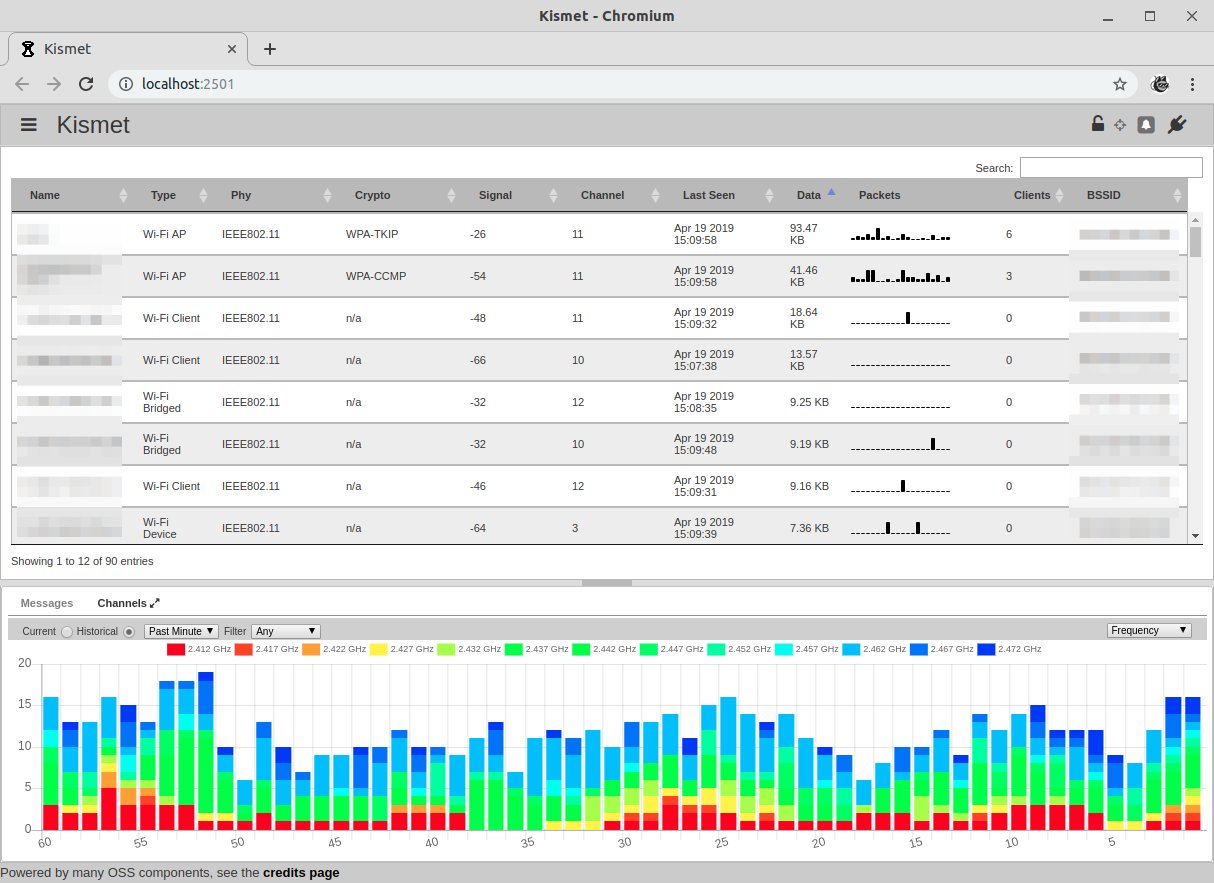
kismet is the canonical Wi-Fi survey/discovery tool. It listens on monitor-mode interfaces, parses 802.11 frames, and logs SSIDs / BSSIDs / probe-request fingerprints / deauth attacks / etc.
10.3.1 Installing kismet
opkg update
opkg install kismet kismet-extras
# ~25 MB installed; check df -h /overlay before
GL-iNet’s package feed sometimes lags upstream OpenWrt’s kismet version. If a feature is missing, install from upstream package mirrors or build from source on the laptop and copy over the binary.
10.3.2 Putting a radio in monitor mode
The BE3600’s mt7996 driver supports monitor mode but with caveats — concurrent AP + monitor on the same radio is finicky. The reliable path is to dedicate one radio to monitor and let the other handle AP duty:
# Take radio0 (2.4 GHz) offline as an AP and put it in monitor:
uci set wireless.radio0.disabled='1'
uci commit wireless
wifi reload

# Add a monitor virtual interface manually:
iw phy phy0 interface add mon0 type monitor
ip link set mon0 up

# Use mon0 in kismet:
kismet -c mon0
Now you’re surveying 2.4 GHz with mon0 while radio1 (5 GHz) keeps the kit SSID up.
For dual-band survey, the simpler answer is an external USB Wi-Fi adapter that supports monitor mode, leaving both internal radios for AP duty.
10.3.3 Recommended USB adapters
Table 2 — 3.3 Recommended USB adapters
| Adapter | Bands | Notes |
|---|---|---|
| Alfa AWUS036ACS (RTL8812AU) | 2.4 + 5 GHz | Workhorse; well-supported; ~$35 |
| Alfa AWUS036NHA (Atheros AR9271) | 2.4 GHz only | Best 2.4 GHz monitor adapter; ~$40 |
| Panda PAU09 (Ralink RT5572) | 2.4 + 5 GHz | Cheaper; smaller; ~$25 |
| TP-Link TL-WN722N v1 (Atheros AR9271) | 2.4 GHz only | v1 only — v2/v3 are different chips and don’t do monitor reliably |
Driver packages: kmod-rtl88xxau-rtl8812au for the Alfa AC-class, kmod-ath9k-htc for the Atheros class.
10.3.4 Channel hopping
# kismet auto-hops by default. Override with:
kismet -c mon0 --override channels=1,6,11    # 2.4 GHz only
# or
kismet -c mon0 --override channels=36,40,44,48,149,153,157,161   # 5 GHz only
10.4 Wired / Forwarded Capture — tcpdump
For looking at traffic the router itself sees — your kit clients talking to the venue:
# Capture on br-lan (your kit clients):
tcpdump -i br-lan -n -w /mnt/usb/lan-capture.pcap

# Capture on WAN (after NAT, before VPN):
tcpdump -i wan -n -w /mnt/usb/wan-capture.pcap

# Capture on wgclient (after VPN encapsulation — useful only as a sanity check):
tcpdump -i wgclient -n -w /mnt/usb/wg-capture.pcap

# Live-stream to laptop:
ssh root@192.168.8.1 'tcpdump -i br-lan -U -w -' | wireshark -k -i -
The live-stream-to-laptop pattern is the most useful one in practice: keep the capture analysis on the laptop where memory and disk aren’t constraints, while the router does the actual sniffing.
10.4.1 BPF filters
Limit capture to interesting traffic — saves disk and reduces noise:
# Only DNS:
tcpdump -i wan -n 'udp port 53' -w dns.pcap

# Only between two specific hosts:
tcpdump -i br-lan 'host 192.168.8.42 and host 1.1.1.1' -w specific.pcap

# Only TLS handshakes (port 443 SYN packets):
tcpdump -i wan 'tcp port 443 and tcp[tcpflags] & tcp-syn != 0' -w handshakes.pcap
10.5 IDS — suricata
Suricata is an IDS/IPS that pattern-matches against rule sets (Emerging Threats, custom). On this hardware:
- Single-rule-set Suricata in IDS-only mode — feasible at typical travel-kit traffic levels (50–500 Mbps).
- Full Emerging Threats Pro rule set — too heavy; pick a subset.
- Suricata as IPS (active blocking) — works but trades latency; only enable for specific threat hunts.
10.5.1 Installing
opkg install suricata
# ~30 MB installed
mkdir -p /etc/suricata/rules
mkdir -p /var/log/suricata
10.5.2 Minimal config
Suricata’s default config is enormous; for the BE3600, edit down to the essentials:
# /etc/suricata/suricata.yaml — minimal
default-log-dir: /var/log/suricata/

af-packet:
  - interface: wan
    cluster-id: 99
    cluster-type: cluster_flow
    defrag: yes
    use-mmap: yes

outputs:
  - eve-log:
      enabled: yes
      filetype: regular
      filename: eve.json
      types:
        - alert
        - http
        - dns

rule-files:
  - /etc/suricata/rules/emerging-malware.rules
  - /etc/suricata/rules/local.rules
10.5.3 Running
suricata -c /etc/suricata/suricata.yaml -i wan
# Or as a procd service:
/etc/init.d/suricata start
Watch alerts:
tail -f /var/log/suricata/eve.json | jq 'select(.event_type=="alert")'10.5.4 Resource ceiling
Empirical numbers on the BE3600:
Table 3 — Empirical numbers on the BE3600
| Traffic level | Suricata CPU |
|---|---|
| 50 Mbps | <10% |
| 200 Mbps | 25–40% |
| 500 Mbps | 60–80% |
| 1 Gbps | hits CPU ceiling, drops packets |
For a travel kit doing 100–300 Mbps typical, Suricata is genuinely usable. For a home-replacement firewall scenario at 1 Gbps+, this is not the right hardware.
10.6 Putting Captures Together — A Pentest Setup Recipe
A scenario: at a conference, something about the venue Wi-Fi seems unusual. The setup:
- Router in Repeater mode attached to the venue Wi-Fi.
- External USB Wi-Fi adapter (AWUS036ACS) in monitor mode — kismet running, logging to USB stick.
- Suricata on
waninterface — flagging known-bad outbound patterns. - tcpdump on
br-lan— full kit-client capture, 5-minute ring buffers. - VPN active, kill-switch verified — kit traffic protected; the captures are diagnostic, not in-the-clear leakage.
# All in parallel, each in its own background or screen session:
kismet -c mon0 --no-ncurses-wrapper -p /mnt/usb/kismet/ &
suricata -c /etc/suricata/suricata.yaml -i wan -D
tcpdump -i br-lan -G 300 -w /mnt/usb/captures/lan-%H%M.pcap &

# Monitor the alerts:
tail -f /var/log/suricata/eve.json
After the conference, stop everything, eject the USB stick, take it to the lab for analysis on a real workstation (Wireshark, Zeek, etc.). The router did the capture; the analysis happens elsewhere.
10.7 Custom Mode — Pentest Mode
The gl-mode daemon (Vol 3 §6) cycles through the four built-in modes. With a small custom script, “Pentest” can become a fifth:
# /usr/sbin/gl-mode-pentest
#!/bin/sh
# Custom mode handler — fires on Mode button to "Pentest" position
case "$1" in
    enter)
        # Bring up monitor interface
        iw phy phy0 interface add mon0 type monitor
        ip link set mon0 up
        # Start kismet + tcpdump + suricata
        /etc/init.d/kismet start
        /etc/init.d/suricata start
        echo "Pentest mode active" > /tmp/oled-status
        ;;
    exit)
        /etc/init.d/kismet stop
        /etc/init.d/suricata stop
        ip link set mon0 down
        iw dev mon0 del
        echo "" > /tmp/oled-status
        ;;
esac
Then update the OLED renderer to display “Pentest” as a fifth icon and bind the Mode button cycle to include it. Vol 3 §6.3 has the OLED hacking primer.
10.8 Cheatsheet Updates
Inputs to Vol 12:
- NAND is too small for sustained captures — USB stick on the back-panel USB.
- Internal Wi-Fi monitor mode is finicky with concurrent AP — dedicate one radio or use external USB adapter.
- Alfa AWUS036ACS is the workhorse external adapter for both bands.
- Suricata is feasible at travel-kit traffic levels (~100–300 Mbps), not at line rate.
- The live-stream-to-laptop pattern:
ssh root@... 'tcpdump -U -w -' | wireshark -k -i - - Capture, then analyze elsewhere — don’t try to do Wireshark deep-dive on the router itself.
Comments (0)