SquachWatch · Volume 8
SquachWatch Volume 8 — Using It
The screens, the alert card, the controls that keep a detector from crying wolf, HUNT mode, the log, desk mode, the lock, and the power knobs
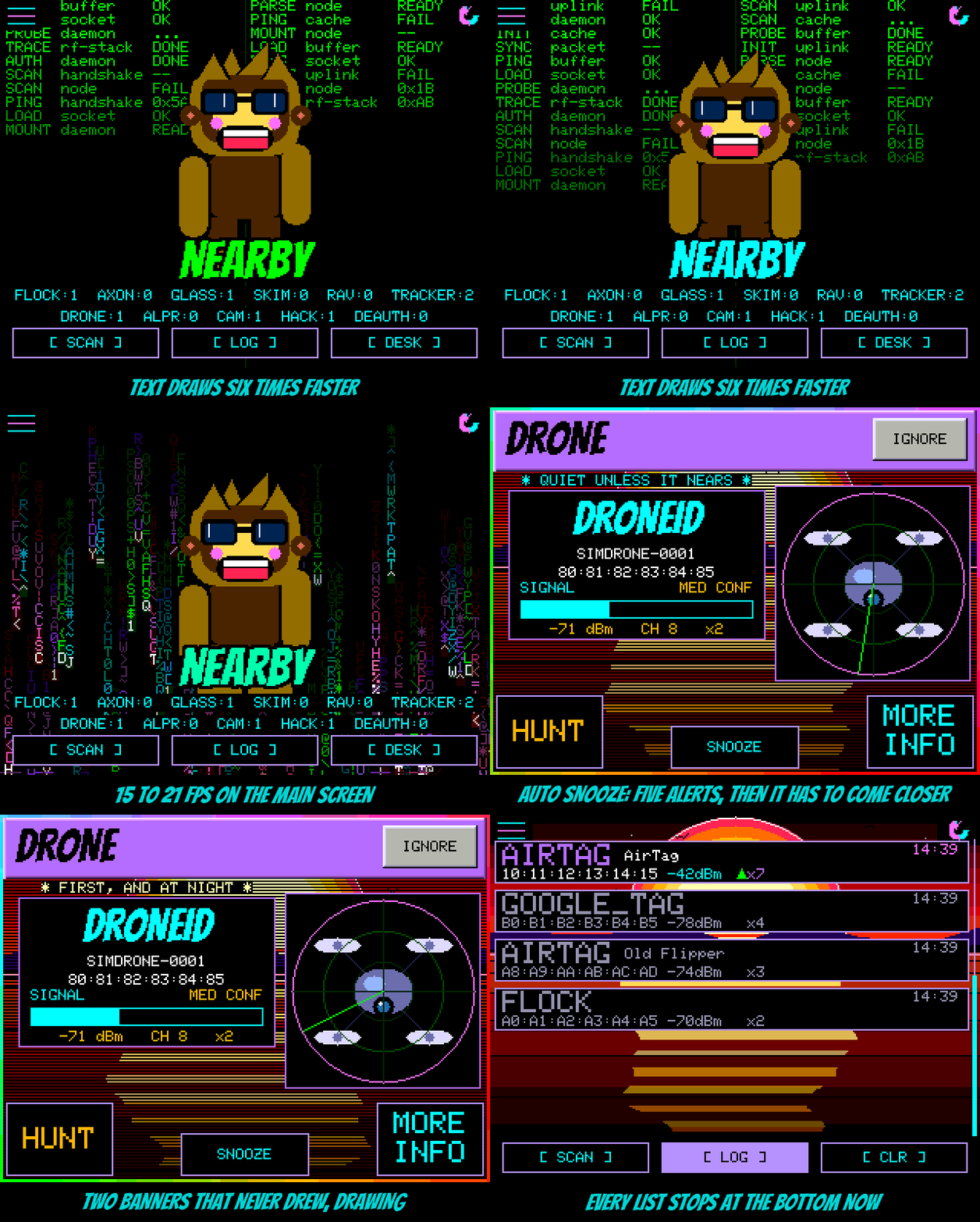
8.1 First boot and the screen map
Everything in this volume describes the 2.8” CYD (ESP32-2432S028R) in landscape, the board the firmware is designed on. The other boards run the same firmware with layouts scaled to their panels; the StickS3 and Cardputer ADV replace touch with a cursor driven from buttons or keys, and the T-Watch adds a WATCH SETTINGS page (Vol 9 §7). Board-specific differences are called out where they matter. Menu names are given exactly as the firmware prints them.
8.1.1 What happens at power-on
 USB power applied
   │
   ▼
 Splash (~1.5 s), stamped with the build's version from `git describe`
   │                       (hold a finger on the screen here to reset touch calibration)
   ▼
 Boot WiFi check — only if a network is saved and UPDATE CHECK is on:
   join ~1-few s → ask squachwatch.com for this build's latest version → NTP → let go
   │
   ▼
 Radios start: WiFi sniffer, then BLE scan (passive)        SD card mounted if present
   │
   ▼
 FIRST BOOT ONLY: touch calibration (5 targets) → colour check (INVERT / ORDER) → Squachy intro
   │
   ▼
 Main screen — detecting
The first-boot sequence — “a touch calibration, a colour check and a quick intro from Squachy” — runs once; each part can be rerun later from Settings → SYSTEM (CALIBRATE TOUCH, CHECK COLORS) and Settings (REPLAY INTRO). Calibration asks the user to tap and hold each of five targets for about a second; one calibration covers all four rotations. If calibration goes badly wrong, restarting with a finger held anywhere on the screen during the “Hold anywhere now to reset touch calibration…” prompt resets it.
Tip — Menu taps must be short. “A touch held for more than about half a second without moving is ignored, so a slow thumb is not a tap.” Resistive panels reward a fingernail or stylus.
8.1.2 The main screen
┌──────────────────────────────────────────────────────────────────────────┐
│ [⚙]  Settings (top-left)                          Rotate (top-right) [⟳] │
│ ┌────────┬────────┬────────┬────────┬────────┬────────┐                  │
│ │ FLOCK 0│ AXON 0 │ GLASS 0│ SKIM 0 │ RAV 0  │TRACKER3│   counter row(s)  │
│ ├────────┼────────┼────────┼────────┼────────┼────────┤   tap one → the   │
│ │ DRONE 0│ ALPR 0 │ CAM  2 │ BCON 0 │DEAUTH 0│ HACK 0 │   closest device  │
│ └────────┴────────┴────────┴────────┴────────┴────────┘   of that kind    │
│      NEARBY banner  /  HUNTING pill  /  UPDATE / LORA NEW pills            │
│                                                                            │
│                 animated background + Squachy (speech bubble)              │
│                                                                            │
│   [ SCAN ]               [ LOG ]               [ DESK ]                     │
└──────────────────────────────────────────────────────────────────────────┘
Counters. Settings → APPEARANCE → DETECTIONS chooses the style: XP draws the counters as Windows-XP taskbar buttons, one per kind currently in range; CLASSIC shows the full fixed counter rows. Either way, tapping a counter opens the closest device of that kind. Eleven fixed columns cover all seventeen types through three folds — trackers into TRACKER, Ring into CAM, evil twins into HACK (Vol 7 §1.3).
NEARBY. Each device on NEARBY shows a green up-arrow when it has come closer since its last reading and a red down-arrow when it has moved away; a change under 4 dB shows nothing, “which is what a still device does.” In CLASSIC style a long press (600 ms) on NEARBY opens the closest live device.
Soft buttons:
Table 1 — Soft buttons:
| Button | Screen | Action |
|---|---|---|
[ SCAN ] | Main | Return to the main (idle) screen; the source also routes a manual raw BLE or WiFi sweep through it, with a TRACK THIS TARGET? panel (WATCH / HUNT / CANCEL) on a chosen result |
[ LOG ] | Main | Open the detection log |
[ DESK ] | Main | Desk mode (§6) |
[ CLR ] | LOG | Wipe the log and return |
The raw-sweep path is described in source comments (include/ui_rawscan.h: “Reached from CLEAR’s SCAN button picker”) but not in the README; its exact on-screen flow has not been confirmed here against a running board or the emulator.
8.1.3 Screen states
            ┌──────┐ ~1.5 s
   power ──►│ BOOT ├────────┐
            └──────┘        ▼
                       ┌─────────┐  new detection, passes the gates  ┌─────────┐
            ┌─────────►│  MAIN   │──────────────────────────────────►│  ALERT  │
            │          │ (CLEAR) │◄──────────── tap / 10 s ──────────┤  card   │
            │          └──┬───┬──┘                                   └────┬────┘
            │  [SCAN]     │   │ [DESK]                     HUNT on card   │
            │             │   ▼                                           ▼
       ┌────┴───┐ [LOG]   │ ┌──────┐                             ┌───────────┐
       │  LOG   │◄────────┘ │ DESK │  (catches → small card)     │   HUNT    │
       └────┬───┘           └──────┘                             │  gauge    │
            │ hold a row → WATCH / HUNT / IGNORE                 └───────────┘
            ▼
     watched device returns ───────────────────────────────────► LOCKED ON (waits for tap)
The design contract’s original state machine was BOOT → CLEAR ⇄ ALERT ⇄ LOG with a five-second alert; the shipping firmware auto-dismisses after ten seconds and has added DESK, HUNT, LOCKED ON, the settings pages and the SquachMesh screens.
8.2 The alert card
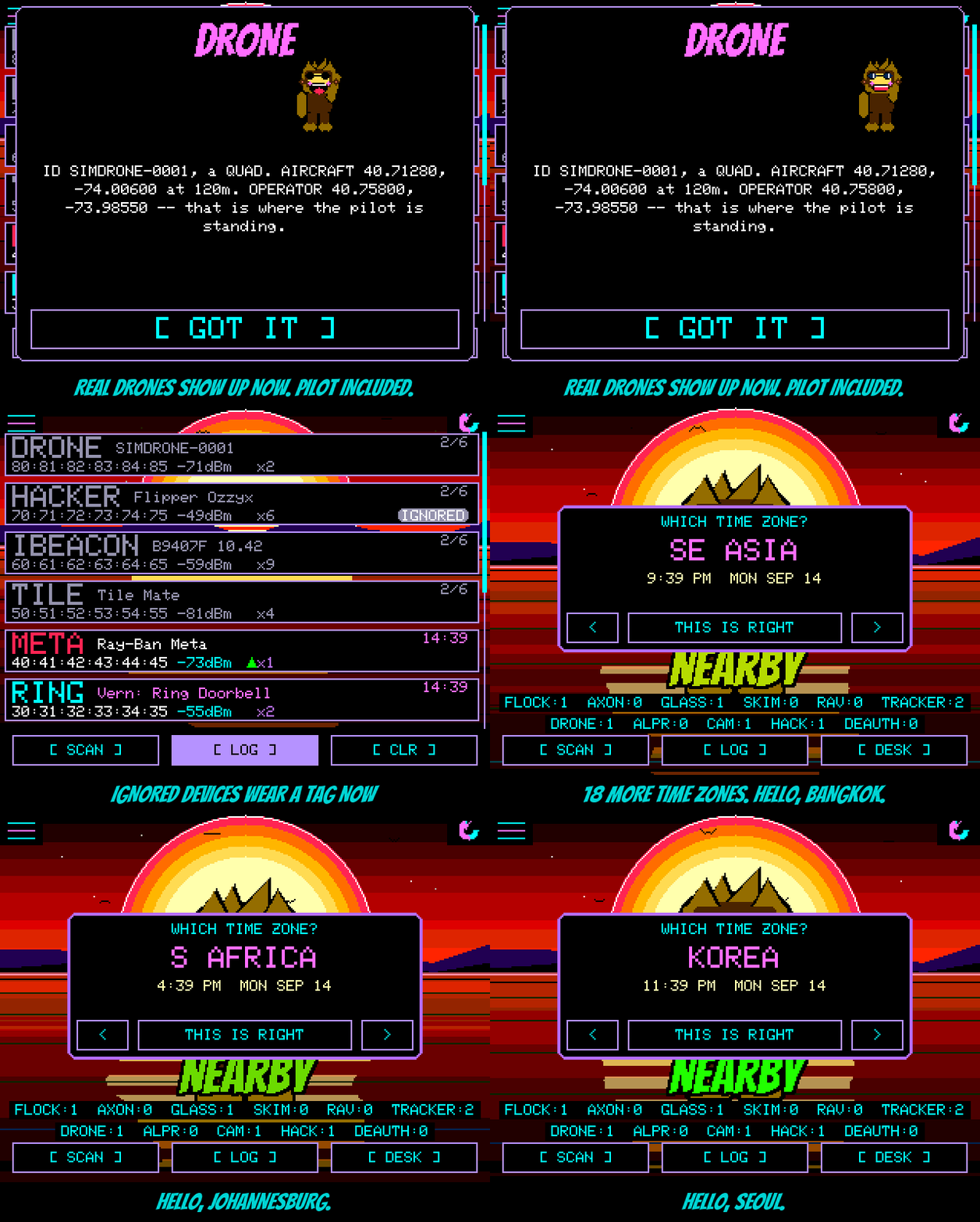
When a new detection passes every gate in §3.3, the board flashes a full-screen alert. Its anatomy:
┌──────────────────────────────────────────────────────────────┐
│███  FLOCK  ████████████████ (header in the type's colour,     │  ← type, Bangers display face
│                               FIRST OF ITS KIND / AT NIGHT)   │
├──────────────────────────────────────────────────────────────┤
│  VENDOR   Flock-BLE              ┌─────────────────────────┐ │
│  NAME     Penguin-xxxx           │   gauge: what was found │ │
│  MAC      B4:1E:52:xx:xx:xx      │   with the instrument   │ │
│  SIGNAL   ▮▮▮▮▮▯▯▯  -67 dBm      │   grid over it          │ │
│  CONF     HIGH CONF              └─────────────────────────┘ │
├──────────────────────────────────────────────────────────────┤
│   [ MORE INFO ]   [ IGNORE ]   [ SNOOZE ]   [ HUNT ]           │
└──────────────────────────────────────────────────────────────┘
      tap anywhere else to dismiss · clears itself after 10 s
Table 2 — 2. The alert card
| Element | Meaning |
|---|---|
| Header colour | The detection type’s own colour; HACKER, DEAUTH and EVILTWIN share red |
| Vendor | The matched row’s label — e.g. RayBanMeta vs Meta tells the specific glasses UUID from a company-ID hit |
| Name | The device’s own advertised name, an SSID, a drone serial, a Pwnagotchi’s name, or an iBeacon’s UUID fragment and major.minor |
| Signal | RSSI meter |
| Confidence | HIGH CONF, MED CONF or LOW CONF (Vol 7 §4.1) |
| FIRST OF ITS KIND | This board has never caught this type before; Squachy marks the occasion later |
| AT NIGHT | Caught between 23:00 and 05:00, once the clock is set |
| SPAM: N FAKE TAGS | The single alert raised when a type trips the flood detector (Vol 7 §7) |
Table 3 — 2. The alert card
| Button | Effect |
|---|---|
| MORE INFO | What this thing is and why it matched (the text lives in src/detection_info.cpp) |
| IGNORE | Never alert on this exact device again; still logged and counted, with an IGNORED tag on its LOG row. The button then reads MUTED; tap again, or use Settings → IGNORED, to undo |
| SNOOZE | Quiet about this device until the board restarts |
| HUNT | Opens HUNT mode aimed at this device (§4) |
8.3 Keeping alerts useful
The README frames the design problem in one line: “A detector that cries wolf gets switched off.” Apart from TYPE FILTER, none of the controls below stop anything being scanned, counted or logged; they only decide what takes over the screen.
8.3.1 The controls
Table 4 — 3.1 The controls
| Control | Where | Options | What it does |
|---|---|---|---|
| IGNORE | Alert card, or LOG row | per device | Permanent alert suppression for one device; LOG row tagged IGNORED |
| SNOOZE | Alert card | per device | Same, until restart |
| AUTO SNOOZE | Settings (BEHAVIOR) | OFF, AFTER 5, AFTER 10 | After N alerts a device must come 7 dB closer than it ever has to interrupt again; allowance returns after 30 minutes |
| ALERT FILTER | Settings (BEHAVIOR) | ALL, MED+, HIGH ONLY | Minimum confidence allowed to take over the screen |
| TYPE FILTER | Settings (BEHAVIOR); screen titled DETECTION FILTER | per type on/off | An off type is dropped, not logged. IBEACON ships off |
| Watch list | Hold a LOG row → WATCH | one device | LOCKED ON when it returns; always passes AUTO SNOOZE and spam suppression |
| HUNT MODE | HUNT on the alert card, or hold a LOG row | one device | Signal gauge; HUNTING pill on the main screen; STOP HUNT ends it |
| Spam floods | Automatic | — | One SPAM alert, then quiet logging until five minutes pass without more |
| HEADS-UP | Settings → SQUACHMESH | on/off | Squad members’ serious catches arrive as a banner (Vol 9 §5) |
| TAGS + RINGS | WATCH SETTINGS (T-Watch) | LOG ONLY (default), ALERT | Trackers and Ring cameras logged without waking the screen or buzzing |
The row labels are taken from src/ui_settings.cpp: the settings list shows TYPE FILTER, which opens a screen titled DETECTION FILTER; some README and source text uses the second name.
8.3.2 How AUTO SNOOZE decides
AUTO SNOOZE is an RSSI high-water mark per device. It is aimed at the doorbell across the street “that takes your screen every time you walk past.”
 device D raises a would-be alert at RSSI r
   │
   ├─ AUTO SNOOZE OFF, or D is the watched device ───────────────► ALLOW
   │
   ├─ D gone ≥ 30 min, or 30 min since its last alert ───────────► reset: alerts = 0, bar = 0
   │      (on a T-Watch sitting still, only "really gone" resets)
   │
   ├─ alerts < N (5 or 10) ─► alerts++ ; bar = max(bar, r) ──────► ALLOW
   │                           (the Nth is ALLOW_LAST)
   │
   └─ out of free alerts:
         r ≥ bar + 7 dB ─► bar = r ──────────────────────────────► ALLOW (it came closer)
         otherwise ───────────────────────────────────────────────► HOLD (logged, no alert)
The bar is the strongest reading the device has ever interrupted at, not the most recent, so “five alerts at −80 and one at −60 should leave a device having to beat −60.” Without the 30-minute decay, the source notes, the device that once came closest would become the one that could never be heard again — “backwards on a detector.”
8.3.3 The order the gates run in
 detection
   │
   ├─ TYPE FILTER off for this type? ──────────────► dropped entirely (not logged)
   ├─ logged: LOG row, black box, SD CSV, counters
   ├─ watched device? ─────────────────────────────► LOCKED ON (bypasses everything below)
   ├─ type in a spam flood? ───────────────────────► logged quietly
   ├─ IGNORED or SNOOZED? ─────────────────────────► logged quietly
   ├─ below ALERT FILTER grade? ───────────────────► logged quietly
   ├─ AUTO SNOOZE says HOLD? ──────────────────────► logged quietly
   └─ ALERT card (or a small card in DESK mode; LOG ONLY types on the watch stay silent)
This ordering is a synthesis of the README’s control table and the FAQ; the precise sequence inside main.cpp’s alert gate has not been traced line by line, and two controls (ALERT FILTER and IGNORE) commute in any case.
Tip — A sensible field setup on a fresh board: ALERT FILTER at MED+ (suppresses the 48 Low Flock module prefixes and other module-vendor rows), AUTO SNOOZE at AFTER 5, and IGNORE on every device known to belong to the user — own AirTags, own doorbell, own Flipper. Lower-confidence matches remain in the LOG for later review.
8.4 The watch list and HUNT mode
WATCH. Long-press any row in the LOG and choose WATCH. It works on any device, “even one that matched nothing” — the watch slot is checked in both radio callbacks before the signature tables. When the device reappears the board shows LOCKED ON: a radar scope with the signal and whether it is getting CLOSER or FURTHER, which stays up until tapped. REMOVE FROM WATCH LIST stops it. One device at a time; the watch resets at restart.
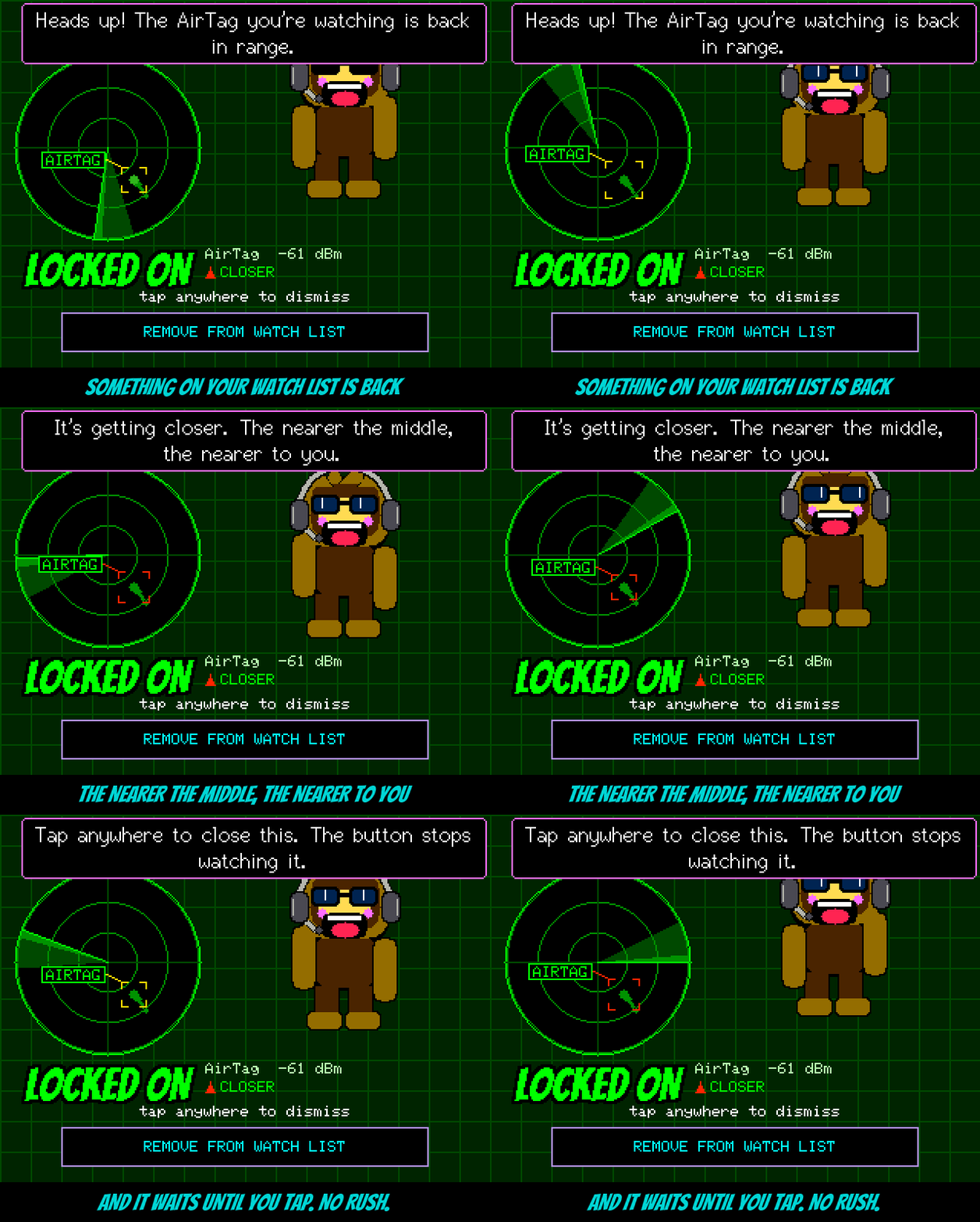
HUNT. A hand-swept signal-strength meter. The hardware has no magnetometer, so it is “deliberately … not a self-orienting compass — it’s a strength meter you sweep by hand/body the way real fox-hunting works with a plain omnidirectional receiver: rotate to find where the signal fades, walk toward where it doesn’t.”
Table 5 — 4. The watch list and HUNT mode
| Readout | Rule in src/ui_hunt.cpp |
|---|---|
| GETTING WARMER | Latest sample more than 3 dB above the comparison sample |
| GETTING COLDER | More than 3 dB below |
| (steady) | Within ±3 dB |
| CAUGHT! | Two samples running at −48 dBm or stronger (“arm’s length”); held 5 s; the status light flashes green |
| Re-arm | Signal drops more than 10 dB below the catch level |
  HUNT technique (omnidirectional meter, no compass)

        stand still ─► turn slowly through 360°, body between board and target
              │         reads weakest when the body shadows the target
              ▼
        face AWAY from the weakest heading ─► walk 5-10 paces
              │
              ├─ WARMER ─► keep going
              ├─ COLDER ─► turn back, re-sweep
              └─ CAUGHT! (≥ −48 dBm twice) ─► within roughly arm's length
Caution — “Many phones and trackers change their Bluetooth address on purpose to defeat exactly this, so it’s best on gear that doesn’t.” An AirTag rotates its address, so a hunt can lose its target mid-walk; fixed-address gear — cameras, doorbells, Flock units, skimmer modules, a squad member’s board — hunts well. The −48 dBm threshold is a fixed number and does not account for transmit power, so a high-power transmitter can read CAUGHT from further away than a coin-cell tag.
8.5 The log, the black box and the SD card
Table 6 — 5. The log, the black box and the SD card
| Store | Capacity | Survives restart | Contents | Clear with |
|---|---|---|---|---|
| Live LOG (RAM) | 64 rows | No | One row per device per type, merged on repeat sightings | [ CLR ] |
| Black box (flash) | About 1,800 sightings, plus about the last hundred boots incl. crash details | Yes | After a restart the LOG restores the newest sighting of up to 200 devices, drawn in grey | [ CLR ]; a duress wipe |
| SD card CSV | Card size | Yes | Every detection appended to a daily file | Delete files; a duress wipe |
| Wardrive log (T-Watch S3 Plus) | Up to 125,000 sightings | Yes | Everything heard with a GPS fix (Vol 9 §9) | Its own clear; a duress wipe |
The live LOG was cut from 200 to 64 rows because 200 cost 11.6 KB of static RAM; history depth moved to flash, and the LOG screen “scrolls out of these rows and straight into eighteen hundred sightings on disk.”
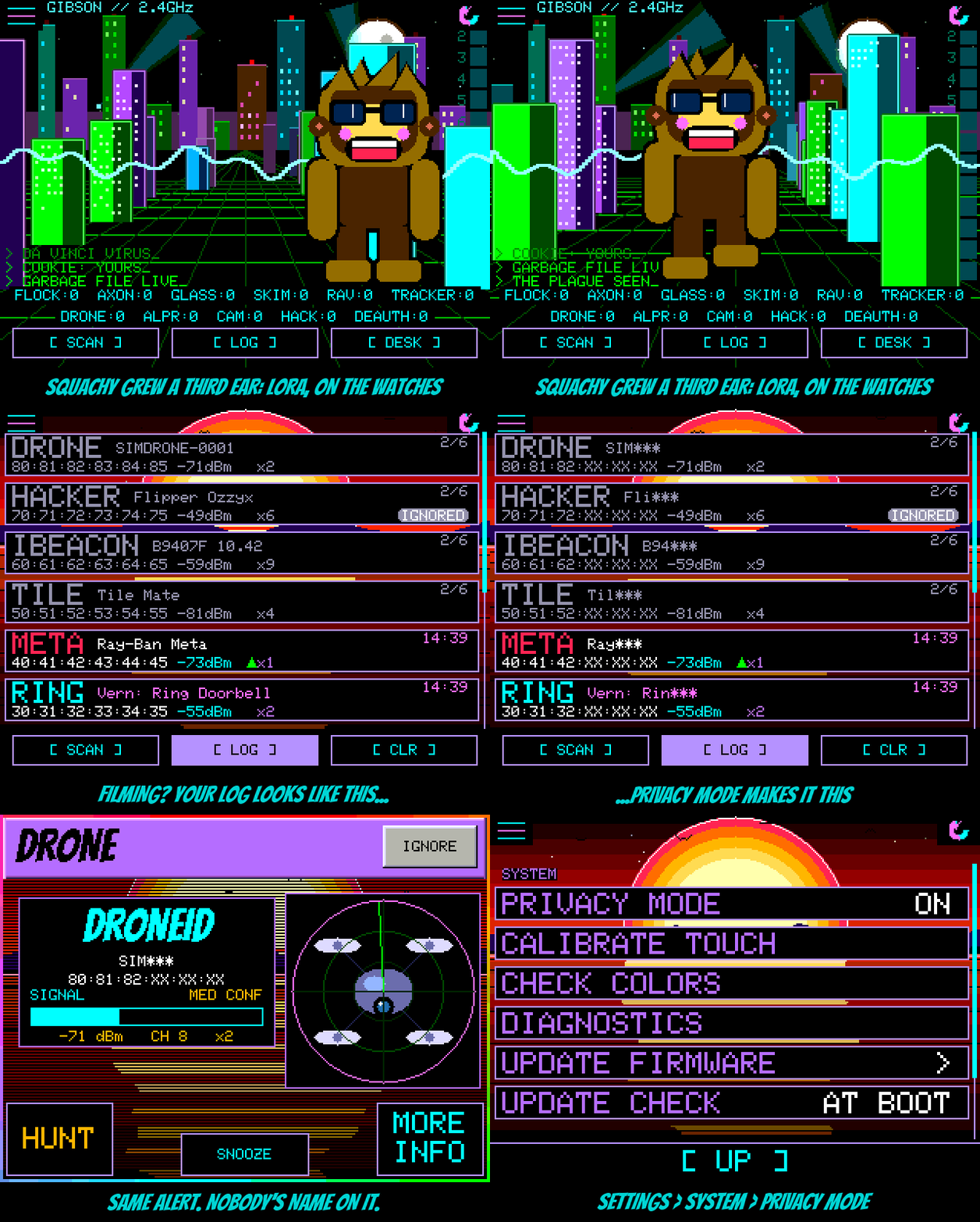
LOG row actions (press and hold): WATCH, HUNT, IGNORE / UN-IGNORE; a row captured with a GPS position shows SEEN AT with where. A device seen on three different days becomes a Regular and gets a name on its LOG row. Once the clock is set the LOG shows real times, or the date for an older catch.
SD card format. One file per local day, /squachwatch-YYYYMMDD.log (or /squachwatch-nodate.log before the clock is known). Each row is CSV:
ts,type,rssi,mac,channel,vendor,ssid
2026-10-13T14:02:11Z,FLOCK,-71,B4:1E:52:xx:xx:xx,6,Flock,
2026-10-13T14:02:40Z,AIRTAG,-58,xx:xx:xx:xx:xx:xx,0,Apple,
The README’s header names the last column ssid; include/sd_row.h calls it the name, which carries the SSID for WiFi matches and the advertised name for BLE. The timestamp is ISO-8601 UTC when the clock is trusted, otherwise milliseconds since boot. A GPS build (T-Watch S3 Plus, and the unreleased cyd-gps CYD builds) appends latitude, longitude to seven decimal places and accuracy in metres, empty without a fresh fix, or FAKE for a bench fix typed on the console. BLE rows carry channel 0. The example rows above are illustrative, with addresses masked.
8.6 The clock, desk mode and the status light
The clock. The board has no RTC battery and (except on GPS builds) no GPS, and it never joins a network to scan. It sets its clock four ways: one NTP round trip during the boot update check when a network is saved; the web flasher’s Set Time & Zone button immediately after flashing; a serial line TIME <epoch> (with ZONE US EASTERN and similar) at the board’s console speed, which is 2,000,000 baud on the CYD; or from any squad member’s hello (Vol 9 §3). It saves a note of the time to flash every ten minutes, so a cold boot never goes backwards in date, but such a clock is used for the date only. TIME ZONE lives on the DESK page; daylight saving is automatic.
Desk mode. DESK MODE turns the board into a desk clock: the date and time in large seven-segment digits over the chosen background, Squachy underneath, and a FOCUS 25 timer (25 minutes, then the status light goes green, Squachy says to stand up, and a five-minute break runs). Detection continues: a catch appears as a small card by the buttons instead of the full ALERT (tap it for the full card), and a squad message appears as a polaroid of the sender’s Squachy with the note beside it. The power saver never dims this screen. The DESK page holds DESK BACKGROUND, CLOCK FONT, CLOCK SIZE, CLOCK BG, TIME ZONE, and on mesh builds SQUAD ON DESK and the visit options.
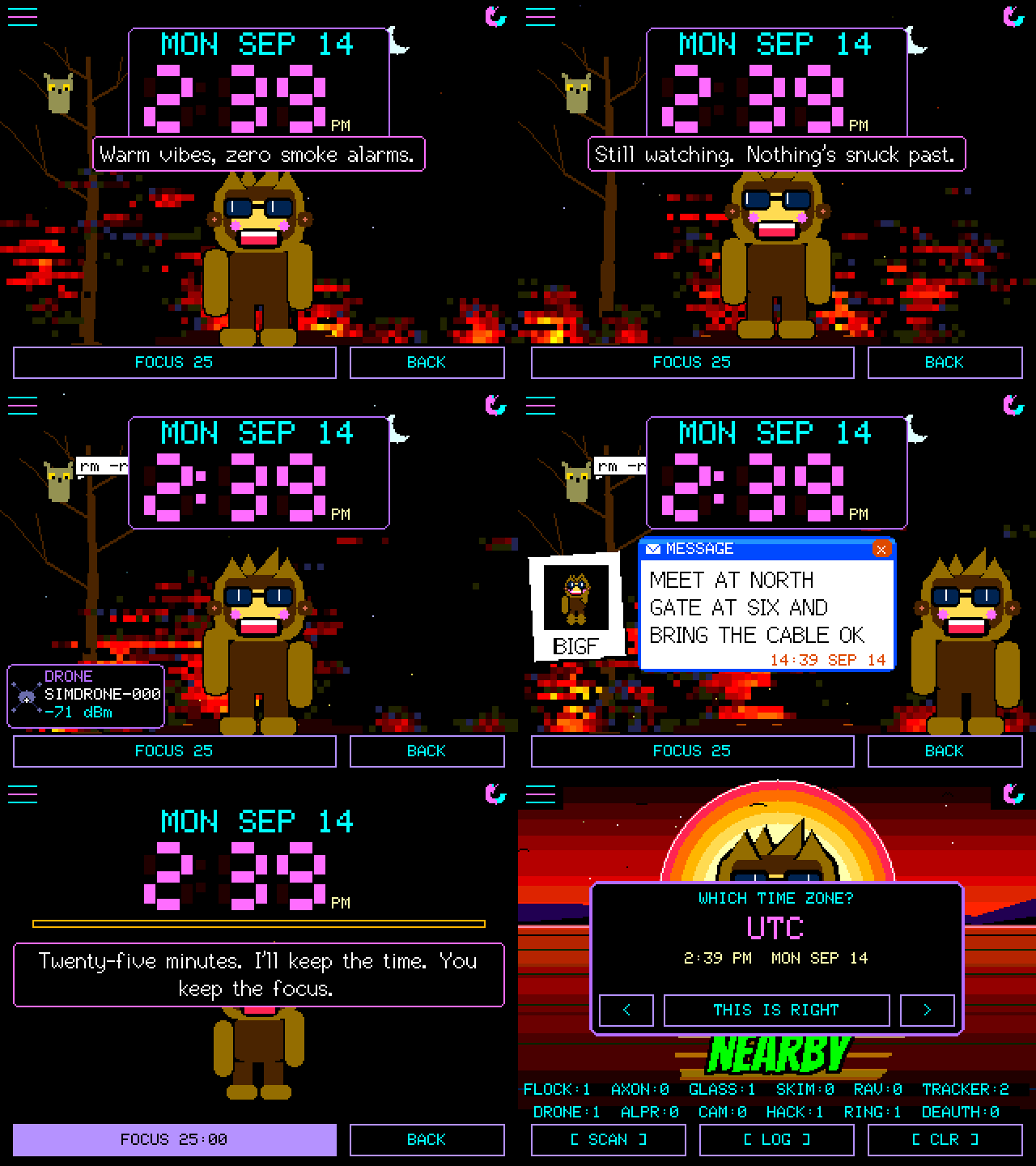
The status light. The RGB LED on the back of the 2.8” CYD (front of the RL Phantom; a WS2812 on the Freenove ESP32-S3 2.8”) reports state without the screen:
Table 7 — The status light. The RGB LED on the back of the 2.8" CYD (front of the RL Phantom; a WS2812 on the Freenove ESP32-S3 2.8") reports state without the screen
| Pattern | Meaning |
|---|---|
| Slow breathe, theme colour | Idle, nothing detected |
| Three flashes then hold, in the detection’s colour | An alert card is up |
| Double-blink | Unread message |
| Blip | A squad member walked on |
| Cyan | Update downloading |
| Green / red | Update succeeded / failed |
| Green flash | HUNT says CAUGHT!; focus timer ended |
| Dark | Lock screen, or during a wipe — a duress restart looks like any other restart from the back |
Settings → APPEARANCE → STATUS LIGHT has the master switch, alerts and messages on/off, idle breathe/solid/off, idle colour (theme, background, or nine fixed colours), seven brightness steps and a six-second TEST. Boards whose LED pins have not been checked (the AWOK 2.4” and the 3.5”) compile it out and say so.
8.7 PIN, duress PIN and privacy mode
Settings → SECURITY:
Table 8 — Settings → SECURITY
| Setting | Options | Behaviour |
|---|---|---|
| PIN | 4, 6 or 8 digits | Lock screen; detection keeps running while locked |
| LOCK AT BOOT | on/off | Locked from power-on |
| AUTO-LOCK | on screen sleep, or 1–30 idle minutes | |
| ALERTS LOCKED | FULL, TYPE ONLY, NONE | How much an alert shows to whoever is holding a locked board |
| DURESS PIN | same length as the PIN | Looks like an unlock; first wipes, then restarts quietly |
| WIPE AFTER 10 | on/off | The duress wipe after ten wrong guesses |
| REMOTE UPDATE | on (default)/off | Whether squad members may trigger an update (Vol 9 §6) |
What the duress wipe erases: the squad phrase and key, saved WiFi passwords, the ignore list, the black-box log and crash history, the SD card’s log files and the watch’s wardrive log. Then the board restarts with the status light dark and no splash, and comes up unlocked on the main screen looking like an ordinary, empty SquachWatch. Other settings survive.
Caution — The project is explicit about the PIN’s threat model: it is for “people at the table, not someone with a USB cable.” It “stops a snoop who picks the board up. It does not stop someone with a USB cable and some time, because the flash can be read directly.” The board says so when the PIN is set. Neither the repository’s docs nor its build configuration mention ESP32 flash encryption, so a duress wipe is the protection that actually removes data.
PRIVACY MODE (Settings → SYSTEM) is for filming and screenshots: addresses show as AA:BB:CC:XX:XX:XX and device and network names are cut to three characters, on screen only — “nothing stored changes,” and it is not a radio switch. It also covers the T-Watch’s LORA CHATS.
8.8 Power
Table 9 — 8. Power
| Control | Where | Boards | Behaviour |
|---|---|---|---|
| POWER SAVER | Settings | All; on by default only on the watch | LOW POWER master switch, SCREEN TIMEOUT, DIM TO, IDLE FRAMES, IDLE AFTER, CPU CLOCK, WAKE ON ALERT |
| CHARGE MODE | Settings, or hold BOOT ~1 s on CYD boards | All except the watch | Radios, status light and screen off for faster charging; tap the dark screen to see charge time |
| POCKET MODE | Short press of BOOT (CYD); the crown (watch) | CYD-style, T-Watch | Screen off; only another press turns it on, so a touch in a pocket won’t. Alerts still light the screen for their card |
| POWER OFF | Hold BOOT 3 s | Freenove ESP32-S3 2.8” and 3.5” | True power switch; KEEP HOLDING prompt at 1 s |
| LAST RUN | Settings → SYSTEM | All except the watch | How long the previous power-up lasted — the practical battery-capacity test |
| Battery lamp | Main screen, under the menu button | Freenove ESP32-S3 2.8”/3.5”, T-Watch | Lava lamp filled to charge; bubbles and a rainbow on the cable; flicker under 10% |
| SOUND / VOLUME | Settings | Freenove ESP32-S3 2.8”/3.5” | OFF (default), ALERTS, ALL; silent at night (23:00–05:00) and while dimmed, except a watch-list hit |
| BUZZER | Settings (BEHAVIOR) | CrowPanel 7 | Off by default; NEW ONLY chirps for a never-seen device |
Sources: README “Power”; docs/FAQ.md “Battery and power” and “Does it make any noise?” Battery-life figures are not published for any board; LAST RUN is the project’s recommended way to measure one. Vol 4 covers battery hardware.
8.9 The settings map
The main Settings list, with the group headings the firmware draws over it, as defined in src/ui_settings.cpp (rows marked † appear only on some builds):
SETTINGS
├─ WATCH ───────── WATCH SETTINGS †(T-Watch) ─► BATTERY, WARDRIVE, TAGS + RINGS, LORA CHATS,
│                                               LORA, RADIOS, BLE LISTEN, SLEEP CPU, BUZZ, CHIP TEMP
├─ BEHAVIOR ────── BORING MODE · ALERT FILTER · AUTO SNOOZE · BUZZER †(CrowPanel)
│                  SOUND · VOLUME †(Freenove S3) · WIFI BANDS †(ESP32-C5)
│                  TYPE FILTER ─► DETECTION FILTER screen · IGNORED
├─ SQUACHY ─────── APPEARANCE ─► (page) SQUACHY SIZE, OUTFIT, PET, SHADES COLOR, BANTER, AURA,
│                                       THEME, BACKGROUND, LOCK BACKGROUND, DETECTIONS,
│                                       BRIGHT, INVERT COLORS, COLOR ORDER, ROTATION LOCK,
│                                       STATUS LIGHT
│                  SQUACHMESH ─► (Vol 9) · REPLAY INTRO · SHOW OFF · SQUACHY'S DIARY
│                  BINGO · SQUACHY-DEX · DESK MODE ─► (page) OPEN DESK, backgrounds, clock,
│                                                          TIME ZONE, SQUAD ON DESK …
└─ SYSTEM ──────── POWER SAVER · WARDRIVE †(cyd-gps) · CHARGE MODE †(not watch)
                   SECURITY ─► PIN, LOCK AT BOOT, AUTO-LOCK, ALERTS LOCKED, DURESS PIN,
                                WIPE AFTER 10, REMOTE UPDATE
                   SYSTEM ─► (page) PRIVACY MODE, BATTERY †, LAST RUN, CALIBRATE TOUCH,
                              CHECK COLORS, DIAGNOSTICS, UPDATE FIRMWARE, UPDATE CHECK,
                              WIFI NETWORKS, RESET STATS
POWER SAVER, CHARGE MODE and SECURITY fall through to the SYSTEM heading in the row-group function. In BORING MODE the APPEARANCE row moves under SYSTEM and Squachy’s rows stay visible but greyed.
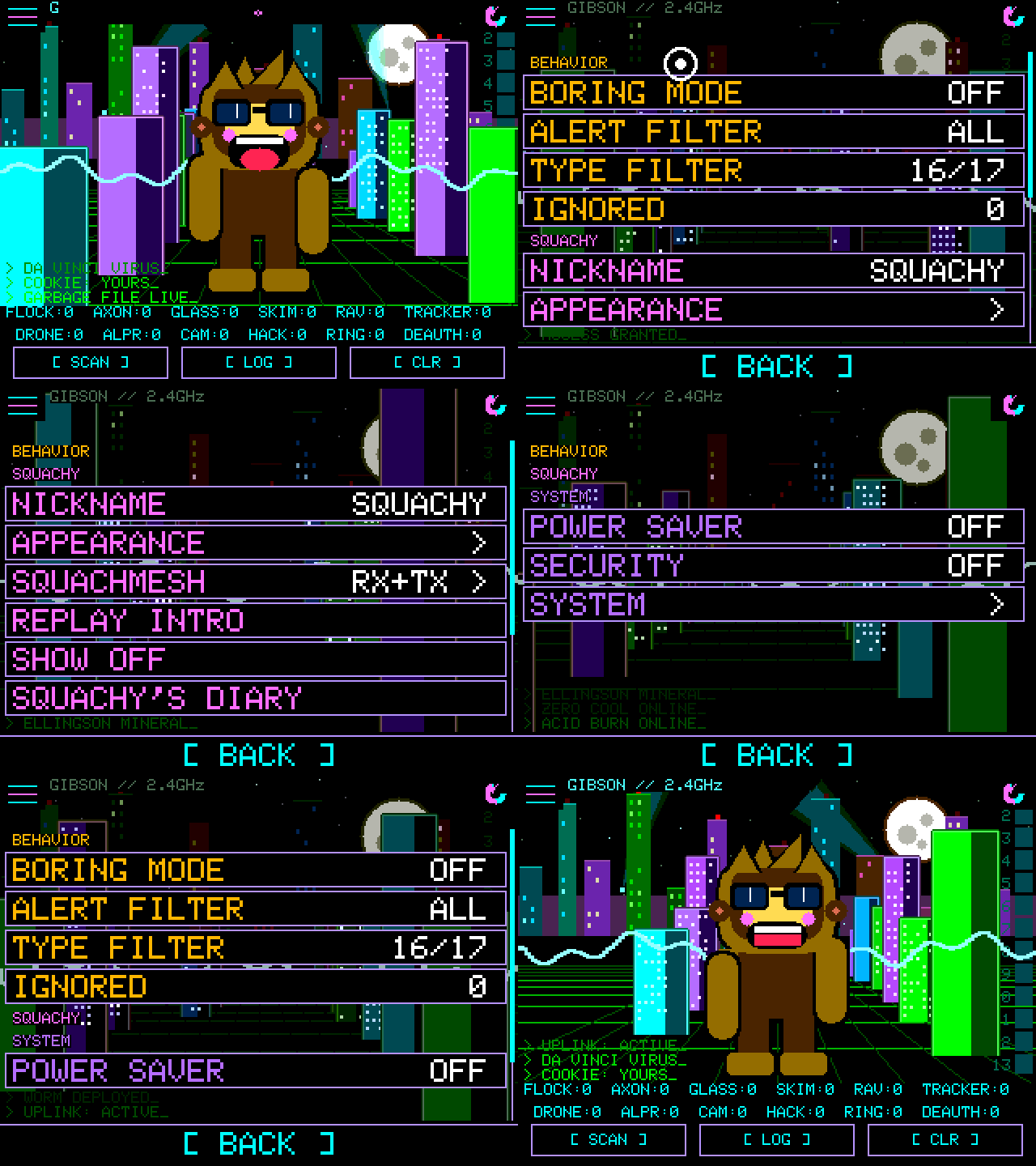
8.10 BORING MODE and Squachy’s extras
None of the mascot layer affects detection. The README’s line: “None of this finds anything. All of it is why you leave him on.”
BORING MODE (Settings → BEHAVIOR) removes Squachy, the pet and the flourishes and offers a plain BLACK background, “for when you just want a detector.” Detection is identical.
Table 10 — 10. BORING MODE and Squachy's extras
| Extra | What it is |
|---|---|
| THEME | Six palettes: VAPRW4VE, CYB3RGR33N, AMB3RTERM, BUBBL3GUM, GH0ST, BL00D |
| BACKGROUND | Ten animated scenes, incl. THE GIBSON (drawn from the user’s own log) and SYNTHWAVE; “some of them hide things” |
| PET | Six companions, once earned |
| SQUACHY-DEX | A card per detection type with lore and the user’s record; the most-caught type (ten or more) becomes his nemesis |
| BINGO | A weekly card of sixteen detection types |
| SQUACHY’S DIARY | Lifetime catches, streaks, firsts |
| BANTER | IMPORTANT, LESS, NORMAL, MORE — how much he talks when idle |
| Outfits | Nineteen; most earned by detection count, ten hidden, one a punishment |
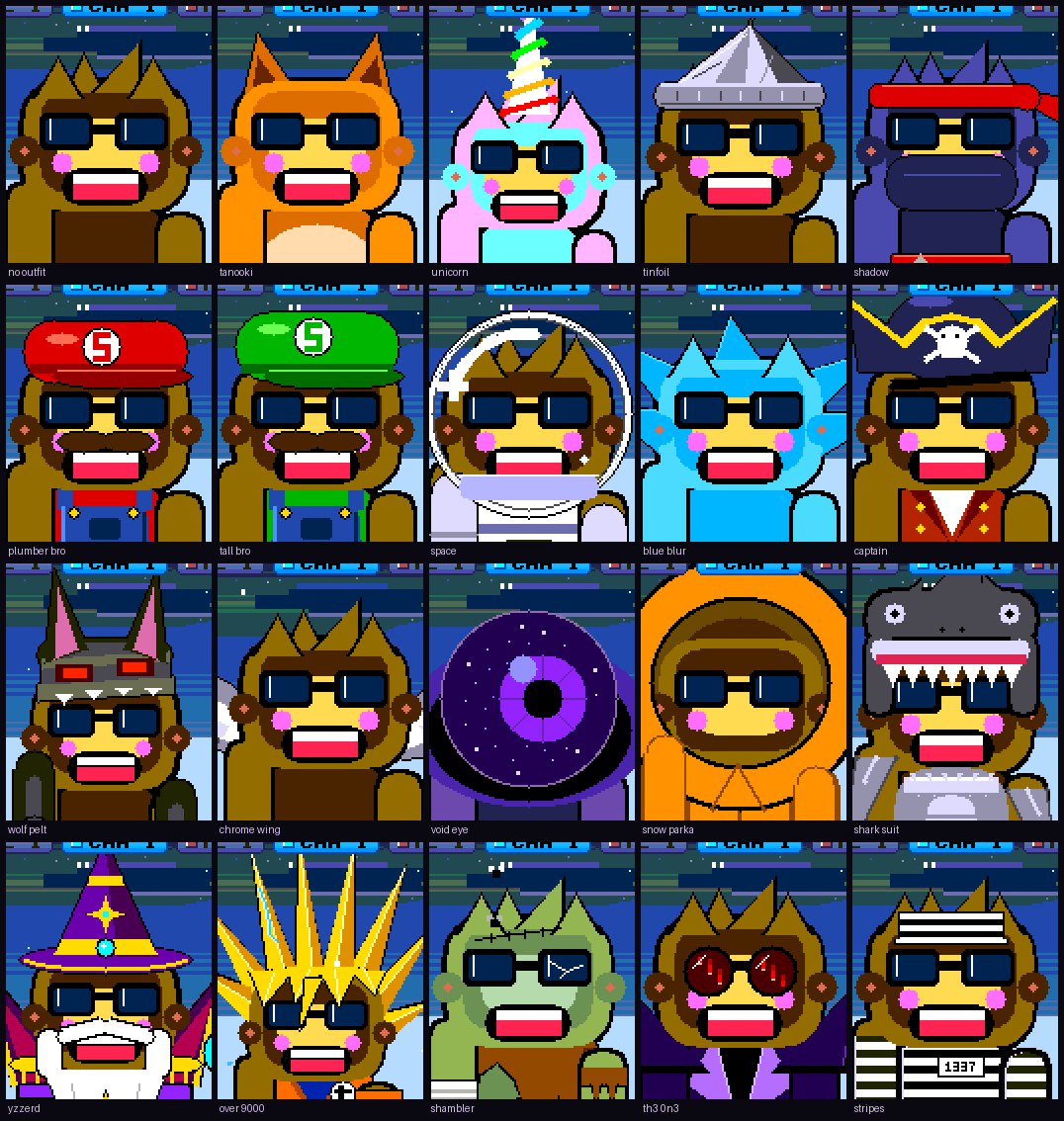
Note — The gamification has a functional side effect worth knowing: BINGO, the DEX and the outfit unlocks reward catching variety, which nudges an owner to carry the board through more places. That is the author’s stated intent — “The detection is the why, Squachy is the fun.”
8.11 Use cases in the field
The controls in §§1–10 add up to a small number of recurring jobs. This section walks the common ones end to end: which features carry the scenario, how to read the HUNT gauge, the watch list and the counters for that job, and where the legal and privacy line sits. None of it changes what the firmware does — it is only how the same detector is driven for different questions. The acting-on-a-detection rules live in Vol 10 §3; the short version appears under each scenario as the boundary.
Table 11 — 11. Use cases in the field
| Scenario | Lead features | Read this | Boundary |
|---|---|---|---|
| Walking a lot or a block | FLOCK / ALPR / AXON / CAM counters, HUNT, SD log | Counters while moving; HUNT to place a fixed unit | Note and map; do not touch infrastructure |
| Rental / hotel room sweep | CAM / RING, TRACKER, HUNT, watch list | NEARBY arrows while walking the room; HUNT to the strongest | Own or booked space only; cameras in private rooms may be illegal to place |
| Event / protest | AXON / DRONE / FLOCK, PRIVACY MODE, POCKET MODE, DURESS PIN | Counters and alert cards; keep the screen dark | Receive only; TRANSMIT off; do not interfere with gear |
| Vehicle check | SKIMMER, TRACKER, HUNT, watch list | SKIMMER at the pump; hunt a tracker that persists across stops | Report a skimmer; preserve a tracker as evidence |
| Desk / ambient | DESK MODE, status light, SD log, HEADS-UP | The small card and the back LED; review the day’s log later | Passive logging of your own space |
8.11.1 Walking a lot or a block: ALPR, Flock, cameras
The question is “what surveillance infrastructure is fixed here.” Carry the board awake (not POCKET MODE) with ALERT FILTER at MED+ so module-vendor noise stays in the LOG and only credible hits take the screen. Walk the lot at a steady pace and watch the FLOCK, ALPR, AXON, CAM and RING counters rather than waiting for cards: a counter that climbs as one corner is approached is pointing at a fixed installation. To place a unit, tap its counter (or HUNT from its alert card) and use the HUNT gauge as a hand-swept strength meter — WARMER toward it, CAUGHT! (≥ −48 dBm twice) at roughly arm’s length (§4). Fixed-address gear such as a Flock camera or a pole-mounted reader hunts well, unlike rotating-address trackers. A FAT32 microSD (§5) turns the walk into a timestamped CSV for later mapping.
Boundary — A detection is evidence of a radio, not of a crime. Note location and time and compare with public ALPR-mapping efforts (Vol 10 §3.4); do not climb, obstruct or tamper with hardware that belongs to someone else.
8.11.2 Sweeping a rental or hotel room
The question is “is anything watching this room I am staying in.” Two types matter: CAM / RING (a known camera vendor’s WiFi radio) and TRACKER (a tag left to follow the renter). Set the board down, let the radios warm up (~5–10 s), then walk the room slowly holding it: on NEARBY a green up-arrow means a device got closer as it was approached, which localises it (§1.2). HUNT the strongest camera or tracker toward CAUGHT! to find where it sits. The hard limits are the same ones the CameraDetection dive states: an SD-only or wired camera emits nothing, and analog or cellular cameras need different radios — SquachWatch only answers the “known vendor’s radio” half. Use the watch list (hold a LOG row → WATCH) on anything suspicious so it shows LOCKED ON if it reappears after the room is rearranged.
Boundary — Sweep only a space that is booked or owned. Finding a camera in a private rented room may itself be evidence of an offence; document it (PRIVACY MODE for any photo, §7) and involve the platform or police rather than removing it.
8.11.3 Event, protest and crowd awareness
The question is “what is recording or watching this gathering” — body cameras (AXON), drones (DRONE, with the operator’s position decoded), plate readers (FLOCK / ALPR) and WiFi attacks (DEAUTH / EVILTWIN). Posture is the point here: TRANSMIT stays off (DETECT only broadcasts nothing), STATUS LIGHT off and the screen in POCKET MODE so the board is not itself a beacon or a visible device, and a PIN with a DURESS PIN set so a seized board can be wiped to an empty state (Vol 7 / §7). Read the counters and let alert cards surface the serious types; the AT NIGHT tag and the drone’s operator-position readout are the high-value fields. In a group where friends carry boards, a squad with HEADS-UP on relays one person’s serious catch to everyone’s screen (Vol 9 §5).
Boundary — This is receiving a public broadcast, which the project frames as “not hacking into anything” — but the device keeps a log of where its owner has been, which is exactly why the duress wipe exists. Never interfere with an officer’s or operator’s equipment.
8.11.4 Checking a vehicle: skimmers and planted trackers
Two unrelated jobs share the car. At a fuel pump or ATM, the SKIMMER type fires on the Bluetooth modules skimmers use (HC-05/06, RN42, BT04-A names, SPP UUID) — a hit at the pump means use another one and report it, never open or “test” the device. Separately, to check a car for a planted tracker, drive a short errand loop with the board logging, then review: a tracker that follows across two stops is the signal, not a single passing AirTag. The catch is that an AirTag rotates its Bluetooth address, which defeats both the watch list and HUNT continuity (§4); fixed-address tags hunt better. Use TRACKER counters and the SD log across the trip rather than a single reading.
Boundary — Report a skimmer to the merchant or police; do not touch it. If a tracker is found, follow the AirTags dive’s “preserve, then neutralize” order and involve police where stalking is suspected — do not destroy it before documenting it.
8.11.5 Desk-clock ambient mode
The lowest-effort use: leave the board on a desk in DESK MODE (§6), powered from USB, as a clock that also watches the room. A catch arrives as a small card by the buttons instead of taking the whole screen, and the back RGB status light reports alerts without a glance at the display (§6). With a FAT32 card in, the day’s detections accrue to a CSV to skim later. The FOCUS 25 timer makes it a working desk clock as well as a passive monitor. This is the mode that rewards the gamified layer: variety of catches unlocks Squachy’s extras (§10), which is the author’s nudge to carry the board further afield.
Boundary — Ambient logging of one’s own home or desk raises no issue the device does not already cover; treat the stored log as personal data and clear it when no longer needed (Vol 10 §3.5).
8.12 Cheatsheet updates from this volume
┌────────────────────────────── SQUACHWATCH — DRIVING IT ──────────────────────────────────┐
│ BUTTONS  [SCAN] home  [LOG] log  [DESK] clock   (in LOG: [CLR] wipe)                      │
│ ALERT    tap/10 s dismiss · MORE INFO · IGNORE (forever) · SNOOZE (till reboot) · HUNT     │
│ QUIET    ALERT FILTER: ALL / MED+ / HIGH ONLY   AUTO SNOOZE: OFF / 5 / 10 (+7 dB rule)     │
│          TYPE FILTER = drop type entirely (not logged).  IBEACON ships OFF                  │
│ WATCH    hold LOG row → WATCH → LOCKED ON radar on return (1 device, cleared at reboot)    │
│ HUNT     WARMER/COLDER = ±3 dB · CAUGHT! = ≥ −48 dBm twice · rotating MACs lose the trail  │
│ STORE    LOG 64 (RAM) · black box ~1,800 sightings (flash) · SD /squachwatch-YYYYMMDD.log  │
│ CSV      ts,type,rssi,mac,channel,vendor,ssid  (+lat,lon,acc on GPS builds)                │
│ LOCK     PIN 4/6/8 · DURESS PIN = wipe + quiet reboot · stops snoops, NOT a USB reader     │
│ PRIVACY  masks MAC/names on SCREEN ONLY — turn on before any photo                         │
│ POWER    BOOT short = pocket mode · BOOT hold ~1 s = CHARGE MODE · LAST RUN = battery test │
│ CLOCK    Set Time & Zone (flasher) · saved WiFi NTP · TIME <epoch> serial · squad hello    │
└────────────────────────────────────────────────────────────────────────────────────────────┘
Table 12 — 12. Cheatsheet updates from this volume
| First-hour checklist | Done when |
|---|---|
| Calibrate touch; confirm colours | Taps land; reds are red |
| Set time and zone | LOG shows wall-clock times |
| ALERT FILTER → MED+ | Low module-vendor matches stop taking the screen |
| IGNORE own trackers, doorbell, pentest kit | Own gear logged, never alerting |
| Decide on SD logging | Card in, daily file appearing |
| Decide on a PIN and duress PIN | Lock screen tested once |
Comments (0)