Parrot OS · Volume 7
Parrot OS Volume 7 — Workflow, Desktop, Terminal, Dotfiles, Engagement Folders
The daily-driver muscle memory — how the keyboard, the windows, the panes, the notes line up
7.1 The workflow philosophy
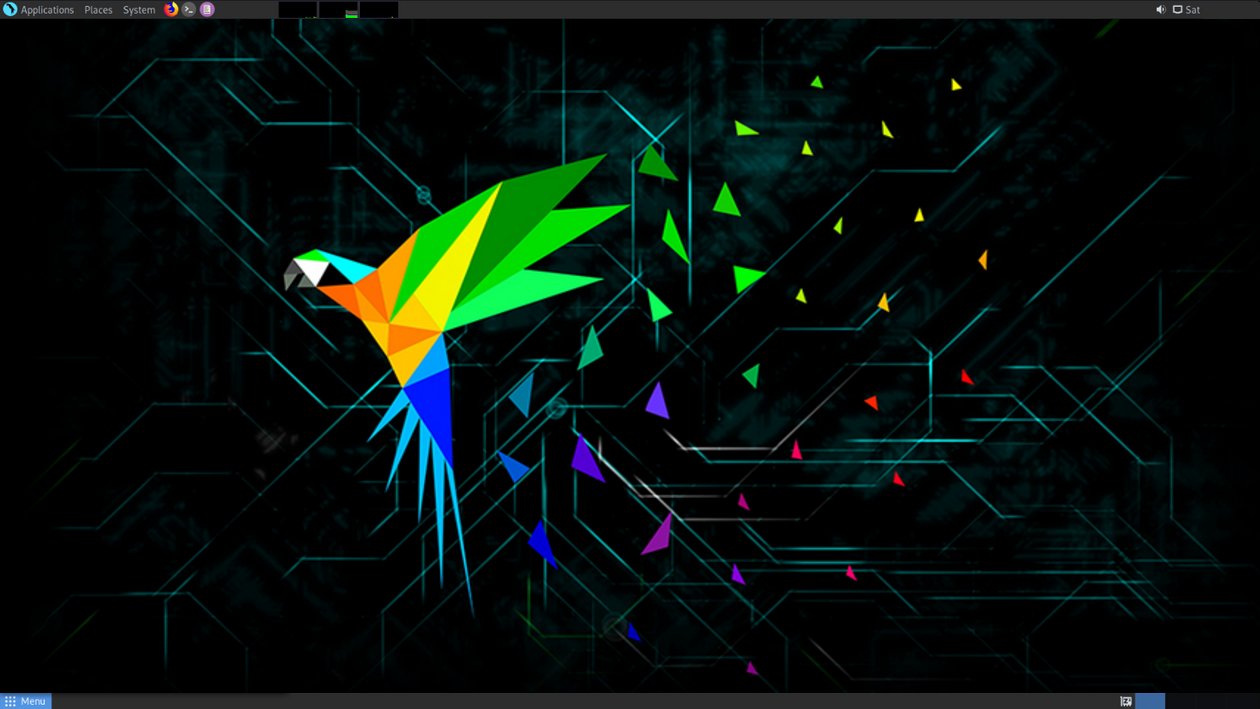
A daily-driver workflow is a collection of small habits that, repeated, dominate how the laptop feels for years. The handful that matter most for a pentest-and-learning environment:
- Keyboard over mouse for window management. Mouse use over 8 hours/day is the wrist-pain risk; tiling-like keybindings (Super+Number for workspace switch, Super+Arrow for window snap) keep hands on the home row.
- Tabs and panes over windows. Five terminals on five screens is N×N attention cost; one terminal with five tmux panes in one workspace is N attention cost.
- One place for each kind of thing. Engagement files in one folder structure per engagement, notes in one app, passwords in one vault, code in one git tree per project. The friction of “which app has my X” compounds fast.
- Reproducible. Dotfiles versioned. Tools installed via tracked scripts (
scripts/post_install.shfrom this subproject). When the laptop dies, recovery is “clone the dotfiles repo + run post-install” — not “remember what I configured manually.”
The rest of this volume is the concrete expression of those principles.
7.2 MATE desktop — the tuning pass
Parrot’s MATE ships sensible defaults. A small tuning pass makes it feel personal.
7.2.1 Panel layout
Default: one panel at top (menu, applets, system tray), one panel at bottom (window list, workspace switcher). Many users prefer one panel at top with the window list moved up. Right-click the bottom panel → Delete; right-click the top panel → Add to Panel → Window List.
7.2.2 Workspaces
Right-click the workspace switcher applet → Preferences. Set 6 workspaces in a 2x3 grid (or 4 in a row, or 9 in a 3x3 — match monitor count and mental layout). Six is a sweet spot — enough room to keep mental models separate (browser+notes / terminals / lab VMs / mail / Wireshark / engagement-specific) without being a wall of icons.
7.2.3 Themes
MATE menu → System → Appearance. Default theme is Parrot (parrot-blue accent on dark gray). The MATE-Dark-Aqua, TraditionalOk-Dark, and BlackMATE themes are alternatives. Personal preference; dark themes reduce eye strain over long sessions.
7.2.4 Fonts
MATE → Appearance → Fonts. Set all to:
- Application: Inter or Roboto, 10pt
- Document: Inter or Source Sans, 10pt
- Desktop: Inter, 10pt
- Window Title: Inter Bold, 10pt
- Monospace: JetBrains Mono or Fira Code, 11pt — this matters for terminal readability
Install JetBrains Mono:
sudo apt install fonts-jetbrains-mono7.2.5 Time + locale
MATE menu → System → Preferences → Time and Date. Set timezone, NTP server. For multi-zone work, install lftpswitch or use ddtime / a ~/.bashrc-aliased date -u.
7.2.6 Disable a few things
- Notifications: System Tray applet → right-click → Preferences → reduce timeout, disable non-critical channels.
- Bluetooth autostart: System Settings → Bluetooth → off-by-default if not used.
- GeoClue location service:
sudo systemctl disable --now geoclue.service.
7.2.7 The taskbar weather applet
brightness-controller, mate-sensors-applet, cpufreq-applet are useful add-on applets — right-click panel → Add to Panel. Show CPU temp, fan speed, brightness in the tray. Useful while pentest workloads stress the laptop.
7.3 Window-manager keybindings worth memorizing
MATE → System Settings → Keyboard Shortcuts. The default bindings work; the additions worth setting:
Table 1 — MATE → System Settings → Keyboard Shortcuts. The default bindings work; the additions worth setting
| Action | Default keybinding | Recommended |
|---|---|---|
| Switch to workspace N | (Ctrl+Alt+arrow) | Super+1, Super+2, …, Super+6 |
| Move window to workspace N | Ctrl+Shift+Alt+arrow | Super+Shift+1, …, Super+Shift+6 |
| Maximize window | Super+Up | Super+Up |
| Tile window left half | (none) | Super+Left |
| Tile window right half | (none) | Super+Right |
| Show desktop | Super+D | Super+D |
| Lock screen | Ctrl+Alt+L | Super+L |
| Run command | Alt+F2 | Super+Space (replaces app launcher’s default) |
| Open terminal | (none) | Super+Return or Ctrl+Alt+T |
| Open browser | (none) | Super+B |
| Open file manager | (none) | Super+E |
| Show MATE menu | (mouse) | Super+P |
| Screenshot region | Print Screen | Print Screen → flameshot (§ 10) |
A few of those are non-default; set them in Keyboard Shortcuts manually.
7.3.1 Compositor (for animation smoothness)
MATE’s default is no compositing. Enable Marco compositor in MATE Tweak (sudo apt install mate-tweak; mate-tweak) → Windows → Window Manager → “Marco (Compositor)”. Smoother window resizing + alt-tab previews.
7.4 Terminal emulators — Terminator, kitty, alacritty
Default terminal in Parrot is MATE Terminal. Workable but not great. Three upgrades:
7.4.1 Terminator
sudo apt install terminator
Why: Split-pane terminal. Within one window, divide into vertical/horizontal panes (Ctrl+Shift+E / Ctrl+Shift+O), each running its own shell. Move between panes with Ctrl+Shift+Arrow. Broadcast input to all panes (toggle with Alt+A). Lightweight; uses libvte.
When to use: Quick split-screen sessions. Less powerful than tmux for persistent sessions but easier to wrap your head around. Good for live debugging when you want “nmap output on left, browser dev tools on right.”
7.4.2 kitty
sudo apt install kitty
Why: GPU-accelerated terminal. Better Unicode rendering, smoother scrolling, supports image protocol (display images in the terminal), better ligature support for Fira Code / JetBrains Mono.
Configuration: ~/.config/kitty/kitty.conf. Sample:
font_family JetBrains Mono
font_size 11
disable_ligatures never

scrollback_lines 50000

# Mosh-like fast keystroke handling
input_delay 0
sync_to_monitor no

# Tab bar
tab_bar_style powerlineTabs: Ctrl+Shift+T to open tab, Ctrl+Shift+Right/Left to switch.
Windows within tabs (kitty-native panes): Ctrl+Shift+Enter to split. kitty has its own multiplexing model — alternative to tmux for users who want one tool to rule the terminal.
7.4.3 alacritty
sudo apt install alacritty
Why: Minimalist; the fastest pure-text terminal. No tabs, no splits — does one thing well. Pair with tmux for multiplexing.
Configuration: ~/.config/alacritty/alacritty.yml. Minimal:
font:
  normal:
    family: JetBrains Mono
  size: 11.0
window:
  padding: { x: 8, y: 8 }
  opacity: 0.95
scrolling:
history: 50000Recommendation: Start with Terminator for quick interactive use, learn tmux in parallel (§ 5) for persistent sessions, evaluate kitty for fancier rendering.
7.5 Multiplexers — tmux + zellij
A terminal multiplexer runs persistent shell sessions inside one terminal window. The killer feature: detach a session, log out, log back in, reattach — your tmux session is still alive with its history and running processes. Critical for SSH’d-in long-running tasks.
7.5.1 tmux
sudo apt install tmux
Configuration: ~/.tmux.conf. Tested baseline:
# Prefix on Ctrl+a (Caps Lock for many users)
unbind C-b
set -g prefix C-a
bind C-a send-prefix

# Vim-style pane navigation
bind h select-pane -L
bind j select-pane -D
bind k select-pane -U
bind l select-pane -R

# Splits with intuitive characters
bind | split-window -h
bind - split-window -v

# Resize panes
bind -r H resize-pane -L 5
bind -r J resize-pane -D 5
bind -r K resize-pane -U 5
bind -r L resize-pane -R 5

# Start window/pane numbering at 1
set -g base-index 1
setw -g pane-base-index 1

# Renumber windows when one is closed
set -g renumber-windows on

# Mouse support
set -g mouse on

# Large scrollback
set -g history-limit 50000

# 256 colors + true color
set -g default-terminal "tmux-256color"
set -ga terminal-overrides ",*256col*:Tc"

# Status bar
set -g status-style bg=colour234,fg=colour137
set -g status-left '#[fg=colour39]#S #[default]'
set -g status-right '#[fg=colour39]%Y-%m-%d %H:%M#[default]'
Essential commands (with the C-a prefix above):
Table 2 — Essential commands (with the C-a prefix above)
| Key | Action |
|---|---|
| C-a c | New window |
| C-a , | Rename current window |
| C-a w | List windows |
| C-a n / p | Next / previous window |
| C-a 1-9 | Switch to window N |
| C-a | | Split pane vertical |
| C-a - | Split pane horizontal |
| C-a h/j/k/l | Move between panes |
| C-a d | Detach session |
| C-a [ | Enter copy/scrollback mode (vi-keys to navigate; q to exit) |
| C-a ] | Paste from tmux buffer |
Session management from outside tmux:
tmux ls                          # list sessions
tmux new -s engagement-acme      # named session
tmux a -t engagement-acme        # attach
tmux kill-session -t engagement-acme
7.5.2 zellij
cargo install zellij (or AppImage from https://github.com/zellij-org/zellij/releases)
Why: Modern tmux alternative. Discoverable UI (commands shown at bottom), built-in layouts, plugin system, plain-text config. Steeper “convince myself to switch from tmux” cost; lower “muscle memory burn-in” cost for new users.
Configuration: ~/.config/zellij/config.kdl (KDL syntax). Sensible defaults work out of the box.
Recommendation: tmux if tmux muscle memory is already in place; zellij for a fresh start. Both are stable production-grade tools.
7.5.3 tmuxinator — session templates
sudo apt install tmuxinator
Define reusable tmux session templates in YAML:
# ~/.config/tmuxinator/engagement-acme.yml
name: engagement-acme
root: ~/engagements/acme

windows:
  - notes:
      layout: even-horizontal
      panes:
        - vim notes.md
        - ls
  - scan:
      layout: tiled
      panes:
        - nmap -sV -p- 10.10.10.0/24
        - nikto -h 10.10.10.5
  - hash:
      panes:
        - hashcat -m 1000 hashes.txt /usr/share/wordlists/rockyou.txt
Launch:
mux start engagement-acme # 'mux' is the tmuxinator aliasA keyboard-driven engagement startup template — saves the 10 minutes of “open terminal, cd, vim, split, run nmap, split again…” per engagement.
7.6 Shells — zsh + Parrot-shell, vs fish
7.6.1 zsh (Parrot default)
Parrot’s default shell is zsh with the parrot-shell custom prompt theme. Features out of the box:
- Tab completion that “previews” command options.
- Path-component cycling with Tab.
- Reverse history search (Ctrl+R), enhanced with
zsh-history-substring-search. - Plugin manager:
parrot-shell-configships with sensible plugins. - Prompt shows: user, host, working directory, git branch+dirty status, AnonSurf state, VPN state, last command exit code.
Switching shells (if not already zsh):
chsh -s /usr/bin/zsh         # change login shell to zsh
# Log out + back in
7.6.2 oh-my-zsh
The community plugin/theme framework for zsh. Optional addon on top of zsh.
sh -c "$(curl -fsSL https://raw.githubusercontent.com/ohmyzsh/ohmyzsh/master/tools/install.sh)"Edit ~/.zshrc:
ZSH_THEME="agnoster"          # or "powerlevel10k/powerlevel10k" with separate install
plugins=(git zsh-autosuggestions zsh-syntax-highlighting tmux docker fzf)
Install the autosuggestions + syntax-highlighting plugins:
git clone https://github.com/zsh-users/zsh-autosuggestions ${ZSH_CUSTOM:-~/.oh-my-zsh/custom}/plugins/zsh-autosuggestions
git clone https://github.com/zsh-users/zsh-syntax-highlighting ${ZSH_CUSTOM:-~/.oh-my-zsh/custom}/plugins/zsh-syntax-highlighting
7.6.3 Powerlevel10k
p10k is the gold-standard zsh prompt theme — fast, beautifully configurable, gives icons for git status / k8s context / battery / time.
git clone --depth=1 https://github.com/romkatv/powerlevel10k.git ${ZSH_CUSTOM:-~/.oh-my-zsh/custom}/themes/powerlevel10k
# Edit ~/.zshrc: ZSH_THEME="powerlevel10k/powerlevel10k"
# Restart shell; p10k configure launches the interactive setup.
Requires a “Nerd Font” (a patched font with extra icon glyphs) — sudo apt install fonts-firacode + install Fira Code Nerd Font from https://www.nerdfonts.com, set as terminal font.
7.6.4 fish — alternative
For those who find zsh’s syntax exhausting (or who appreciate autosuggestions out of the box without plugins):
sudo apt install fish
chsh -s /usr/bin/fish
fish has rich autosuggestions, sane syntax highlighting, and a friendlier syntax than POSIX shells — but is not POSIX-compliant. Shell scripts written in fish don’t run on bash/zsh and vice versa. Use fish as interactive shell, write scripts in bash.
7.6.5 Shell scripts go in bash
For the scripts/ directory (this subproject’s scripts/), use POSIX bash with set -euo pipefail, not fish or zsh — keeps scripts portable.
#!/usr/bin/env bash
set -euo pipefail
# ... script body ...
7.7 Dotfile management — chezmoi
Dotfiles (.bashrc, .zshrc, .tmux.conf, .gitconfig, ~/.config/) are the files that make a shell environment “feel like home.” They evolve. They drift between machines. A dotfile manager versions them in git and applies them to a new machine in one command.
7.7.1 chezmoi (recommended)
sudo apt install chezmoi
Or pipx install chezmoi.
Why chezmoi: cross-platform (works on Parrot, macOS, even Windows), templated dotfiles (different machines can substitute different values), encrypted secrets (integrates with age / gpg), and a clean source-of-truth model.
Initial setup:
chezmoi init                              # creates ~/.local/share/chezmoi
chezmoi cd                                # cd to the source tree
git init                                  # version control
chezmoi add ~/.zshrc ~/.tmux.conf ~/.gitconfig ~/.config/kitty
git add . && git commit -m "Initial dotfiles"
git remote add origin git@github.com:<user>/dotfiles.git
git push -u origin main
On a new machine:
chezmoi init --apply git@github.com:<user>/dotfiles.gitThat’s it. Dotfiles installed.
7.7.2 yadm (alternative)
sudo apt install yadm
yadm = “Yet Another Dotfile Manager.” Simpler model — directly manages dotfiles as a git repo with ~/ as the working tree, but bare-clones the git metadata elsewhere. Easier to grok if you only need to version-control files without templating.
7.7.3 Don’t track these dotfiles
Exclude (don’t chezmoi add):
~/.ssh/id_*(private keys — store in 1Password / KeePassXC instead)~/.gnupg/(private GPG keys)~/.local/share/keyrings/(login keyring contents)~/.config/google-chrome/,~/.mozilla/firefox/(browser profiles — too large, contain cookies)~/.cache/,~/.local/share/Trash/
7.8 The per-engagement folder pattern
For pentest / CTF / lab work, a consistent folder pattern per engagement scales.
7.8.1 The structure
~/engagements/
├── 2026-05-15_acme-corp/                ← named YYYY-MM-DD_client-name
│   ├── README.md                         ← scope, contacts, timeline, IOC list
│   ├── scope.txt                         ← in-scope IPs/domains/URLs
│   ├── ooc.txt                           ← out-of-scope (do not touch)
│   ├── creds.kdbx                        ← KeePassXC vault for this engagement only
│   ├── 01-recon/
│   │   ├── nmap/
│   │   │   ├── 10.10.10.0_24-tcp.gnmap
│   │   │   ├── 10.10.10.0_24-tcp.xml
│   │   │   └── 10.10.10.0_24-udp.gnmap
│   │   ├── subfinder/
│   │   ├── nuclei/
│   │   └── recon-notes.md
│   ├── 02-enumeration/
│   │   ├── web/
│   │   ├── smb/
│   │   └── enum-notes.md
│   ├── 03-exploitation/
│   │   ├── exploits/
│   │   ├── payloads/
│   │   └── exploit-notes.md
│   ├── 04-post-exploitation/
│   │   ├── loot/
│   │   ├── creds-dumped/
│   │   └── post-notes.md
│   ├── 05-pcaps/
│   │   └── (Wireshark captures — Vol 8/9)
│   ├── 06-screenshots/
│   ├── 99-report/
│   │   ├── draft.md
│   │   └── final.pdf
│   └── tmux-session.yml                  ← tmuxinator template for this engagement
├── 2026-06-01_htb-academy/
└── ...
7.8.2 README.md template
Every engagement starts with the same README skeleton:
# Acme Corp — Web App Pentest

**Start**: 2026-05-15
**End**: 2026-05-22
**Type**: Black-box web app pentest
**Client contact**: Jane Smith <jsmith@acme.com>, +1-555-...
**My role**: Solo tester

## Scope (in-scope)
- https://app.acme.com/* (all subdomains except api-dev.acme.com)
- 203.0.113.10/32 — staging server

## Out of scope
- api-dev.acme.com (sandbox; client uses for own testing)
- Anything not on the IP/domain list above

## Rules of engagement
- No social engineering
- No DoS / DDoS
- Notify Jane before any active exploitation
- All findings logged in this folder; final report due 2026-05-30
- Engagement creds in ./creds.kdbx (passphrase given verbally; do not commit)

## Authorization
- Letter of Authorization (LoA) signed 2026-05-13, on file
- LoA scan in ./auth-letter.pdf
7.8.3 The “engagement-end” routine
When the engagement is over:
- Final report written (in
99-report/). - Engagement creds wiped:
srm ./creds.kdbx. - Folder archived to encrypted external drive.
- Folder deleted from laptop after backup verified.
srm (secure remove) overwrites the file with random bytes before unlinking — apt install secure-delete.
7.9 Note-taking — Obsidian, Joplin
7.9.1 Obsidian (recommended)
Obsidian is a markdown note-taking app with a vault model — a folder of .md files is a vault. Backlinks, graph view, plugins, daily notes templates. Free for personal use. Cross-platform.
Install on Parrot:
- AppImage from https://obsidian.md/download.
- Or Flatpak:
flatpak install flathub md.obsidian.Obsidian.
Recommended vault structure:
~/Documents/notes/             ← Obsidian vault
├── 00-meta/
│   ├── templates/
│   └── readme.md
├── 01-daily/
│   └── 2026-05-15.md
├── 02-engagements/
│   └── 2026-05-15_acme-corp/  ← Mirrors ~/engagements/ layout
├── 03-tools/                  ← One note per tool (nmap.md, burp.md, ...)
├── 04-techniques/             ← MITRE ATT&CK-aligned (initial-access.md, ...)
├── 05-references/             ← Cheatsheets, command logs
└── 99-personal/
Sync via Obsidian Sync (paid), Syncthing (free), or git (free, requires git plugin).
Useful plugins:
- Daily Notes (core) — one note per day, automatic.
- Templates (core) — engagement templates, daily note templates.
- Dataview — query notes as if they were a database (e.g., “all techniques tagged #post-exploitation, sorted by date added”).
- Excalidraw — hand-drawn diagrams inline.
- Git — sync to a private GitHub repo.
7.9.2 Joplin (alternative)
sudo apt install joplin (or AppImage).
Open-source alternative to Evernote. Notes stored as Markdown + attachments in SQLite. Sync to NextCloud, WebDAV, Dropbox, OneDrive. End-to-end encryption available. Web clipper for browser.
7.9.3 Logseq (alternative)
A second open-source alternative: https://logseq.com/. Outliner-first (not document-first like Obsidian), strong daily-notes + backlinking model, file-backed by markdown. Pure JS Electron app or browser-based.
7.9.4 The discipline: one place
Pick one. Use that one for everything. Don’t half-use Obsidian + half-use a paper notebook + half-use sticky notes on the monitor. The “one place” rule is the actual value of any of these tools.
7.10 Screen capture — flameshot, peek, OBS
7.10.1 flameshot — annotated screenshots
sudo apt install flameshot
Bind to Print Screen key (MATE → System Settings → Keyboard Shortcuts → bind flameshot gui to Print Screen).
Press PrtSc → cursor enters region-select mode → drag to select → annotation toolbar appears: rectangle, arrow, text, blur, free-hand. Save to disk, copy to clipboard, or upload to Imgur (configurable).
Vital for screenshots-with-arrows in reports.
7.10.2 peek / kooha — GIF / WebM recording
sudo apt install peek — animated GIF recorder. Click record, define region, capture, save as .gif/.webm/.mp4.
Use for quick “how this exploit chained” demonstrations in reports.
7.10.3 OBS Studio — full screen recording
sudo apt install obs-studio
Multi-source recording: webcam overlay, screen capture, audio mix. Use for longer demo videos, tutorial recordings, training material.
7.10.4 Asciinema — terminal recording
sudo apt install asciinema (or pipx install asciinema).
Records terminal sessions as JSON-encoded “casts” that play back in a terminal or as .svg/.gif. Better than video for terminal demos — the text is selectable, the recording is small.
asciinema rec recon-demo.cast
# ... do work in terminal ...
# Ctrl+D to stop
asciinema play recon-demo.cast
asciinema upload recon-demo.cast    # upload to asciinema.org (optional)
7.11 Cheatsheet additions
- MATE keybindings worth setting: Super+1-6 (workspace switch), Super+Shift+1-6 (move window), Super+Left/Right (tile half), Super+L (lock), Super+Return (terminal), Super+B (browser), PrtSc (flameshot).
- Install Nerd Fonts for Powerlevel10k icons: https://www.nerdfonts.com.
- tmux essentials: prefix C-a, then
c(new window),,(rename),|-(split),h j k l(pane nav),d(detach),[(scrollback). - tmux outside the session:
tmux ls,tmux a -t <name>,tmux new -s <name>,tmux kill-session -t <name>. - tmuxinator launch:
mux start <name>. - chezmoi init from repo:
chezmoi init --apply <git URL>. - chezmoi add file:
chezmoi add ~/.zshrc. - flameshot bind:
flameshot guion Print Screen. - Secure-delete a file:
srm <path>(afterapt install secure-delete). - Asciinema record:
asciinema rec <file>. - Per-engagement folder pattern:
~/engagements/YYYY-MM-DD_client-name/{01-recon, 02-enum, 03-exploit, 04-post, 05-pcaps, 06-screenshots, 99-report}.
Comments (0)