Bus Pirate 6 · Volume 11
Bus Pirate 6 Volume 11 — Building from Source, Custom Firmware, and Operational Hygiene
Pico SDK + Docker build, custom modes, RP2350 errata E9 mitigation, debugger comparison (BMP/J-Link/picoprobe), bench discipline
11.1 About this volume
This is the synthesis volume — bringing together everything from Vols 2-10 with a focus on (a) extending the BP6 (custom firmware), (b) using it well (operational hygiene), and (c) knowing when it’s the wrong tool. Read this when you’re going to write firmware modifications, when you’ve had a frustrating session and want to know what went wrong, or when you’re deciding between the BP6 and a dedicated debugger for a specific task.
11.2 Setting up the build environment
The Bus Pirate firmware (Vol 3 § 2) builds with the standard Raspberry Pi Pico SDK toolchain — CMake + ARM GCC. Nothing exotic, but the submodule and pinning details matter.
11.2.1 Pico SDK version pinning
The firmware repo pins a specific Pico SDK version via a git submodule. After cloning:
git clone --recurse-submodules https://github.com/DangerousPrototypes/BusPirate5-firmware
cd BusPirate5-firmware
git submodule status
You should see the pico-sdk submodule checked out at a specific commit. Don’t update it independently — the firmware tracks a known-good SDK version. The maintainer bumps it when needed.
If --recurse-submodules was missed:
git submodule update --init --recursiveThis is essential — the pico-sdk has its own submodules (TinyUSB, mbedTLS, lwIP). All three layers must check out cleanly.
11.2.2 ARM GCC version
The firmware compiles cleanly against any recent arm-none-eabi-gcc:
- Linux:
apt install gcc-arm-none-eabi(Debian/Ubuntu) ordnf install arm-none-eabi-gcc-cs(Fedora). - macOS:
brew install --cask gcc-arm-embedded(Homebrew) or directly from ARM’s website. - Windows: download installer from
developer.arm.com/downloads/-/arm-gnu-toolchain-downloads. Tested versions: 10.x, 11.x, 12.x, 13.x.
The Pico SDK picks up arm-none-eabi-gcc from PATH. As long as the binary is on PATH and a recent version, you’re set.
CMake: 3.13 or newer. Any modern Linux/Mac install satisfies; Windows users may need to install separately from cmake.org.
11.2.3 Docker compose hermetic build
The hassle-free path. The firmware repo includes docker-compose.yml:
docker-compose run --rm buildPre-built container with pinned Pico SDK + ARM GCC + CMake. The container mounts the repo, runs the build, drops the output .uf2 files in build/, and exits.
Build time: ~3-5 minutes on a modern laptop (first run downloads the container image; subsequent runs are cached).
Use this on Linux/macOS where Docker is installed. On Windows: same Docker Desktop, same command — works identically.
This is the recommended path for anyone who doesn’t already have ARM GCC + CMake + Pico SDK installed locally. Don’t fight the toolchain; let the container do its job.
11.2.4 Windows: the pico-sdk submodule gotcha
For Windows users not using Docker, there’s a long-standing pico-sdk submodule resolution issue. The pico-sdk/lib/tinyusb/ submodule sometimes fails to fetch on Windows due to Git’s handling of nested LFS-tracked files. Symptom: build fails with “tinyusb/src/tusb.h: file not found.”
Workarounds:
- Use Docker compose (§ 2.3) — the container has the submodules pre-resolved.
- WSL2 + Linux toolchain — same as Linux from inside WSL.
- Manual submodule fetch from Git Bash:
cd pico-sdk
git submodule update --init --recursive
If that fails, clone tinyusb separately and copy it into the expected path:
cd pico-sdk/lib
git clone https://github.com/hathach/tinyusb.git
This is a known Pico-SDK-on-Windows issue, not a Bus-Pirate-specific issue. The firmware build inherits whatever the pico-sdk team has fixed.
11.3 Building each target
11.3.1 The bus_pirate6_rev2 CMake target
From the repo root:
mkdir build_rp2350
cd build_rp2350
cmake .. -DBUILD_TARGET=bus_pirate6_rev2
make -j$(nproc)
That builds the BP6 firmware. The -DBUILD_TARGET flag picks which board variant (Vol 3 § 7) — bus_pirate6_rev2 is the current BP6.
For other targets:
bus_pirate5_rev10— production BP5 (RP2040)bus_pirate5_xl— BP5XL (RP2350A)bus_pirate5_rev8— engineering-sample BP5 (rare)
The build trees are kept separate (build_rp2040/ vs build_rp2350/) because the Pico SDK is configured differently per MCU family.
11.3.2 Build artifacts and UF2 output
After a successful build:
build_rp2350/
├── bus_pirate6_rev2.elf      ← linked binary with debug symbols
├── bus_pirate6_rev2.uf2      ← the file you flash
├── bus_pirate6_rev2.bin      ← raw binary (rarely needed)
├── bus_pirate6_rev2.hex      ← Intel HEX format (some tools want this)
└── bus_pirate6_rev2.dis      ← disassembly (debugging aid)
The .uf2 is what you drop onto the BP6’s BOOTSEL mass-storage drive (Vol 1 § 6.1 for entry, Vol 4 § 2.4 for the $ bootloader command).
11.3.3 Verifying the build before flashing
Quick sanity checks before flashing your custom build:
-
.uf2size sanity — should be approximately the same size as the official auto-build UF2 for the same target (off by no more than ~30% means something’s badly wrong). -
.elfsymbol check —arm-none-eabi-nmto confirm key symbols exist:arm-none-eabi-nm build_rp2350/bus_pirate6_rev2.elf | grep -E "(syntax_run|hw_spi_init|main)"If any are missing, the build linked something wrong.
-
Memory map — confirm
.textsize + RAM usage fits within RP2350 limits:arm-none-eabi-size build_rp2350/bus_pirate6_rev2.elfRP2350 has 520 KB SRAM; your
.bss + .datashould be well under that.
If the .uf2 looks sane, flash it. The BOOTSEL is mask-ROM (Vol 1 § 6.1) — a bad UF2 produces a red blink, not a bricked device. You can re-flash with the official auto-build UF2 to recover.
11.4 Writing a custom mode
If the BP6’s stock 12 modes don’t cover your target protocol, you can add a new one. The mode vtable contract (Vol 3 § 5) is small enough that custom modes are a weekend project, not a months-long undertaking.
11.4.1 The mode vtable contract
A new mode is a C file in src/mode/ that exposes:
struct mode_t {
    const char *name;          // "CAN", "FOO", etc.
    void (*setup)(void);       // entered mode; init hardware
    void (*cleanup)(void);     // exiting mode; tear down
    void (*start)(void);       // BC_START opcode
    void (*stop)(void);        // BC_STOP opcode
    uint32_t (*write)(uint32_t data, uint8_t bits);  // write n bits
    uint32_t (*read)(uint8_t bits);                  // read n bits
    void (*clkh)(void);        // explicit clock-high
    void (*clkl)(void);        // explicit clock-low
    void (*dath)(void);        // explicit data-high
    void (*datl)(void);        // explicit data-low
    int  (*period)(void);      // period query/set
    const command_t *commands; // per-mode commands array
};
You don’t have to implement every callback — the runner only calls those that match opcodes in the user’s syntax line. Implement what makes sense for your protocol.
11.4.2 Adding a .pio program
If your protocol benefits from PIO timing (most do — see Vol 6 § 5 for which BP modes use PIO), write a .pio file at src/pirate/:
.program my_protocol
    set pindirs, 1     ; set pin direction to output
    set pins, 1 [3]    ; drive high, 3-cycle delay
    set pins, 0 [3]    ; drive low, 3-cycle delay
    ; ... your protocol's bit pattern ...
The Pico SDK’s pioasm tool (invoked automatically from CMake) converts this to a C header with the opcode array. Your mode’s setup() then loads it:
void my_setup(void) {
    PIO pio = pio2;
    int sm = pio_claim_unused_sm(pio, true);
    uint offset = pio_add_program(pio, &my_protocol_program);

    pio_sm_config c = my_protocol_program_get_default_config(offset);
    // ... configure pins, clock divider, FIFO ...
    pio_sm_init(pio, sm, offset, &c);
    pio_sm_set_enabled(pio, sm, true);
}
The pio_claim_unused_sm ensures you grab an unused state machine slot — important since the BP6 may be running other PIO-driven features (look-behind sampler on PIO 2, LED chain on PIO 0, etc.).
11.4.3 Registering with the mode menu
In src/modes.c (or wherever the mode table lives — check the current source layout):
static const struct mode_t mode_my_protocol = {
    .name = "MY_PROTO",
    .setup = my_setup,
    .cleanup = my_cleanup,
    .start = my_start,
    // ... other callbacks ...
    .commands = my_protocol_commands,
};

const struct mode_t *available_modes[] = {
    &mode_hiz,
    &mode_1wire,
    &mode_uart,
    // ... existing modes ...
    &mode_my_protocol,    // ← your new mode
};
Now m at the prompt shows MY_PROTO in the list, and selecting it enters your mode.
11.4.4 Per-mode commands
Beyond the vtable callbacks, your mode can expose commands (the things users type at the mode-specific prompt, like flash or eeprom or bluetag):
static int cmd_my_action(int argc, char **argv) {
    // implement the command
    printf("Running my custom command...\n");
    return 0;
}

const command_t my_protocol_commands[] = {
    { .name = "myaction", .handler = cmd_my_action,
      .help = "do my custom thing" },
    { NULL, NULL, NULL }  // sentinel
};
Now myaction at your mode’s prompt invokes cmd_my_action.
11.4.5 Worked example: a hypothetical CAN-bus mode skeleton
CAN isn’t currently a stock BP6 mode (you’d need a CAN transceiver IC between the BP6’s TTL signals and an actual CAN bus, but the protocol-layer work would be a custom mode). Skeleton:
// src/mode/can.c
#include "can.pio.h"
#include "mode.h"

static PIO can_pio;
static int can_sm;

void can_setup(void) {
    can_pio = pio2;
    can_sm = pio_claim_unused_sm(can_pio, true);
    uint offset = pio_add_program(can_pio, &can_program);

    pio_sm_config c = can_program_get_default_config(offset);
    // pin config, clock divider for 500 kbps...
    pio_sm_init(can_pio, can_sm, offset, &c);
    pio_sm_set_enabled(can_pio, can_sm, true);
}

uint32_t can_write(uint32_t data, uint8_t bits) {
    // Build CAN frame: SOF, ID, control, data, CRC, ACK, EOF
    // Push bits into PIO TX FIFO
    pio_sm_put_blocking(can_pio, can_sm, data);
    return 0;  // CAN doesn't have a per-byte ACK in the bit-level sense
}

uint32_t can_read(uint8_t bits) {
    // Pull from PIO RX FIFO
    return pio_sm_get_blocking(can_pio, can_sm);
}

const struct mode_t mode_can = {
    .name = "CAN",
    .setup = can_setup,
    .cleanup = can_cleanup,
    .write = can_write,
    .read = can_read,
    .commands = can_commands,
};
Then register mode_can in available_modes[] (§ 4.3). Done.
In practice, CAN’s complex framing (bit stuffing, CRC, retry on collision) means the PIO program is substantial — a real CAN mode is a multi-week project. But the architecture for adding it is exactly the skeleton above.
11.5 RP2350 errata E9 — GPIO pulldown latch
A silicon-level bug in the RP2350 family that the BP6 hardware mitigates. Worth understanding because it affects how you reason about the BP6’s pin behavior.
11.5.1 The hardware-level bug
The RP2350’s internal GPIO pulldowns latch as bus-keepers under certain conditions. Specifically: when a pulldown is enabled and the pin is being driven, then released to high-impedance, the internal logic that should re-engage the pulldown sometimes doesn’t release — it acts as a weak bus-keeper instead, holding whatever level the pin was last driven to.
For most applications this is invisible. For some — JTAG / SWD targets that distinguish “no chip is connected” by sensing a floating-high SWDIO line — it matters.
Detail: Raspberry Pi’s RP2350 errata documentation, item E9. Affects all RP2350A and RP2350B silicon revisions through (at least) 2026; no respin has been announced.
11.5.2 The 100 kΩ external pulldown workaround on BP6
The BP6 design hardware-mitigates this with 100 kΩ external pulldowns on each IO pin. These external resistors don’t have the bus-keeper-latching behavior of the internal pulldowns — they’re plain passive components.
In firmware, the BP6 also avoids relying on the internal pulldowns for any timing-critical pin discipline. The internal pulldowns may still be enabled in some configurations (the firmware leaves them set per-mode config), but the BP6’s behavior doesn’t depend on their reliability — the external resistors do the real work.
11.5.3 When external resistors are needed for JTAG/SWD targets
A few JTAG / SWD targets expect stronger pulldowns than 100 kΩ — specifically, ARM Cortex-M parts with SWDIO float-detection that distinguishes “no chip is here” by SWDIO being held strongly low through an internal pulldown. Some chip families implement this with weaker internal pulldowns; the BP6’s external 100 kΩ may not be enough to overcome those.
Symptom: bluetag (Vol 5 § 7) returns “no SWD/JTAG found” on a board you’re confident has a debug interface.
Workaround: add an external 4.7-10 kΩ pulldown to GND on the suspect SWDIO pin, with a separate probe wire. Re-run bluetag.
This is rare — most modern Cortex-M parts work with the BP6’s defaults. The corner case is documented because chasing it without knowing is frustrating.
11.6 Debugger comparison
When the BP6 is the right tool vs when a dedicated debugger is.
11.6.1 Bus Pirate 6 vs Black Magic Probe
Black Magic Probe (BMP) is a popular open-source ARM debugger. STM32-based, ~$60.
Table 1 — 6.1 Bus Pirate 6 vs Black Magic Probe
| BP6 | BMP | |
|---|---|---|
| Form factor | All-purpose multi-protocol tool | JTAG/SWD-only debugger |
| Protocols supported | UART, I²C, SPI, JTAG, SWD, 1-Wire, smart card, DDR5 SPD, etc. | JTAG, SWD only |
| Speed (SWD flash program) | 100-400 kHz | ~10 MHz |
| GDB server | via OpenOCD | built-in (no host software needed) |
| SWO / RTT trace | No | Yes |
| Cost | $82.50 | ~$60 |
Verdict: BMP wins for dedicated ARM development. BP6 wins for everything else + occasional JTAG.
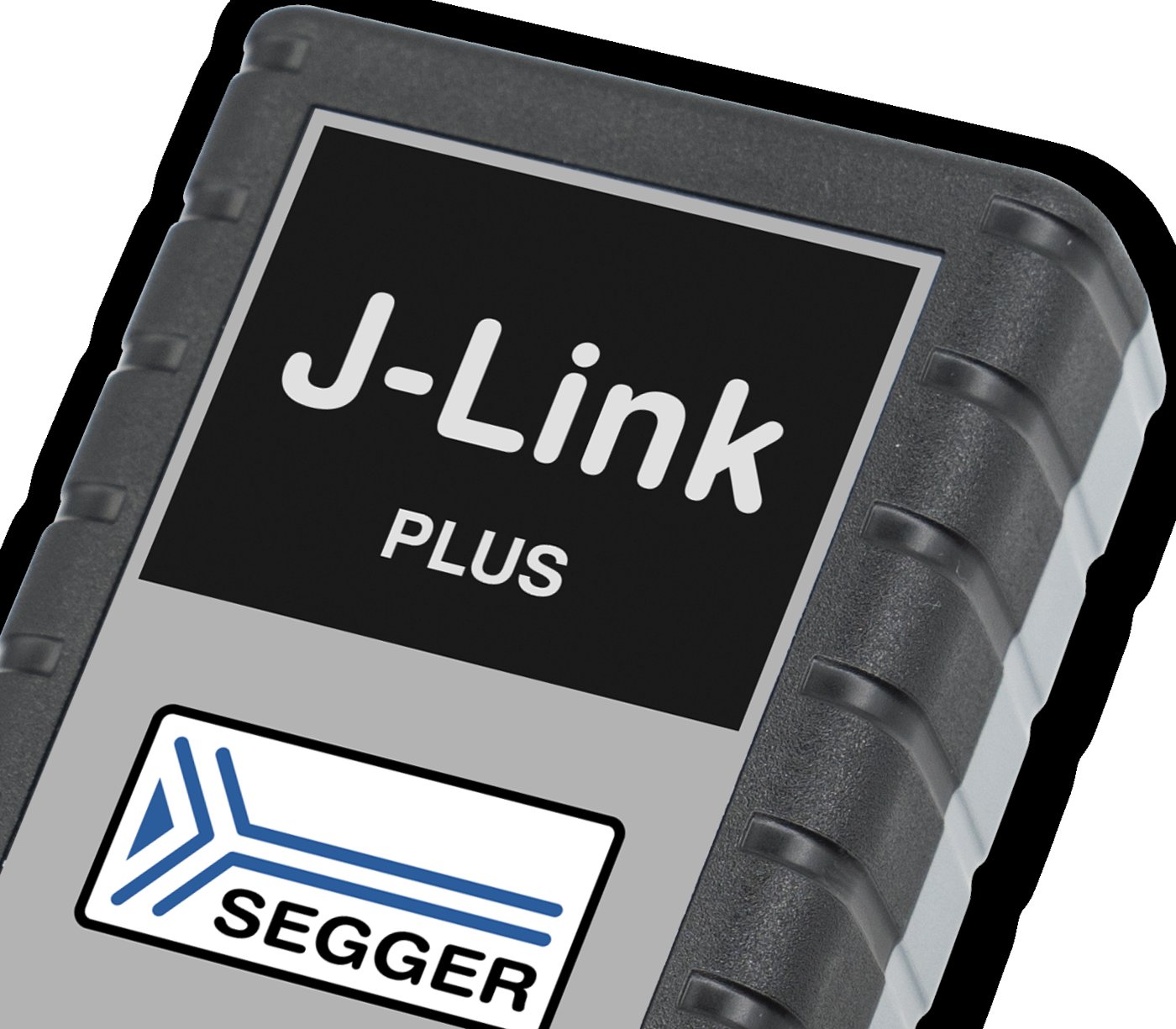
11.6.2 Bus Pirate 6 vs Segger J-Link
Segger J-Link is the commercial gold-standard. J-Link Base is ~$400; Edu is ~$60 (educational license, same hardware).
Table 2 — 6.2 Bus Pirate 6 vs Segger J-Link
| BP6 | J-Link | |
|---|---|---|
| Form factor | All-purpose multi-protocol tool | JTAG/SWD-only debugger |
| Speed (SWD flash program) | 100-400 kHz | 5-50 MHz |
| Supported targets | ARM Cortex-M (via OpenOCD) | ARM, MIPS, ESP32, RISC-V, Renesas, many more |
| SWO / RTT / ETM trace | No | Yes |
| Vendor IDEs | OpenOCD-based (any GDB IDE works) | First-class in every commercial IDE |
| Cost | $82.50 | $60 (Edu) / $400 (Base) / $1000+ (Pro) |
Verdict: J-Link is the pro tool. BP6 is the recon tool. Get a J-Link Edu for $60 if you do real embedded development; the BP6 is for pin-find / occasional work.
11.6.3 Bus Pirate 6 vs picoprobe / CMSIS-DAP
picoprobe is a Raspberry Pi Pico flashed with the picoprobe firmware — it acts as a CMSIS-DAP compatible debugger. ~$4 (just the Pico).
Table 3 — 6.3 Bus Pirate 6 vs picoprobe / CMSIS-DAP
| BP6 | picoprobe | |
|---|---|---|
| Form factor | All-purpose multi-protocol tool | SWD/JTAG-only debugger (custom firmware on a Pico) |
| Speed (SWD flash program) | 100-400 kHz | 1-5 MHz |
| Protocol support | Many | SWD/JTAG only |
| CMSIS-DAP | No (OpenOCD only) | Yes — works with every CMSIS-DAP-aware tool |
| Cost | $82.50 | $4 |
Verdict: picoprobe is the cheap-and-cheerful answer for “I just need an SWD debugger.” The BP6 has none of picoprobe’s debug-specific features (and is 5-10× slower at flash programming) but offers many other capabilities picoprobe doesn’t.
11.6.4 When the Bus Pirate is the right answer
Synthesizing the above: the BP6 is the right tool when you’re doing recon, not deep debug.
- “I don’t know what protocol this board speaks” → BP6 with
bluetag, thenscanin I²C, etc. - “I want to dump a flash chip” → BP6 + flash adapters.
- “I need to read an I²C EEPROM” → BP6.
- “I need to identify the chip on this debug header” → BP6 +
bluetag+ IDCODE.
Dedicated debuggers are the right tool when you’re doing deep debug:
- “I’m developing firmware for an STM32 / nRF52 / ESP32 / etc., and I need fast flash programming + SWO + RTT” → J-Link or BMP.
- “I’m in a production setting flashing thousands of units” → J-Link with Flasher Pro.
- “I want CMSIS-DAP for my IDE” → picoprobe.
The BP6’s value is its breadth. The dedicated debuggers’ value is their depth. They’re complementary, not competitive — a well-equipped bench has both.
11.7 Operational hygiene
Patterns that distinguish “working sessions” from “I just bricked something.”
11.7.1 Start in HiZ
After power-on, the BP6 is in HiZ mode — all outputs disabled, all level translators in high-impedance, no PSU, no pull-ups. This is the safe state.
Don’t change mode until target side is configured (target voltage known, probe connections planned). Switching from HiZ to a mode that drives 8 pins at 3.3 V into an unknown target is how chips die.
If returning to a board mid-session and want to be sure you’re safe: m → HiZ. Probe re-checks the rails. Then re-enter the working mode.
11.7.2 Voltage-check the target
Before enabling the PSU at 3.3 V on a target you think is 3.3 V (Vol 5 § 9.3):
- Connect just GND first.
- Connect IO0 to one of the target’s rails.
v— read the rail voltage.- Set PSU to match.
This 30-second check has saved many “wait, it’s actually a 1.8 V part” mistakes from killing a chip.
11.7.3 Disconnect probes between mode changes
When changing modes (I²C → SPI, for example), the pin assignments change. IO5 might have been SCL; now it’s CS. The target sees the same probe but with different signaling.
Disconnect probes (or go to HiZ first) when changing modes if the target is still powered. This avoids transient signals as the BP6 reconfigures its drivers.
11.7.4 When to suspect the level translator
If you’re seeing flaky readings — bytes corrupting, occasional NACKs, garbage scattered through good data — and the target is known-good, suspect the 74LVC1T45 level translator (Vol 2 § 4).
Symptoms that point at the translator:
- Symptoms scale with VCCB voltage (worse at 5 V, better at 3.3 V, or vice versa)
- Symptoms scale with probe cable length (worse with longer cables)
- Symptoms scale with target capacitance (worse with capacitive loads)
Confirmation: the 74LVC1T45’s data sheet gives propagation delay vs voltage curves. Compare to your symptom; if it matches, the translator is the issue. Fix is usually reducing target capacitance (shorter cables, fewer probes attached) or running the bus slower.
11.7.5 Bench-fixture practices
For repeated work on the same board, build a bench fixture: a Blank Plank (Vol 8 § 10.1) with the target’s probe points wired permanently. Plug the fixture into the BP6, connect the target, work. No re-clipping cables every session.
The KF141 Quick Connector (Vol 8 § 9) is the canonical fixture connector — strip wire ends, clamp into the KF141, build a permanent fixture in 5 minutes.
11.7.6 The shutdown sequence
End-of-session order (Vol 5 § 9.5):
- Stop the protocol — any active transaction completes.
- Disable PWM, frequency counter —
G, exitF. - Disable PSU —
w(lowercase). - Mode → HiZ.
- Disconnect probes from the target.
- Then unplug USB-C from BP6.
Wrong order (e.g., yanking USB while probes still on a powered target) can put transient signals on the target. Habits in this order prevent half the symptoms you’d otherwise spend time debugging.
11.8 Legal and ethical posture
11.8.1 Inheriting from _shared/legal_ethics.md
The Hack Tools project’s cross-tool legal/ethics doc at _shared/legal_ethics.md applies to the BP6 directly:
- Own the hardware or have written authorization.
- Don’t tamper with third-party devices — credit cards, hotel keys, transit cards, neighbor’s IoT devices.
- Don’t post extracted firmware publicly if it contains proprietary code.
These aren’t BP6-specific rules; they apply to every Hack Tools project.
11.8.2 The chip-dumping legal landscape
Dumping a SPI flash chip from a device you own is legal in every jurisdiction we’re aware of. Dumping from a device you don’t own (your friend’s router, a discarded board from someone else’s company) is generally also legal but the downstream use of the dump can be problematic:
- DMCA (US) — extracting copyrighted firmware is potentially a DMCA violation if you bypass technical protection. Most consumer firmware has no protection; some does.
- CFAA (US) — accessing data on a device you don’t own can be Computer Fraud and Abuse Act territory if it involves “unauthorized access.”
- GDPR (EU) — if the firmware contains user data (logs, credentials, configs), the data has privacy implications even if the firmware extraction is legal.
- Trade secret law — extracting unpublished proprietary information from a vendor’s device, especially with intent to clone or compete, can be a trade-secret violation regardless of how the extraction was done.
Conservative rule of thumb: dump your own devices, study them, modify them. Anything beyond that requires careful thought about the specific jurisdiction and context.
11.9 When NOT to use the Bus Pirate 6
Times when the BP6 is the wrong tool:
- High-speed digital work. SPI > 30 MHz, fast Ethernet, USB 3.0, anything requiring sub-µs jitter. Get a real protocol analyzer (Teledyne LeCroy, Agilent / Keysight).
- Production flash programming. Dump 1000 chips quickly. Get a TL866 or dedicated programmer.
- GDB-driven embedded development. Get a J-Link or BMP.
- Multi-channel logic analysis beyond 8 channels. Get a Saleae 16 or DSLogic Pro.
- Real-time signal-integrity work (rise-time measurement, eye diagrams). Get an oscilloscope.
- Custom protocol prototyping that goes beyond the BP6’s modes. Custom firmware on a Pico (or any MCU) is the answer.
The BP6 is a general-purpose recon and bring-up tool. It’s the answer when you need many things acceptably; not when you need one thing extremely.
11.10 Cheatsheet updates for Vol 12
Items for the laminate cheatsheet:
- Build from source:
- Docker:
docker-compose run --rm build - Native:
mkdir build_rp2350 && cd build_rp2350 && cmake .. -DBUILD_TARGET=bus_pirate6_rev2 && make -j - Output:
bus_pirate6_rev2.uf2
- Docker:
- Wrong UF2 ≠ bricked — BOOTSEL is mask-ROM, re-flash works.
- Custom mode skeleton: vtable in
src/mode/,.pioprogram insrc/pirate/, register insrc/modes.c. - Errata E9 mitigation: BP6 ships 100 kΩ external pulldowns; some JTAG/SWD targets need additional 4.7-10 kΩ external pulldown on suspect SWDIO.
- BP6 vs dedicated debuggers:
- SWD flash speed: BP6 100-400 kHz vs J-Link 5-50 MHz vs picoprobe 1-5 MHz.
- BP6 wins for recon + multi-protocol. Dedicated debugger wins for production debug.
- Operational hygiene order: HiZ → configure → voltage-check → drive → shutdown-sequence.
- Shutdown sequence: stop protocol → disable PWM/freq →
wPSU →mHiZ → disconnect probes → unplug.
End of Volume 11. Volume 12 is the cheatsheet — synthesis of every per-volume “Cheatsheet Updates” section into laminate-ready one-pagers.
Comments (0)