OpenSourceSDRLab PortaRF · Volume 8
OpenSourceSDRLab PortaRF Volume 8 — Flashing and Updating Firmware
Mayhem SD-card flash workflow, HackRF firmware updates via hackrf_spiflash, factory backup, recovery from a bricked Mayhem
8.1 About this volume
Vol 8 covers PortaRF firmware updates and recovery. Two firmwares (Vol 6 § 2), two workflows: Mayhem updates frequently via SD-card flash; HackRF firmware updates rarely via USB-C and hackrf_spiflash. The pre-flashed Mayhem version is good enough for most operators most of the time — this volume is the reference for the times you do need to flash and the times something goes wrong.
Cross-reference: HackRF One Vol 8 is the canonical HackRF firmware update reference. The procedures here parallel it; PortaRF-specific deltas are noted (different DFU entry method, sealed enclosure affecting recovery options, two-firmware coordination for major upgrades).
The overarching discipline: back up before flashing, verify integrity before flashing, never flash in the field, test recovery paths before relying on them.
8.2 The two-firmware update workflow
8.2.1 Mayhem vs HackRF firmware — when to update each
Table 1 — 2.1 Mayhem vs HackRF firmware — when to update each
| Firmware | Update frequency | Update reason |
|---|---|---|
| Mayhem (PortaPack) | Monthly to quarterly | New apps, new decoders, bug fixes, hardware revision support |
| HackRF firmware | Every 1-3 years | Critical bug fixes (rare); new ADC/DAC features (very rare) |
Most users update Mayhem only and leave HackRF firmware alone forever. The HackRF silicon is mature and the firmware works.
8.2.2 Ordering matters
If both firmwares need to be updated:
- Update HackRF firmware first — it’s the more delicate operation
- Verify HackRF still works —
hackrf_infoshould succeed - Update Mayhem — SD-card workflow is forgiving
Rationale: Mayhem assumes a working HackRF firmware. If HackRF firmware is broken, Mayhem can still boot (it talks via GPIO, not USB) but RF functions fail. Update HackRF first means you can recover via SD-Mayhem if needed.
8.2.3 What you can’t do
- Skip versions: Mayhem auto-flashes the latest .bin on SD; no concept of “rollback through intermediate versions”
- Mix Mayhem versions on different SDs: each SD card has one Mayhem .bin; switching SDs at boot means switching to that SD’s Mayhem version
- Update Mayhem firmware over USB (without the SD): Mayhem update path is SD-only
- Update HackRF firmware via SD: HackRF update is USB-only
8.3 Mayhem update via SD card — step by step
8.3.1 Pre-flight
- Identify your PortaPack revision (Vol 4 § 5): H2+ or H4M; this determines which Mayhem .bin to download
- Note current Mayhem version for rollback reference
- Verify SD card is FAT32 formatted (not exFAT or NTFS)
- Have a known-good Mayhem .bin as backup (in case the new release misbehaves)
- Verify PortaRF battery is ≥50% or on USB power — interrupting Mayhem flash mid-cycle can corrupt
8.3.2 Download
Go to https://github.com/portapack-mayhem/mayhem-firmware/releases. Find the latest release. Look for the .bin file matching your hardware:
portapack-h1_h2-mayhem.bin       # PortaPack H1+ / H2 / H2+ (most common)
portapack-h4m-mayhem.bin          # PortaPack H4M (premium)
portapack-h4m-clifford-mayhem.bin # PortaPack H4M Clifford Edition (premium with Heath PortaPack)
The file name format may vary between releases — check the release notes to confirm the correct file for your hardware.
8.3.3 SD preparation
- Backup current SD contents to a host PC:
# Mount SD card, copy entire contents to a backup directory
cp -r /Volumes/PORTARF/* ~/portarf_sd_backup_20260513/- Copy new Mayhem .bin to SD root:
cp portapack-h1_h2-mayhem.bin /Volumes/PORTARF/- Verify file is on SD root (not in a subdirectory):
ls -la /Volumes/PORTARF/portapack-*-mayhem.bin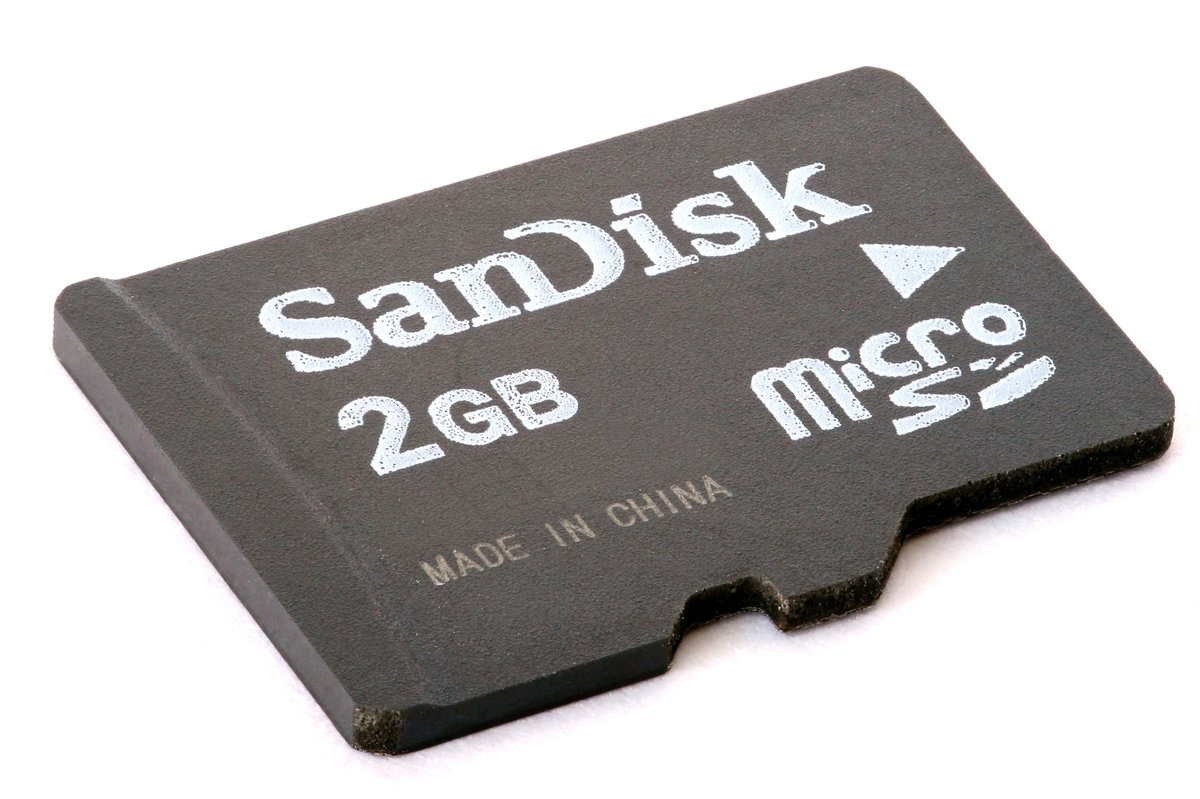
.bin on the card's FAT32 root, reboot, and the PortaPack self-flashes. The same card holds I/Q captures and presets (Vol 3 § 4). HackRF firmware, by contrast, never touches the card — it updates over USB-C via hackrf_spiflash (§ 4). Photo: Afrank99, CC BY-SA 3.0, via Wikimedia Commons.- Safely eject SD before removing from host.
8.3.4 Flash
- Insert SD into PortaRF (powered off)
- Power on PortaRF
- At boot: Mayhem’s bootloader detects the new .bin and starts self-flashing
- Wait — the flash takes ~30-60 seconds; do not interrupt
- Mayhem reboots with new firmware
- Verify new version on the boot screen + “Settings → About”
8.3.5 Post-flash verification
- Boot screen shows new version — confirm
- All expected apps load (try a few: RX, Spectrum, Capture)
- Settings preserved — check if frequency presets, brightness, etc. carried over (some major releases reset settings)
- Battery indicator works — confirms low-level firmware-to-hardware communication
- USB-C enumeration works — connect to host, run
hackrf_info, confirm reports
8.3.6 If the update misbehaves
If Mayhem doesn’t boot cleanly after update, or specific apps misbehave:
- Revert: copy the old Mayhem .bin back to SD root, reboot — Mayhem self-flashes back
- Settings reset: try “Settings → Reset All” (loses presets but may fix configuration corruption)
- Hardware-revision mismatch: confirm you flashed the correct variant for your PortaPack
- Worst case: SD recovery (§ 7)
8.4 HackRF firmware update via hackrf_spiflash
8.4.1 When to do this
Almost never. HackRF firmware is stable for years. Reasons to update:
- Vendor specifically recommends it for a known issue
- You hit a specific bug documented as firmware-related
- You’re testing custom HackRF firmware (research / development work)
For routine PortaRF use: do not update HackRF firmware. Leave it at vendor pre-flash.
8.4.2 Pre-flight
- PortaRF connected to host via USB-C (data + power cable)
-
hackrf_*tools installed on host (brew install hackrfon macOS;apt install hackrfon Linux; Windows: HackRF tools from GreatScottGadgets) - Verify
hackrf_infosucceeds — confirms current firmware is responding - PortaRF battery is ≥50% or on USB power
- Have factory backup file ready (taken in § 5)
8.4.3 Backup first
hackrf_spiflash -r portarf_factory_hackrf_$(date +%Y%m%d).binThis dumps the current firmware to a local file. Keep this file safe; you’ll need it if the new firmware doesn’t work.
8.4.4 Flash
# Download the correct firmware .bin from
# https://github.com/greatscottgadgets/hackrf/releases
# File names depend on the HackRF revision; for R10:
hackrf_spiflash -w hackrf_one_usb_R10.bin

# The command writes the firmware and verifies
Output looks like:
Reset device after flashing firmware
File size 32768 bytes.
Erasing SPI flash.
Writing 32768 bytes at 0x000000.
Reading 32768 bytes from 0x000000.
Write complete.
8.4.5 Post-flash verification
# Disconnect + reconnect PortaRF from USB
# Then:
hackrf_info
Should output:
Found HackRF
Index: 0
Serial number: 0000000000000000xxxxxxxxxxxxxxxx
Board ID Number: 2 (HackRF One)
Firmware Version: 2026.05.0 (new version)
Part ID Number: 0xa000cb3c 0x00641864
Confirm the firmware version reflects the new flash. If hackrf_info fails: § 8 DFU recovery.
8.4.6 Functional test
After successful flash:
- Connect to host via USB
- Run a basic test:
hackrf_transfer -r test.cfile -f 96000000 -s 2000000 -g 40 -n 4000000(captures ~2 seconds of FM broadcast at 96 MHz) - Verify file is non-empty (~8 MB)
- Try Mayhem on PortaRF to confirm display + button + radio path still works
8.5 Factory backup before flashing
The two firmwares each need their own factory backup before any modification.
8.5.1 HackRF firmware backup
# Take a dated factory backup
hackrf_spiflash -r portarf_factory_hackrf_$(date +%Y%m%d_%H%M).bin

# Verify
ls -la portarf_factory_hackrf_*.bin
Store the file:
- Local copy on the host PC
- Copy on the NAS / cloud backup
- Note serial number + date in MY_GEAR inventory.yaml
8.5.2 SD card backup
Backup the entire SD card contents (Mayhem firmware + presets + any captures):
# Mount SD, copy everything
mkdir ~/portarf_sd_backup_$(date +%Y%m%d)
cp -r /Volumes/PORTARF/* ~/portarf_sd_backup_$(date +%Y%m%d)/

# Verify
du -sh ~/portarf_sd_backup_*
8.5.3 Why this matters
Both firmwares can be bricked by a bad update. With backups:
- HackRF firmware brick → reflash factory backup with
hackrf_spiflash -w portarf_factory_hackrf_*.bin - Mayhem firmware brick → reflash a known-good Mayhem .bin from the SD backup
- Combined brick → restore HackRF first via DFU; then restore Mayhem via SD
Without backups: vendor RMA, potential data loss, downtime.
8.5.4 Backup discipline
- Take a backup before every flash — even routine Mayhem updates
- Keep backups for at least 6 months — gives time to discover regressions
- Test the restore path once — confirm you actually can flash the backup, before you need to
- Document what’s in each backup — version numbers, dates, what triggered the backup
8.6 Verifying firmware file integrity
A firmware .bin from a suspicious source (compromised download, corrupted transfer, tampered file) can brick the unit. Always verify before flashing.
8.6.1 Use trusted sources
- Mayhem: GitHub releases page (https://github.com/portapack-mayhem/mayhem-firmware/releases) is canonical
- HackRF firmware: GitHub releases page (https://github.com/greatscottgadgets/hackrf/releases)
- OpenSourceSDRLab provided files: vendor’s official channels
Avoid:
- Random forum links
- Untrusted file sharing sites
- Email attachments
- Files that don’t have a hash published with them
8.6.2 Verify cryptographic hashes
For Mayhem releases:
# Download the .bin and the published checksum (sha256sums.txt typically)
sha256sum portapack-h1_h2-mayhem.bin

# Compare against the published hash
# Should match exactly
If hashes don’t match: do not flash. Re-download from a trusted source.
8.6.3 Verify file size sanity
A Mayhem .bin is typically 800 KB - 1.2 MB. A HackRF firmware .bin is typically 32 KB - 64 KB. A file that’s wildly off these sizes is suspicious:
- Much smaller: truncated download
- Much larger: wrong file type or compressed archive
Sanity-check size before flashing.
8.6.4 Test flash first (if possible)
If you have a development unit or a spare:
- Test the new firmware on the spare first
- Verify expected behavior — boots cleanly, all apps work
- Only then apply to your primary engagement unit
For PortaRF (single unit usually), this isn’t possible — but consider keeping porta as the “test platform” for new Mayhem releases before committing PortaRF.
8.7 Recovery from bricked Mayhem
A bricked Mayhem firmware means the LPC4330 PortaPack-side firmware doesn’t boot or boots into an unusable state.
8.7.1 Symptoms
- Black screen on power-on (no Mayhem logo)
- Mayhem boots but immediately freezes
- Display works but buttons don’t respond
- Specific apps crash on launch (but Mayhem itself works)
8.7.2 Recovery path: SD reflash
This is the standard recovery for Mayhem brick:
- Power off PortaRF
- Remove SD card if possible (some units have hard-to-reach SD; if not, use the SD-via-PC approach below)
- On host PC: copy a known-good Mayhem .bin to the SD root
- Insert SD into PortaRF
- Power on — Mayhem bootloader detects .bin and re-flashes
8.7.3 If SD reflash doesn’t work
If the unit doesn’t see the SD or doesn’t enter the bootloader:
- Try a different SD card (sometimes the SD reader / connector becomes flaky)
- Try a fresh Mayhem .bin (the previous .bin may have been corrupted)
- Verify SD format (FAT32, not exFAT)
- Try holding a specific button at boot to force bootloader mode (Mayhem-specific; verify with current docs)
8.7.4 DFU mode for Mayhem
Some PortaPack revisions support DFU mode for the LPC4330 (separate from HackRF DFU). To enter:
- Power off
- Hold a specific button while powering on
- PortaRF enumerates as a DFU device on the host
- Use
dfu-utilto flash a recovery firmware:
dfu-util -d 1fc9:000c -a 0 -s 0x10000000 -D portapack-h1_h2-mayhem.binThe vendor ID and product ID depend on revision; check the actual enumeration.
8.7.5 Last resort: vendor RMA
If all software recovery fails:
- OpenSourceSDRLab RMA — vendor warranty service
- Send the unit with detailed description of what happened
- Expect 1-2 weeks turnaround (varies by vendor and location)
Have a backup plan (e.g., porta) for the RMA period if engagements are time-critical.
8.8 Recovery from bricked HackRF firmware (DFU)
A bricked HackRF firmware means the LPC4320 doesn’t enumerate over USB or doesn’t respond to commands.
8.8.1 Symptoms
hackrf_infosays “no device found” but USB enumerates as some other type- USB enumerates as DFU device automatically (firmware corrupted; mask ROM took over)
- Mayhem displays “HackRF not responding” at boot
- TX/RX completely fail even though USB enumeration works
8.8.2 DFU mode entry on HackRF
The LPC4320 has a mask ROM bootloader that’s always accessible — meaning HackRF firmware can be bricked but the silicon can always be recovered. To enter DFU mode:
- Power off PortaRF
- Hold the DFU button (varies by PortaRF design; check vendor docs)
- Plug in USB while holding the button
- Continue holding for ~2 seconds, then release
PortaRF enumerates as a DFU device with vendor ID 1fc9:000c.
8.8.3 Flash via DFU
# Verify DFU enumeration
dfu-util -l

# Should show:
# Found DFU: [1fc9:000c] ver=0100, devnum=42, cfg=1, intf=0, alt=0, name="..."

# Flash the recovery firmware
dfu-util -d 1fc9:000c -a 0 -s 0x10000000:leave -D hackrf_one_usb_R10.bin

# The :leave suffix automatically resets the device after flashing
Output:
Opening DFU capable USB device...
Match vendor ID from file: 1fc9
Match product ID from file: 000c
Filename: hackrf_one_usb_R10.bin
File size: 32768 = 0x8000
Download from image offset 00000000 to memory 0x10000000-0x10007fff, size 32768
finished
Resetting USB to switch back to runtime mode
After flashing, the device should reboot and enumerate as a normal HackRF One. Verify with hackrf_info.
8.8.4 Where DFU mode entry varies
PortaRF specifically may require a different DFU mode entry than a bare HackRF:
- Physical button: a specific button on the PortaRF case
- Boot-time sequence: hold while plugging USB
- Mayhem-initiated: some Mayhem builds have a “Boot to DFU” menu option
Verify with vendor documentation. If unclear, contact OpenSourceSDRLab support.
8.8.5 Why HackRF brick is rarely fatal
The mask ROM is permanent silicon — it can’t be overwritten. As long as the LPC4320 has power and a USB cable can reach it, DFU mode is available. The PortaRF’s sealed enclosure doesn’t prevent DFU (USB-C is external).
This is good news: HackRF firmware brick is almost always recoverable via DFU. The brick scenarios that are NOT recoverable are physical (silicon damage, board damage), not firmware.
8.9 Common flash gotchas
Table 2 — 9. Common flash gotchas
| Symptom | Cause | Fix |
|---|---|---|
| SD card not detected at boot | Wrong format (exFAT or NTFS) | Reformat as FAT32 on host |
| Mayhem doesn’t self-flash on reboot | .bin file in wrong location or wrong name | Verify file is on SD root with exact expected name |
| Mayhem flashes but reboots in loop | Wrong PortaPack revision .bin | Verify revision (H2+ vs H4M); use correct .bin |
hackrf_spiflash says “device not found” | PortaRF not in DFU mode; USB cable issue | Try DFU mode; try different USB-C cable |
| Wrong revision .bin | PortaPack revision mismatch | Verify revision before downloading |
| HackRF firmware update fails | hackrf tools not installed | Install hackrf-tools via package manager |
| USB-C cable doesn’t enumerate | Charge-only cable (no data lines) | Use data-capable USB-C cable |
hackrf_spiflash succeeds but hackrf_info fails | Firmware corruption from interrupted flash | DFU mode + reflash factory backup |
| Mayhem boots but shows wrong version | .bin in /Update/ subdirectory not root | Move .bin to root |
| SD card health degrading | Write errors over time | Replace SD card; clone contents to new one |
| Update consumes all SD space | Old .bin not deleted; multiple .bins on SD | Delete old .bins after successful update |
| Mayhem features missing after update | Wrong PortaPack revision .bin (cosmetically OK but features broken) | Re-verify revision; reflash correct .bin |
| Update takes >10 minutes | Stuck in flash; possible corruption | Power cycle; check SD card health |
8.10 Pre-engagement firmware lockdown
For engagement-critical operations, firmware should be frozen at a known-good state.
8.10.1 The lockdown protocol
Before any engagement that depends on PortaRF:
- Verify current Mayhem version is well-tested in your workflow
- Verify current HackRF firmware version is known-good
- Do NOT update during the engagement window
- Stash known-good .bin files in a recoverable location
- Document the firmware state in the engagement record
8.10.2 Why this matters
A new Mayhem release dropped two days before an engagement is a recipe for problems:
- New version may have bugs not yet caught by the community
- New version may break workflows you depend on
- New version may change UI in ways that slow you down
- A botched in-field flash is worse than running outdated firmware
8.10.3 Update windows
Plan firmware updates for dedicated maintenance time, not engagement time:
- Update at the start of a week
- Test workflows immediately after update
- Wait 1-2 weeks before deploying for high-stakes work
- Have rollback path ready
8.10.4 Field rollback
If a field issue is traced to firmware:
- Have factory .bin on SD (copy at engagement start)
- Flash factory .bin via SD-card workflow
- Verify return to known-good behavior
- Document the issue for post-engagement debug
This is the rationale for keeping factory backups available, not just on host PC: field rollback requires the .bin to be on the unit’s SD.
8.11 Resources
HackRF firmware
- HackRF repo: https://github.com/greatscottgadgets/hackrf
- HackRF releases: https://github.com/greatscottgadgets/hackrf/releases
- HackRF firmware build guide: https://github.com/greatscottgadgets/hackrf/wiki
dfu-util: http://dfu-util.sourceforge.net/
Mayhem firmware
- Mayhem repo: https://github.com/portapack-mayhem/mayhem-firmware
- Mayhem releases: https://github.com/portapack-mayhem/mayhem-firmware/releases
- Mayhem update workflow: https://github.com/portapack-mayhem/mayhem-firmware/wiki
HackRF host tools
- libhackrf: https://github.com/greatscottgadgets/hackrf
hackrf_spiflashman page: in the hackrf-tools package- HackRF API documentation: same repo wiki
Cross-references
- HackRF One Vol 8 (flashing canonical reference):
../../../HackRF One/03-outputs/HackRF_One_Complete.html - Vol 6 § 2 (this project) — two-firmware overview
- Vol 11 § 9 (this project) — pre-engagement checklist
Sibling references
- porta’s firmware history:
../../../HackRF One/00-inventory/porta.md
End of Vol 8. Next: Vol 9 walks the use-case recipes — standalone field recon, tethered lab work, replay, decode, sweep, I/Q capture.
Comments (0)