OpenSourceSDRLab PortaRF · Volume 9
OpenSourceSDRLab PortaRF Volume 9 — Use Cases and Recipes
Handheld RF workflows — standalone field recon, tethered lab work, replay, decode, sweep, I/Q capture for offline analysis
9.1 About this volume
Vol 9 is the end-to-end recipe volume. The HackRF silicon means most recipes are inherited unchanged from HackRF One; the PortaRF distinctive value is the handheld + standalone operational mode, which changes how recipes play out in the field. This volume covers both the inherited recipes (with cross-references) and the PortaRF-distinctive workflows that don’t quite fit a bench HackRF.
Cross-reference: ../../../HackRF One/03-outputs/HackRF_One_Complete.html Vols 8-9 cover the canonical HackRF recipes in schematic detail. This volume cites those rather than re-authoring; the additive value here is the handheld operational discipline around each recipe.
Every TX-related recipe assumes you have authorization (Vol 11 § 7). Don’t transmit in licensed bands without it.
9.2 Standalone field recon — the canonical PortaRF workflow
This is the PortaRF’s signature use case — a workflow that’s awkward on porta + laptop and natural on PortaRF.
9.2.1 The scenario
You’re walking a building, a venue, an industrial site, a neighborhood. You want to:
- Survey RF activity in a particular band
- Identify signals of interest
- Capture interesting signals for later analysis
- Decode known protocols opportunistically
- Return to base with data on a microSD
You’re moving; you can’t easily run a laptop. You have ~6-8 hours of battery; no fixed infrastructure.
9.2.2 Pre-deployment
- PortaRF charged to 100%
- USB-C battery pack charged (10000 mAh+ recommended)
- SD card formatted FAT32 with adequate free space (calculate: bytes/sec × hours × 1.5 margin)
- Antennas for target bands packed (433 MHz whip + 900 MHz whip + 2.4 GHz whip cover most ISM)
- Mayhem version locked to known-good release
- Region setting matches venue
- Pre-engagement checklist completed (Vol 11 § 9)
9.2.3 At the site
1. Power on PortaRF (if not already on)
2. Verify Mayhem boots cleanly; current frequency / gain settings sane
3. Confirm antenna attached and appropriate for target band
4. From app grid: select "Wideband Sweep" (or app of choice for the survey style)
5. Configure:
   - Start frequency (e.g., 433.0 MHz for sub-GHz ISM)
   - Stop frequency (e.g., 434.0 MHz)
   - Step size (e.g., 100 kHz)
   - Gain to ~24-28 dB (conservative starting point)
6. Start sweep
7. Walk the site; observe waterfall for activity peaks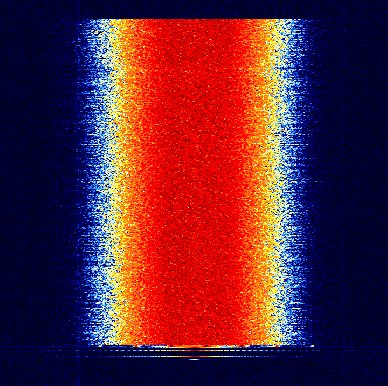
9.2.4 Identifying signals of interest
Patterns to look for in the waterfall:
- Continuous carrier: cellular control channel, broadcast tower, constant emitter
- Burst patterns: keyfob, garage door, periodic telemetry
- Bandwidth signatures: FSK vs OOK vs phase-shift modulation
- Frequency drift: indicates a poorly-locked oscillator or moving emitter
- Identifiable protocols: BLE advertisements, WiFi probes, LoRa preambles
When you see something interesting:
1. Note the frequency from the spectrum
2. Switch to Narrowband RX at that frequency
3. Capture I/Q to SD for ~30 seconds
4. Note in the engagement log: time, location, frequency, observations
5. Return to sweep mode and continue
9.2.5 Throughout the engagement
- Monitor battery indicator every ~30 minutes
- Switch to USB-C battery pack when internal drops below 30%
- Take breaks to manage operator fatigue and avoid thermal accumulation
- Save captures explicitly — Mayhem auto-saves, but verify periodically
- Log notes in a separate notebook or audio recorder; you’ll forget
9.2.6 Post-engagement
1. Power off PortaRF
2. Remove SD card
3. On host PC: copy entire SD contents to encrypted storage
4. Verify capture file integrity (sizes match expected; no obvious corruption)
5. Run hashing for chain-of-custody (Vol 11 § 5)
6. Begin offline analysis (§ 8)
The standalone field recon workflow is what makes PortaRF worth carrying as a separate tool from porta. Vol 11 covers operational posture in depth.
9.3 Tethered lab work (USB-CDC + GNU Radio)
When the heavy compute lives on the host PC, PortaRF becomes a USB-tethered SDR — operationally equivalent to a bench HackRF.
9.3.1 Setup
# 1. Connect PortaRF to host via USB-C
# 2. Verify enumeration
hackrf_info

# 3. Install host-side SDR software (one of):
sudo apt install gnuradio gnuradio-osmosdr   # Debian/Ubuntu
brew install gnuradio                          # macOS

# Or use SDRangel, GQRX, etc.
9.3.2 GNU Radio Companion flowgraph (basic FM receiver)
Open GNU Radio Companion (gnuradio-companion), create a flowgraph:
osmocom Source            # PortaRF I/Q source
   ↓ (sample stream)
Low Pass Filter           # Channel filter
   ↓
WBFM Receive              # FM demodulator
   ↓
Audio Sink                # Speaker output
Set the osmocom Source:
- Device arguments:
hackrf=0 - Sample rate: 2 MS/s
- Frequency: 96.9 MHz (or local FM station)
- Gain: ~24 dB
Run the flowgraph. Audio from a local FM broadcast should play.
9.3.3 Why tether vs standalone?
Table 1 — 3.3 Why tether vs standalone?
| Scenario | Tethered | Standalone |
|---|---|---|
| Long-form capture (>1 hour) | Better — no battery limit | Adequate — battery limit |
| Complex DSP (custom filters, decoders) | Better — host CPU | Adequate — Mayhem apps |
| Reproducible workflows (scripted) | Better — Python / GR | Adequate — Mayhem apps |
| Spectral analysis (FFT-heavy) | Better — host GPU | Limited — Mayhem real-time |
| Real-time visualization (multiple panels) | Better — multi-monitor | Limited — single screen |
| Mobility | No | Yes |
| Power | AC | Battery |
Tethered work is what porta does; PortaRF can do it equally well.
9.3.4 SDRangel as alternative
SDRangel is a more user-friendly alternative to GNU Radio for many tasks:
# Linux
sudo apt install sdrangel

# Or download from sdrangel.org for Windows / macOS
SDRangel has:
- Built-in support for HackRF
- Multiple “channels” (parallel receivers / transmitters)
- Real-time spectrum + waterfall
- Recording / playback
- Many built-in decoders
SDRangel is often the right tool for “I want to see something on a screen and record/decode” tasks.
9.3.5 hackrf_transfer for scripted captures
For simple captures:
# Capture 10 seconds at 433.92 MHz, 2 MS/s, 40 dB gain
hackrf_transfer -r capture.cfile \
                -f 433920000 \
                -s 2000000 \
                -g 40 \
                -n 20000000  # 20 million samples = 10 seconds at 2 MS/s
Captures are written as raw complex float files by default; format conversions for GNU Radio compatibility may be needed depending on flowgraph expectations.
9.3.6 hackrf_transfer for replay
# Transmit a captured signal
hackrf_transfer -t capture.cfile \
                -f 433920000 \
                -s 2000000 \
                -x 0  # TX gain; 0 dB conservative
Same considerations as replay-via-Mayhem: authorization required, mind regional rules.
9.4 Hybrid mode patterns
Some workflows use both standalone and tethered modes in combination.
9.4.1 Capture standalone, analyze tethered
The most common hybrid:
- Standalone capture: walk a site with PortaRF, capture I/Q to SD
- Post-engagement: extract SD; load captures into GNU Radio Companion on the host
- Offline analysis: run sophisticated DSP, custom decoders, batch processing
This pattern leverages PortaRF’s mobility + the host’s compute.
9.4.2 Live monitoring with onboard preview
Some Mayhem builds can stream a low-bandwidth status to a paired host:
- PortaRF on battery, antenna deployed in target environment
- Host PC at base, displaying status via remote pairing (BLE if supported, Wi-Fi if supported)
- Real-time monitoring without occupying the host with high-bandwidth USB
This is experimental and depends on Mayhem build. Verify before relying.
9.4.3 Synchronized recording
For multi-tool engagements:
- PortaRF capturing on RF channel A (standalone)
- Separate SDR (porta, RTL-SDR) capturing on RF channel B (tethered to host)
- Post-engagement: cross-correlate captures for time-synchronized analysis
Useful for direction-finding (one fixed receiver + one mobile PortaRF) or covering multiple bands simultaneously.
9.4.4 Tethered TX, mobile RX
- Tethered PortaRF transmitting test signals from a host script
- Different SDR (RTL-SDR, separate handheld) on a walking partner receiving and characterizing
- Build coverage maps from received signal strength data
PortaRF’s standalone capability isn’t the bottleneck in this pattern — porta on a bench works equally well as the TX side.
9.5 Replay attack workflow
Replaying a captured RF signal — the canonical SDR security-testing demonstration.
9.5.1 The legal framing first
Replay = TX. TX = regulated. Replay attacks are only legal with:
- Authorization for the specific TX in the specific band
- Compliance with regional rules (ISM bands typically OK; licensed bands require explicit authorization)
- Ethical use — testing your own systems, contracted pentesting, authorized vulnerability research
Replay without authorization is unauthorized TX → illegal. Vol 11 § 7.
9.5.2 The two-step workflow
Step 1: Capture (RX-only, generally legal):
1. Identify target frequency (e.g., garage door at 315 MHz)
2. Mayhem → Capture → Sub-GHz Capture (or appropriate)
3. Set frequency, sample rate, gain
4. Start capture; trigger the device (press the remote, fire the keyfob)
5. Stop capture; save file to SD
6. Verify file (file size sensible; can be replayed in software)
Step 2: Replay (TX; requires authorization):
1. Confirm authorization for TX at this frequency
2. Mayhem → Transmit → Replay (or appropriate)
3. Select captured file from SD
4. Set TX gain (conservative initially)
5. Aim antenna at target
6. Initiate replay
7. Observe target behavior
9.5.3 Capture quality matters
Replay attacks succeed when the capture is high-fidelity:
- Adequate sample rate: 2 MS/s captures most narrowband signals; 10 MS/s captures wider bandwidth
- Sufficient gain: signal not clipped, not too weak
- Proximity: capture should be done close to the original transmitter (within ~10 m typically)
- Clean RF environment: avoid co-channel interference
9.5.4 Common replay targets
Table 2 — 5.4 Common replay targets
| Device | Frequency | Modulation | Replay difficulty |
|---|---|---|---|
| Garage door remote (older) | 315 / 433 MHz | OOK / ASK | Easy — fixed code |
| Garage door remote (rolling code) | 315 / 433 MHz | OOK / ASK | Hard — rolling code defeats simple replay |
| Car keyfob (older) | 315 / 433 MHz | FSK | Easy — fixed code |
| Car keyfob (rolling code) | 315 / 433 MHz | FSK | Hard — rolling code; relay attacks needed |
| BLE devices (legacy) | 2.4 GHz | GFSK | Variable — depends on protocol |
| Tire pressure monitor | 315 / 433 MHz | ASK / FSK | Easy — broadcast |
| Older weather stations | 433 / 868 MHz | OOK | Easy — predictable |
| 4G/5G cellular | various | Modulated, encrypted | Effectively impossible |
| Wi-Fi | 2.4 / 5 GHz | OFDM | Decoded data possible; full RF replay impractical |
Most modern devices have rolling codes or session encryption that defeats simple replay; the targets above are mostly legacy designs or test scenarios.
9.5.5 Mayhem replay app — typical UI
   Replay
   ├─ File: [browse SD] capture_20260513_142000.cfile
   ├─ Frequency: 433.920 MHz
   ├─ Sample rate: 2 MS/s
   ├─ Gain: 0 dB (TX gain)
   ├─ Loop: 1 cycle / Continuous / N cycles
   └─ [Start Transmission]
After pressing start: TX indicator illuminates on Mayhem status bar; the captured signal goes out at the same frequency / modulation as captured.
9.5.6 Verification
After replay:
- Did the target device respond? (open, lock, etc.)
- Capture any RF response for the attack analysis
- Document the engagement with the target identification, capture parameters, replay parameters, outcome
9.6 Decode workflows — protocol by protocol
Mayhem has on-device decoders for many common protocols. PortaRF can decode in the field with no host PC.
9.6.1 ADS-B (1090 MHz aviation)
1. App: Decode → ADS-B
2. Mayhem auto-tunes to 1090 MHz
3. Set gain to ~28-32 dB
4. Aircraft within ~50 km should appear in the list
5. Each entry shows: ICAO hex ID, callsign (if Mode S), altitude, position
6. Capture decoded data to SD for analysis
Useful for:
- Aviation traffic awareness
- Air-band reception research
- ADS-B antenna testing
9.6.2 AIS (161-162 MHz maritime)
1. App: Decode → AIS
2. Mayhem auto-tunes to 162 MHz (the primary AIS channel)
3. Set gain to ~28-32 dB
4. Ships within range broadcast position, course, speed
5. Decoded MMSIs + positions display on screen
6. Save log to SD
Useful for:
- Maritime traffic awareness
- AIS coverage testing
- Marine signal research
9.6.3 POCSAG (paging protocol)
1. App: Decode → POCSAG
2. Tune to local POCSAG frequency (varies by region; check FCC tower database)
3. Set gain to ~24-30 dB
4. Pager messages decoded as they arrive
5. Numeric and alphanumeric pages display
Useful for:
- Verifying that paging infrastructure exists in an area
- Privacy awareness (many pagers are unencrypted)
Note: receive-only; passive listening of public broadcasts is generally legal in most jurisdictions.
9.6.4 BTLE (Bluetooth Low Energy)
1. App: Decode → BTLE (or Bluetooth Scanner)
2. Mayhem scans 2402, 2426, 2480 MHz advertising channels
3. Set gain to ~16-24 dB (BLE is shorter range; lower gain for nearby devices)
4. BLE devices in advertising mode display with address, name, RSSI
5. Save scan log to SD
Useful for:
- Inventorying BLE devices in an area
- BLE security testing scaffolding
- IoT discovery
9.6.5 ERT (smart meter)
1. App: Decode → ERT (or Smart Meter)
2. Tune to 902-928 MHz (US smart meter band; varies by region)
3. Set gain to ~30 dB
4. Smart meters in range broadcast meter ID + reading
5. Save decoded data to SD
Useful for:
- Verifying smart meter coverage
- Utility infrastructure research
9.6.6 NRF24 (2.4 GHz proprietary)
1. App: Decode → NRF
2. Tune to one of the 124 NRF24L01+ channels (2.402-2.526 GHz)
3. Set gain low (NRF protocol expects nearby transmitters)
4. Decoded packets display
Useful for:
- Wireless mouse / keyboard discovery (some use NRF24)
- IoT and toy device research
- Custom 2.4 GHz protocol analysis
9.6.7 Common decoder patterns
Most Mayhem decoders follow a similar UI:
   Decoder name
   ├─ Frequency: [auto-tuned for protocol]
   ├─ Gain: [adjust]
   ├─ Active / Idle state
   ├─ Decoded data display: [protocol-specific]
   └─ Log to SD: [yes/no]
For unknown / novel protocols not in Mayhem’s catalog:
- Capture I/Q
- Decode offline with GNU Radio or custom Python
9.7 Wideband sweep + signal discovery
The discovery workflow when you don’t know what’s on the air.
9.7.1 hackrf_sweep (tethered)
# Sweep from 100 MHz to 6 GHz, 10 MHz steps
hackrf_sweep -f 100:6000 -B
Output is binary FFT data; pipe to a viewer:
hackrf_sweep -f 100:6000 -B | \
    python3 hackrf_sweep_viewer.py
(Various community-built viewers exist; check Mayhem wiki for current options.)
9.7.2 Mayhem wideband sweep (standalone)
1. App: Wideband Sweep (or Spectrum)
2. Set start frequency, stop frequency, step
3. Set FFT size (1024 / 2048 / 4096 — larger = more resolution, slower)
4. Start sweep
5. Spectrum + waterfall display on screen
6. Pause + zoom on interesting peaks
9.7.3 Signal discovery patterns
What to look for:
- Constant carriers: control channels, beacons, persistent emitters
- Periodic bursts: cellular paging, repeater identifications, scheduled telemetry
- Random bursts: keyfobs, garage door openers, opportunistic IoT
- Wideband modulated signals: Wi-Fi, broadcast, modern OFDM signals
- Frequency-hopping signals: BLE (looks like rapid burst pattern across the band)
9.7.4 Documenting the sweep
For each interesting signal:
- Note frequency (precisely; some signals are at unexpected offsets)
- Note time (signals may be time-of-day dependent)
- Note location (signals are direction-of-arrival dependent)
- Capture I/Q for offline analysis
- Estimate bandwidth from waterfall (visible signal width)
9.7.5 Sweep + capture pattern
1. Sweep in coarse mode (10 MHz step, 100 MHz - 6 GHz)
2. Identify interesting peaks
3. Switch to fine mode (100 kHz step) around each peak
4. Capture I/Q at the centre frequency
5. Annotate the capture with peak info
6. Return to coarse sweep
This pattern compresses days of bench analysis into a few hours of field work.
9.8 I/Q capture for offline analysis
I/Q (in-phase + quadrature) is the raw RF data. Captured I/Q can be re-analyzed indefinitely with different tools and techniques.
9.8.1 Capture parameters
Table 3 — 8.1 Capture parameters
| Parameter | Choice | Note |
|---|---|---|
| Frequency | Center of interest | Mayhem auto-tunes for some apps |
| Sample rate | 2-10 MS/s typical | Higher = wider bandwidth captured; more SD usage |
| Gain | 16-32 dB typical | Tune to avoid clipping |
| Format | Default Mayhem I/Q format (.cfile or .iq) | Compatible with GNU Radio |
| Duration | Determined by use case | Limit to SD capacity |
9.8.2 File size math
File size = sample_rate × bytes_per_sample × duration
            (in MS/s) × (2 for 8-bit I+Q) × (in seconds)

2 MS/s × 2 × 60 seconds = 240 MB per minute
5 MS/s × 2 × 60 seconds = 600 MB per minute
10 MS/s × 2 × 60 seconds = 1.2 GB per minute
20 MS/s × 2 × 60 seconds = 2.4 GB per minute
For a 64 GB SD card:
- 2 MS/s: ~4 hours of continuous capture
- 10 MS/s: ~50 minutes
- 20 MS/s: ~25 minutes
9.8.3 Offline analysis in GNU Radio
Load the capture:
File Source                   # Open .cfile
   ↓
Throttle                      # For non-real-time playback
   ↓
Low Pass Filter               # Channel selection
   ↓
[Various processing blocks]
Common offline operations:
- Demodulate: AM / FM / SSB / FSK / PSK demodulators
- Decode: custom decoders for specific protocols
- Spectral analysis: zoomed FFTs, spectrograms
- Statistical analysis: signal energy distribution, modulation classification
- Replay (if authorized): pass through to TX block
9.8.4 Cross-references for offline analysis
- HackRF One Vol 9 § 5-7 cover offline analysis in depth
- GNU Radio Tutorials: https://wiki.gnuradio.org/index.php/Tutorials
- Inspectrum (signal analyzer): https://github.com/miek/inspectrum
- Universal Radio Hacker: https://github.com/jopohl/urh
9.8.5 Storage discipline
For captures intended for engagement deliverables (Vol 11 § 5):
- Hash each capture at capture time:
sha256sum capture.cfile - Encrypt for transport:
age -r <recipient> capture.cfile - Backup to NAS + offline / off-site storage
- Retain per engagement contract (typically 30-90 days)
For ongoing personal research:
- Local NAS / external drive
- Backup to offline storage
- Organized by date + location + frequency
9.9 PortaRF-distinctive recipes — walk and sweep
Recipes that work especially well on PortaRF’s handheld form factor.
9.9.1 “Walk the perimeter”
1. Configure wideband sweep
2. Walk the perimeter of a building / site
3. Note signal strength variations as you walk
4. Map the RF "shadow" of the building / obstacles
Useful for:
- Wi-Fi coverage mapping
- Cellular signal strength surveys
- RF security audit (find leaks)
9.9.2 “Approach and analyze”
1. Start at distance from target
2. Walk toward target while watching spectrum
3. Note frequency / amplitude changes
4. At close range, capture I/Q for analysis
5. Withdraw to safe distance
Useful for:
- Identifying unknown emitters
- Triangulation (in conjunction with second receiver)
- Verifying signal source
9.9.3 “Sample multiple sites”
1. Site 1: configure, capture, log location
2. Move to Site 2: similar capture
3. Repeat for N sites
4. Compare captures offline for differences
Useful for:
- Comparing RF environments
- Looking for differences between similar venues
- Detecting unusual emitters at a specific location
9.9.4 “Standby + monitor”
1. Set PortaRF to a specific decoder app
2. Place on tripod / stand at site
3. Connect external power for extended runtime
4. Leave for hours / overnight
5. Return; review captured data
Useful for:
- Long-duration monitoring of intermittent signals
- Capturing rare events (lightning detection, sporadic emitters)
- After-hours surveillance of known systems
9.9.5 “Pocket the unit, listen”
1. Set Mayhem to Narrowband RX on a target frequency
2. Connect headphones (if PortaRF has audio jack)
3. Walk through the venue discretely
4. Listen for activity on the target frequency
5. Capture I/Q if anything interesting heard
Useful for:
- Covert reception (with appropriate authorization)
- Discreet monitoring of legitimate communications
- “Just listening” without drawing attention
9.10 TX testing recipes
For TX work — all assuming authorization.
9.10.1 “Test the TX path”
# Verify TX is working
hackrf_transfer -t /dev/urandom -f 433920000 -s 2000000 -x 0 -n 2000000

# Should produce a noise-like burst at 433.92 MHz
# Verify with a separate receiver
Or on Mayhem:
1. App: Generate → Test Tone (or similar)
2. Set frequency, modulation
3. Set output to 0 dB (low) initially
4. Transmit for 1 second
5. Verify reception on separate receiver
9.10.2 “Coverage test”
1. Configure PortaRF to transmit a known signal at known power
2. Walk the area while a colleague monitors received signal strength
3. Map coverage based on RSSI measurements
4. Adjust TX power / antenna as needed
Useful for:
- Antenna placement testing
- Coverage planning for installations
- Path loss characterization
9.10.3 “Replay-based vulnerability demonstration”
1. Capture the target signal (Section 5)
2. Confirm authorization for replay
3. Position PortaRF for the demo
4. Replay; document the target's response
5. Note: this is a TX activity — Vol 11 posture applies
Useful for:
- Demonstrating wireless security vulnerabilities to clients
- Internal red-team exercises
- Educational demonstrations of replay attacks
9.10.4 “Beacon and listen”
1. PortaRF transmitting a beacon at low duty (1%)
2. Listen on the same frequency between bursts
3. Detect responses; measure latencies
4. Useful for RF protocol research
For research on protocols that have request/response patterns.
9.10.5 TX safety + thermal discipline
For sustained TX work:
- Don’t exceed 30 minutes continuous +15 dBm in hot ambient (Vol 5 § 6)
- Duty-cycle: 20 minutes TX, 10 minutes idle for cooldown
- Tether to USB-C bench power for sustained sessions (eliminates battery thermal)
- Monitor case temperature by touch; if uncomfortable, take a break
- Reduce gain when possible (+10 dBm dissipates ~50% less than +15 dBm)
9.11 Resources
Canonical recipe references (cross-ref)
- HackRF One Vol 8 (recipes; replay; decode):
../../../HackRF One/03-outputs/HackRF_One_Complete.html - HackRF One Vol 9 (advanced recipes; offline analysis): same path
GNU Radio
- GNU Radio main: https://www.gnuradio.org/
- GNU Radio tutorials: https://wiki.gnuradio.org/index.php/Tutorials
- gr-osmosdr (HackRF block): https://github.com/osmocom/gr-osmosdr
Alternative tools
- SDRangel: https://www.sdrangel.org/
- GQRX: https://gqrx.dk/
- SDRSharp (Windows): https://airspy.com/download/
- Inspectrum (signal analyzer): https://github.com/miek/inspectrum
- Universal Radio Hacker: https://github.com/jopohl/urh
Protocol references
- ADS-B Wikipedia + Mode S documentation
- AIS Wikipedia + ITU-R M.1371 (the AIS spec)
- POCSAG specification (Mayhem wiki)
- BTLE spec (Bluetooth SIG)
Mayhem app catalog
- Mayhem wiki app list: https://github.com/portapack-mayhem/mayhem-firmware/wiki
Sibling references
- Hack Tools comparison:
../../../_shared/comparison.md - Vol 11 (this project) — operational posture
End of Vol 9. Next: Vol 10 covers custom firmware development — Mayhem fork patterns, custom Mayhem app development, PortaRF-specific UI considerations.
Comments (0)