Parrot OS · Volume 3
Parrot OS Volume 3 — Dual-Boot Architecture, the Bootloader, BitLocker, Secure Boot
The theory of how two operating systems share one disk safely, and the choices you make before touching the installer
3.1 What “dual-boot” actually means in 2026
When two operating systems coexist on one physical machine, “dual-boot” describes the architecture that lets the firmware (and then a boot manager) choose which OS to start at power-on. The systems share the same hardware — the same disk, the same RAM, the same CPU — but each runs in its own time slot. There is no concurrent execution; you boot one, you use one, you reboot to switch.
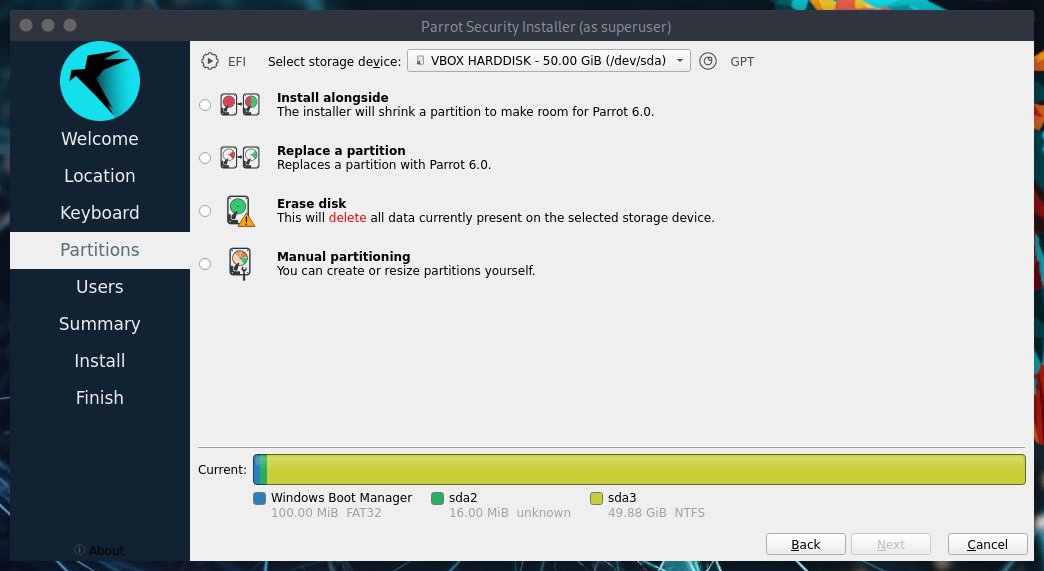
Three architectures fit this loose definition:
- True dual-boot — the plan here. Two OSes installed to separate partitions on the same disk. A boot manager at power-on time presents a menu and chains into the chosen OS’s loader.
- Virtual machines — One OS as the “host” (usually the one that owns the hardware), the other as a “guest” running inside a hypervisor (KVM, VirtualBox, VMware Workstation/Player, Hyper-V). Both run “at the same time” but only one has direct hardware access.
- WSL2 — A Linux kernel + userspace running inside a lightweight Hyper-V VM on a Windows host, with file-system / network / GPU integration that makes it feel like a single integrated system. Kali ships an excellent WSL distribution; Parrot has a less polished WSL package.
This volume is exclusively about option (1), true dual-boot. Vol 10 § 8 covers KVM-based VMs for the cases where the second OS is just a tool runner rather than a daily-driver split.
Why true dual-boot here:
- Hardware native performance — Parrot’s tools talking to HackRF / Flipper / Bus Pirate via USB don’t go through a hypervisor’s USB-passthrough layer, which adds latency and occasional dropouts.
- No host-OS dependency — running Parrot in a VM on Windows means the Windows host has to be alive and trusted for the Linux side to function. Dual-boot decouples them.
- No virtualization overhead — full RAM, full CPU, no 5-15% hypervisor tax.
- Real Linux kernel — including hardware capabilities (monitor mode, raw socket capabilities, KVM-as-host for nested lab VMs) that WSL2’s lightweight VM does not expose.
The tradeoff is the inconvenience of rebooting to switch. The T480 setup accepts that — Parrot is the daily driver for hacking, Windows for business.
3.2 UEFI, the ESP, and the boot-time signal flow
3.2.1 The firmware
The T480’s firmware is UEFI (Unified Extensible Firmware Interface) — the modern successor to legacy BIOS. UEFI replaces the old MBR + BIOS-INT13h chain with:
- A firmware that understands FAT32 file systems.
- A standardized way to launch executable images (
.efifiles) from a specific disk partition (the ESP). - A persistent variable store in flash for boot entries, Secure Boot keys, user passwords.
- A mandatory disk partitioning scheme — GPT (GUID Partition Table) — replacing MBR.
On the T480, this is realized by Lenovo’s r0p BIOS family (the BIOS settings UI itself runs as part of the UEFI firmware). The BIOS configuration in Vol 2 § 4 set UEFI Only boot mode and disabled CSM (Compatibility Support Module) — i.e., no legacy BIOS fallback. This is the right choice.
3.2.2 The EFI System Partition (ESP)
The EFI System Partition (ESP) is a FAT32 partition with a specific GUID (C12A7328-F81F-11D2-BA4B-00A0C93EC93B) that the UEFI firmware looks at to find bootable .efi files. On a typical Windows 11 install, the ESP is the first or second partition of the disk and is 100 MB in size — Microsoft’s default.
100 MB is too small for dual-boot with Linux. Linux’s GRUB + shim + theme files + sometimes a backup config easily consume 50-60 MB, and signed-kernel updates need scratch space. Parrot’s installer can install into a 100 MB ESP, but it’s tight. Recommendation: at install time, grow the ESP to 500 MB or 1 GB. Vol 4 § 4 walks the resize in Calamares.
The ESP layout after dual-boot will look like:
/boot/efi/
├── EFI/
│   ├── Microsoft/
│   │   ├── Boot/
│   │   │   ├── bootmgfw.efi          ← Windows Boot Manager
│   │   │   ├── bootmgr.efi
│   │   │   └── memtest.efi
│   │   └── Recovery/
│   │       └── BootMenuUX.dll
│   ├── Boot/
│   │   └── bootx64.efi               ← UEFI fallback (often a copy of GRUB)
│   ├── parrot/
│   │   ├── shimx64.efi               ← Microsoft-signed shim, the first Linux .efi the firmware launches
│   │   ├── mmx64.efi                 ← MOK Manager (used for custom signing)
│   │   ├── grubx64.efi               ← GRUB signed by Parrot's MOK
│   │   ├── BOOTX64.CSV
│   │   └── grub.cfg                  ← (optional) small fallback config
│   ├── debian/                       ← present on some Parrot installs (legacy naming)
│   │   └── (similar layout)
│   └── ...other vendors if installed (rEFInd, systemd-boot)...
The ESP is mounted at /boot/efi on Linux (mount options: vfat,rw,relatime,umask=0077).
3.2.3 The boot-time signal flow
What happens between pressing the power button and seeing a desktop:
                ┌──────────────────────────────────────────────────────┐
                │ Power button pressed                                 │
                └──────────────────────────────────────────────────────┘
                                  │
                                  ▼
                ┌──────────────────────────────────────────────────────┐
                │ T480 UEFI firmware (r0p_*) loaded from SPI flash     │
                │  - POST: RAM check, CPU/microcode load, ME init      │
                │  - Initializes display, USB, NVMe, network           │
                │  - Reads UEFI boot variables from flash (BootOrder,  │
                │    Boot0000, Boot0001, ...)                          │
                └──────────────────────────────────────────────────────┘
                                  │
                                  ▼
                ┌──────────────────────────────────────────────────────┐
                │ UEFI evaluates BootOrder. First non-disabled entry   │
                │ wins. Default (post-install): grub or shim entry     │
                │ pointing at /EFI/parrot/shimx64.efi on the NVMe ESP. │
                └──────────────────────────────────────────────────────┘
                                  │
                                  ▼
                ┌──────────────────────────────────────────────────────┐
                │ shimx64.efi launches.                                │
                │  - shim is Microsoft-signed (under the Microsoft     │
                │    Corporation UEFI CA 2011 cert)                    │
                │  - shim verifies its own signature against the cert  │
                │    in firmware → Secure Boot validates → execute     │
                │  - shim looks for grubx64.efi in the same dir;       │
                │    verifies it against shim's embedded vendor cert   │
                │    OR an enrolled MOK key                            │
                └──────────────────────────────────────────────────────┘
                                  │
                                  ▼
                ┌──────────────────────────────────────────────────────┐
                │ grubx64.efi launches.                                │
                │  - GRUB reads /boot/grub/grub.cfg                    │
                │  - grub.cfg has entries:                             │
                │      * Parrot GNU/Linux                              │
                │      * Parrot Advanced options (older kernels)       │
                │      * Memory test                                   │
                │      * UEFI Firmware Settings                        │
                │      * Windows Boot Manager (UEFI on NVMe...)        │
                │  - Renders menu, 5 sec timeout, default = Parrot     │
                └──────────────────────────────────────────────────────┘
                                  │
                                  ▼
                ┌─────────────────┴────────────────────┐
                ▼                                      ▼
   ┌──────────────────┐                  ┌─────────────────────────┐
   │ Parrot selected  │                  │ Windows selected         │
   └──────────────────┘                  └─────────────────────────┘
            │                                          │
            ▼                                          ▼
   ┌──────────────────┐                  ┌─────────────────────────┐
   │ GRUB loads:      │                  │ GRUB chainloads:         │
   │  - kernel        │                  │  /EFI/Microsoft/Boot/    │
   │  - initramfs     │                  │   bootmgfw.efi           │
   │  - command line  │                  │                          │
   │ Kernel takes over│                  │ Windows Boot Manager     │
   │                  │                  │ takes over               │
   └──────────────────┘                  └─────────────────────────┘
            │                                          │
            ▼                                          ▼
   ┌──────────────────┐                  ┌─────────────────────────┐
   │ Parrot kernel:   │                  │ Windows 11 NT kernel:    │
   │  - decrypt LUKS  │                  │  - read BitLocker keys   │
   │    (prompt for   │                  │    from TPM (if enabled) │
   │    passphrase)   │                  │  - mount C:              │
   │  - mount root    │                  │  - launch winload        │
   │  - init systemd  │                  │  - Windows desktop       │
   │  - MATE desktop  │                  │                          │
   └──────────────────┘                  └─────────────────────────┘
The important takeaway: GRUB is the single point of entry in the standard Parrot dual-boot setup. GRUB is what the firmware launches by default, and GRUB is what knows about both Parrot and Windows. If GRUB breaks (a botched update, a Windows 11 update that overwrites the EFI boot order, a disk swap that mis-identifies a partition UUID), neither OS boots until you fix GRUB.
§ 6 covers alternatives (systemd-boot, rEFInd, Windows-Boot-Manager-as-primary) for users who don’t trust GRUB. § 8 covers recovery when GRUB does break.
3.3 Windows 11 Pro on the T480 — BitLocker and the device-encryption story
This section matters more than newcomers expect, because BitLocker can silently lock a user out of a Windows install during a dual-boot setup. Read this carefully.
3.3.1 Two flavors of BitLocker on Windows 11 Pro
Windows 11 ships two variants of full-disk encryption:
- “Device Encryption” — the consumer-tier variant. Enabled automatically on TPM-equipped, signed-in-to-Microsoft-account systems that pass HSTI (Hardware Security Test Interface) checks. The user often doesn’t realize it’s on. Available on Windows 11 Home and Pro.
- “BitLocker Drive Encryption” — the Pro/Enterprise variant. Manually enabled from Control Panel → BitLocker Drive Encryption. Richer recovery options, ability to set additional protectors (USB key, PIN, password).
Both encrypt the same way (AES-XTS), both use the same TPM-bound key release, both rely on the same recovery key when the TPM rejects the boot configuration. The difference is mostly UI.
The T480 with TPM 2.0 and Windows 11 Pro signed into a Microsoft Account = Device Encryption almost certainly enabled by default. Even on a refurb that came with a fresh Win 11 install, the first time a Microsoft Account sign-in occurred, Device Encryption likely flipped on silently.
3.3.2 Confirm BitLocker state and back up the recovery key BEFORE TOUCHING ANYTHING
Open an elevated PowerShell on Windows and run:
manage-bde -statusExpected output for an encrypted system:
Volume C: [...]
    Conversion Status:    Fully Encrypted
    Percentage Encrypted: 100.0%
    Encryption Method:    XTS-AES 128
    Protection Status:    Protection On
    Lock Status:          Unlocked
    Identification Field: None
    Key Protectors:
        TPM
        Numerical Password
Protection Status: Protection On = encrypted. If it says Protection Off, the drive is not encrypted and you have no BitLocker concerns.
Back up the recovery key NOW, before doing anything that could trigger a TPM lockout:
manage-bde -protectors -get C:This dumps the recovery key in XXXXXX-XXXXXX-XXXXXX-XXXXXX-XXXXXX-XXXXXX-XXXXXX-XXXXXX format. Write it down on paper. Store it in a fireproof safe / a password manager / a printout in your wallet. Do not store it on the laptop only.
Additionally, BitLocker recovery keys for Microsoft-Account-signed systems are escrowed to https://account.microsoft.com/devices/recoverykey. Confirm yours is there. If it isn’t (signed into a local account, never linked Microsoft Account), the recovery key only exists in the printout you just made.
3.3.3 Suspend BitLocker BEFORE resizing the Windows partition
Resizing a BitLocker-encrypted volume triggers TPM key re-binding, which can trip BitLocker into recovery mode on next boot — requiring the recovery key to unlock. The clean approach is to suspend BitLocker before any partition operation:
manage-bde -protectors -disable C:This doesn’t decrypt the disk — it removes the TPM protector temporarily, so the disk auto-mounts on the next boot without TPM checking. Make the partition changes, install Parrot, and then re-enable:
manage-bde -protectors -enable C:The TPM re-binds to the new boot configuration, and BitLocker is back to fully protecting the volume.
Alternative — fully decrypt before install, re-encrypt after:
manage-bde -off C:This decrypts the volume entirely (slow — hours for a 256 GB drive). Re-encrypt with manage-bde -on C: -RecoveryPassword after the dual-boot is settled. Slower than suspend, but eliminates any TPM-binding edge cases. Use this approach if manage-bde -protectors -disable doesn’t behave as expected.
3.3.4 Windows-11-update interactions
Windows 11 occasionally pushes a firmware-touching update that triggers BitLocker recovery on next boot (the firmware change moves the TPM’s PCR state, BitLocker’s TPM-bound key release fails, recovery mode kicks in). This happens with or without dual-boot. Always have the recovery key ready. When Parrot is the default boot target, a Windows 11 quality update can take effect “next time Windows boots” — which might be next week — and surprise-prompt for the recovery key then.
3.3.5 The “leave Windows alone” rule
After the dual-boot is established, do not let Windows touch GRUB or the ESP boot order. Specifically:
- Windows quality updates can re-write the BootOrder UEFI variable to put Windows Boot Manager first. Recovery: boot into BIOS (F1), Startup → Boot Order, drag GRUB / Parrot back to the top.
- Windows feature updates (Windows 11 23H2 → 24H2, etc.) sometimes scribble over
/EFI/Boot/bootx64.efi(the UEFI fallback path). Recovery: re-install GRUB to that path from Parrot live. - Windows-side disk tools (DiskPart, third-party partition managers) can delete the Parrot partitions if pointed at the wrong drive. Always snapshot the partition table (Vol 4 § 8 covers
sfdisk --dump) before touching the disk from either OS.
3.4 Secure Boot, signed shim, and the shim+grub chain
Secure Boot is a UEFI feature that requires every .efi binary launched at boot to be cryptographically signed by a key the firmware trusts. The default trust chain on consumer firmware includes the Microsoft Corporation UEFI CA 2011 key — Microsoft acts as a signing authority for boot binaries from many vendors. Lenovo’s UEFI on the T480 ships with this key in the firmware’s db (signature database) by default.
3.4.1 Why Secure Boot matters
The point of Secure Boot is to make bootkit / rootkit installation harder. An attacker who has hardware access (or a compromised OS that can write to the disk) cannot replace /EFI/Microsoft/Boot/bootmgfw.efi with a malicious binary that loads first — the firmware will refuse to launch an unsigned .efi.
Keep Secure Boot enabled. Parrot supports it natively. The only real downside is that custom kernel modules (out-of-tree drivers, DKMS modules without MOK enrollment) won’t load — but for daily-driver use that limitation almost never bites.
3.4.2 How Parrot boots under Secure Boot
The shim+grub chain:
- UEFI firmware launches
/EFI/parrot/shimx64.efi. - Firmware verifies shim’s Microsoft-signed signature against the Microsoft CA in
db. Pass. - shim launches
/EFI/parrot/grubx64.efi. - shim verifies grub’s signature against either (a) the vendor cert embedded in shim (Parrot’s own signing cert) or (b) a key enrolled in MOK (Machine Owner Key, stored in firmware NVRAM and managed via
mmx64.efi). - GRUB launches the Linux kernel. The kernel verifies its own signature against the same MOK trust chain.
This works for stock Parrot kernels signed by the Parrot team. It does not work out of the box for custom-compiled kernels or out-of-tree DKMS modules (e.g., NVIDIA proprietary, VirtualBox kernel modules, some Wi-Fi drivers).
3.4.3 MOK enrollment (the escape hatch)
When you need to load an unsigned module under Secure Boot — for example, the DKMS-built vboxdrv for VirtualBox — Linux’s mokutil lets you enroll your own signing key:
# Generate a signing key pair
sudo mkdir -p /var/lib/shim-signed/mok
sudo openssl req -nodes -new -x509 -newkey rsa:2048 \
    -keyout /var/lib/shim-signed/mok/MOK.priv \
    -outform DER -out /var/lib/shim-signed/mok/MOK.der \
    -days 36500 -subj "/CN=Local MOK signing key/"
sudo chmod 600 /var/lib/shim-signed/mok/MOK.priv

# Enqueue MOK enrollment (will be confirmed at next boot)
sudo mokutil --import /var/lib/shim-signed/mok/MOK.der
# Prompts for a one-time password used at the MOK Manager UI

# Reboot. shim launches MOK Manager (a blue text-mode UI) before grub.
# Choose "Enroll MOK" → "Continue" → enter the one-time password.
# MOK key is now in firmware NVRAM, persistent across reboots.

# After reboot, sign your kernel module:
sudo /usr/src/linux-headers-$(uname -r)/scripts/sign-file sha256 \
    /var/lib/shim-signed/mok/MOK.priv \
    /var/lib/shim-signed/mok/MOK.der \
    /lib/modules/$(uname -r)/extra/vboxdrv.ko
# (or rely on DKMS sign-tool integration — Parrot's DKMS package supports this)
For daily use, MOK enrollment is rarely needed — the stock-shipped Parrot kernel + stock-shipped iwlwifi covers typical needs. MOK only comes into play for VirtualBox (and even then, only because the VirtualBox kernel modules aren’t shipped pre-signed by Oracle).
3.4.4 The “just disable Secure Boot” anti-pattern
Many Linux install guides on the internet say “disable Secure Boot before installing.” This is bad advice for Parrot, because Parrot specifically ships signed binaries that work with Secure Boot enabled. Disabling Secure Boot:
- Removes a real defense against UEFI bootkits.
- Allows Windows 11 to consider the system “not Secure-Boot-compliant” — which doesn’t break Win 11 per se, but does flip some Defender posture switches.
- May trigger BitLocker recovery prompts (BitLocker’s TPM binding includes a “Secure Boot enabled” attestation).
Leave it on. If a specific Linux situation absolutely requires it disabled, do it as a temporary measure, not a permanent state.
3.5 The partition strategy — how to slice the 1 TB disk
With Vol 2 § 3.2’s NVMe upgrade to a 1 TB drive (recommended order: NVMe first, then install Parrot), the partition layout has room to be sensible.
3.5.1 Starting state — Windows-only-from-OEM
A clean Windows 11 Pro install on a 1 TB drive (after Windows clones + first boot + a few updates) usually looks like:
Table 1 — A clean Windows 11 Pro install on a 1 TB drive (after Windows clones + first boot + a few updates) usually looks like
| # | Partition | Type | Size | Filesystem | Purpose |
|---|---|---|---|---|---|
| 1 | EFI System Partition | EFI (C12A…) | 100 MB | FAT32 | UEFI boot binaries |
| 2 | Microsoft Reserved | MSR | 16 MB | (no fs) | Windows reserves for future use |
| 3 | C: (Windows) | Microsoft Basic Data | ~990 GB | NTFS, BitLocker-encrypted | Windows OS + apps + user data |
| 4 | Windows Recovery | Microsoft Recovery | ~600 MB | NTFS | WinRE image |
3.5.2 Target state — dual-boot with Parrot + LUKS + separate /home
The recommended layout after Parrot install on a 1 TB NVMe:
Table 2 — The recommended layout after Parrot install on a 1 TB NVMe
| # | Partition | Type | Size | Filesystem | Purpose |
|---|---|---|---|---|---|
| 1 | EFI System Partition | EFI | 1 GB (grown from 100 MB) | FAT32 | Boot binaries for Windows + GRUB + shim |
| 2 | Microsoft Reserved | MSR | 16 MB | (no fs) | Windows reserved |
| 3 | C: Windows | Microsoft Basic Data | 400 GB (shrunk from 990) | NTFS, BitLocker | Windows OS + apps + user data |
| 4 | Windows Recovery | Microsoft Recovery | 600 MB | NTFS | WinRE image (kept) |
| 5 | Parrot root (LUKS container) | Linux LVM | ~570 GB (the remainder) | LUKS2 → LVM2 | Parrot OS root + /home + swap |
Inside the LUKS container, an LVM Volume Group splits as:
Table 3 — Inside the LUKS container, an LVM Volume Group splits as
| Logical Volume | Size | Filesystem | Mount |
|---|---|---|---|
parrot-root | 80 GB | ext4 | / |
parrot-home | 470 GB | ext4 | /home |
parrot-swap | 16 GB | swap | (swap) |
| (free) | 4 GB | unallocated | future expansion |
Why this layout:
- 1 GB ESP — comfortable headroom for multiple OSes’ boot binaries.
- 400 GB Windows — generous for Office, games, vendor utilities, downloads.
- 80 GB Parrot root — fits the OS comfortably (Parrot Security is ~30 GB; updates and
/vargrowth need headroom). - 470 GB /home — engagement data, lab VMs, pcaps, source trees. The dominant space allocation.
- 16 GB swap — matches RAM (32 GB after upgrade) for hibernate compatibility. If hibernate is never used, 4-8 GB swap is fine.
- LUKS — full-disk encryption for the Linux side. Vol 7 of this volume covers LUKS theory and the boot-time passphrase prompt. Without LUKS, a stolen laptop = readable Linux home directory; with LUKS, the data is AES-XTS encrypted under a passphrase the thief doesn’t have.
3.5.3 Why LVM instead of plain partitions
LVM (Logical Volume Manager) is an abstraction layer between physical partitions and filesystems:
- Resize a logical volume online (
lvextend -L +50G /dev/parrot/parrot-home; resize2fs /dev/parrot/parrot-home) without rebooting. - Snapshot the root filesystem before a major upgrade (
lvcreate --snapshot --name pre-upgrade-snap --size 8G /dev/parrot/parrot-root) — fast revert if the upgrade goes bad. - Add a second physical disk to the volume group and grow
/homeacross both drives transparently. Comes up when the second SATA SSD from Vol 2 § 3.3 is added —vgextend parrot /dev/disk/by-id/...adds the new drive,lvextend -L +200G /dev/parrot/parrot-homegrows /home.
The Parrot installer (Calamares) has a “Use LVM on LUKS” preset that creates this layout automatically with sensible defaults. Vol 4 § 5 walks the installer dialogs.
3.5.4 Why a separate /home LV (not just one root LV)
Separating /home allows reinstalling the OS without losing personal data. If Parrot 6.x → 7.x someday requires a clean reinstall (it shouldn’t on rolling, but the option matters), wipe parrot-root and reinstall, keep parrot-home. The flip side is that / must be sized correctly up front (80 GB is safe).
3.5.5 The small-disk fallback
If the system stays on the 256 GB OEM drive (skips the NVMe upgrade), the layout compresses:
Table 4 — If the system stays on the 256 GB OEM drive (skips the NVMe upgrade), the layout compresses
| # | Partition | Size | Notes |
|---|---|---|---|
| 1 | ESP | 100 MB or grown to 500 MB | Can’t comfortably grow past 500 MB on a 256 GB disk |
| 3 | Windows C: | 120 GB | Windows + critical apps only; move data elsewhere |
| 5 | Parrot LUKS | 130 GB | / 40 GB, /home 80 GB, swap 8 GB |
This is workable but cramped. The NVMe upgrade is the right call.
3.6 Bootloader options — GRUB, systemd-boot, rEFInd, Windows Boot Manager chainload
The Parrot installer defaults to GRUB. Three alternatives exist, each with a different philosophy. For most users, stick with the GRUB default — it’s the well-supported path. The alternatives below are documented because they appear frequently in pentest-distro discussions.
3.6.1 GRUB (Parrot default)
Table 5 — 6.1 GRUB (Parrot default)
| Aspect | GRUB |
|---|---|
| Vendor | GNU project; ships with most Linux distros |
| File | /EFI/parrot/grubx64.efi |
| Config | /etc/default/grub + /etc/grub.d/* → regenerated to /boot/grub/grub.cfg via update-grub |
| Multi-OS detection | os-prober script runs at update-grub time, detects Windows / other Linuxes / *BSD |
| Theme | Parrot-blue theme out of the box; customizable |
| Boot timeout | Default 5 seconds; configurable |
| Strengths | Universal; supports complex setups (LUKS+LVM, RAID, ZFS); great recovery story (drop to grub rescue> shell) |
| Weaknesses | Complex config syntax; os-prober can be fragile; gets re-installed by Parrot/Debian/Ubuntu installers in ways that occasionally overwrite each other |
Parrot’s GRUB defaults are good. The only tweak worth considering is /etc/default/grub’s GRUB_TIMEOUT=10 (raise from 5 to give time to read), and GRUB_DEFAULT=saved + GRUB_SAVEDEFAULT=true to make the last-selected OS the default next boot.
After editing /etc/default/grub:
sudo update-grub3.6.2 systemd-boot
Table 6 — 6.2 systemd-boot
| Aspect | systemd-boot |
|---|---|
| Vendor | systemd project (was “gummiboot”) |
| File | /EFI/systemd/systemd-bootx64.efi |
| Config | /boot/efi/loader/loader.conf + per-entry files in /boot/efi/loader/entries/*.conf |
| Multi-OS detection | None automatic; manually create entries for Windows |
| Strengths | Tiny, fast, dependency-free, configuration is plain text and trivial. The Arch / Fedora communities have moved here. |
| Weaknesses | No automatic Windows entry; kernel + initramfs must live on the ESP (so ESP needs to be 1+ GB); no LUKS-unlock-in-bootloader story |
For daily-driver dual-boot, GRUB is the better fit. systemd-boot offers little advantage in this scenario.
3.6.3 rEFInd
Table 7 — 6.3 rEFInd
| Aspect | rEFInd |
|---|---|
| Vendor | Rod Smith (rodsbooks.com); long-running independent project |
| File | /EFI/refind/refind_x64.efi |
| Config | /boot/efi/EFI/refind/refind.conf |
| Multi-OS detection | Excellent — auto-detects all .efi loaders on the ESP at boot time; presents a graphical icon-based menu |
| Strengths | Best-looking menu UI of any boot manager. Especially convenient if you triple- or quad-boot (Windows + Parrot + Tails on USB + macOS-on-Hackintosh). |
| Weaknesses | Not Microsoft-signed by default (rEFInd’s refind-install script auto-signs with shim if Secure Boot is enabled, but the dance is more involved). Parrot doesn’t ship a rEFInd package. |
rEFInd is the right choice if you boot 4+ OSes regularly. For a two-OS setup, GRUB suffices.
3.6.4 Windows Boot Manager chainloading Linux
Table 8 — 6.4 Windows Boot Manager chainloading Linux
| Aspect | Windows-managed dual-boot |
|---|---|
| Vendor | Microsoft |
| File | /EFI/Microsoft/Boot/bootmgfw.efi |
| Approach | Windows boots first by default. To boot Linux, use bcdedit to add a Linux entry that chainloads grubx64.efi. |
| Multi-OS detection | Manual configuration via bcdedit. |
| Strengths | Resilient to Windows updates (which sometimes break Linux-installed GRUB but never break Windows’s own boot manager). |
| Weaknesses | Boot menu UI is utilitarian. Configuration is via cryptic bcdedit syntax. |
This is the layout to pick if Windows is the primary OS and Linux is booted only occasionally — the inverse of the T480 setup here. Not recommended for this use case.
3.7 LUKS full-disk encryption for the Linux side
3.7.1 What LUKS is
LUKS (Linux Unified Key Setup) is the standard for full-disk encryption on Linux. The current version is LUKS2, used by the Calamares installer with Parrot 6.x.
LUKS encrypts a block device with AES-XTS-256 (default) using a key derived from a passphrase via Argon2id (memory-hard KDF, resistant to GPU brute-force). The encrypted device’s header carries:
- Key slots (up to 8 — each slot has its own passphrase or keyfile, all unlocking the same master key)
- Cipher mode (AES-XTS, AES-CBC, Twofish, Serpent — AES-XTS is the default and the right choice)
- KDF parameters (memory cost, time cost, parallelism — Argon2id defaults are calibrated by
cryptsetupat format time based on the host’s available memory) - A master key encrypted under each unlocked slot’s derived key
On boot, the kernel’s dm-crypt device-mapper target unlocks the underlying block device into a /dev/mapper/parrot-crypt-style device that LVM (or a plain filesystem) sits on top of.
3.7.2 The boot-time prompt
After the GRUB menu, the Parrot kernel + initramfs boots and immediately prompts:
Please unlock disk /dev/nvme0n1p5 (parrot-crypt):Type the passphrase. Successful unlock → kernel proceeds to mount the root LV. Failed unlock → 3 retries → drop to a initramfs# busybox shell (recovery scenario).
The prompt timing is a few seconds after the GRUB menu, before any graphical output. The keyboard is in PS/2-emulation mode at this point (USB-HID polling not yet active for some chipsets), so external USB keyboards work but Bluetooth keyboards don’t.
3.7.3 Passphrase strength
The Argon2id KDF is calibrated to take ~1-2 seconds per attempt on the install machine. This is the defense — even a 6-character password requires 1-2 seconds × 60^6 = 13 years of brute force on the same hardware. Realistically, an attacker uses a GPU farm or a custom ASIC, but Argon2id’s memory-hardness (typically 256-1024 MB per attempt) keeps the GPU advantage small.
Passphrase recommendation for the Linux side: 6-7 random Diceware words (e.g., “correct-horse-battery-staple-purple-saxophone”). Memorable, type-able in 10 seconds, ~85 bits of entropy. Write it down once, store with the BitLocker recovery key from § 3.
Don’t reuse the Windows login password. Different scope.
3.7.4 Additional key slots — adding a recovery key
LUKS supports up to 8 key slots. Add a long-random recovery key to a second slot for the case where the primary passphrase is forgotten:
# After install, while booted into Parrot
sudo cryptsetup luksDump /dev/nvme0n1p5    # shows current slots
sudo cryptsetup luksAddKey /dev/nvme0n1p5  # prompts: existing passphrase, then new passphrase
Store the recovery passphrase the same way the BitLocker recovery key is stored.
3.7.5 Performance impact
On the i5-8250U, AES-NI hardware acceleration means LUKS adds < 5% overhead to disk I/O. Effectively invisible. Modern CPUs have done this for free since 2010 (Intel Westmere, AMD K10).
cryptsetup benchmark # check AES-XTS-256 throughput; should be > 2 GB/s decrypt3.8 The recovery story — when grub eats itself
The two scenarios that prevent boot, and how to fix each.
3.8.1 GRUB can’t find its config (grub rescue> prompt)
Symptom: black screen with error: file '/boot/grub/i386-pc/normal.mod' not found. and a grub rescue> prompt.
Cause: GRUB’s stage 1 loaded but couldn’t find stage 2 (typically because the partition where /boot/grub/ lives moved, or the disk UUID changed).
Recovery (from grub rescue>):
grub rescue> ls
(hd0) (hd0,gpt1) (hd0,gpt2) (hd0,gpt3) (hd0,gpt5)
grub rescue> ls (hd0,gpt5)/
# poke around until you find the partition with /boot/grub/
grub rescue> set root=(hd0,gpt5)
grub rescue> set prefix=(hd0,gpt5)/boot/grub
grub rescue> insmod normal
grub rescue> normal
Now in the normal GRUB menu; boot Parrot, then sudo update-grub + sudo grub-install /dev/nvme0n1 to repair the install.
3.8.2 No GRUB at all (firmware boots straight to Windows or “no bootable device”)
Symptom: GRUB entry missing from the UEFI boot order; firmware falls through to Windows Boot Manager or to “No bootable device found.”
Cause: Windows update overwrote the EFI BootOrder; ESP was reformatted; GRUB’s binary was deleted.
Recovery: boot a Parrot live USB → open a terminal → mount the Parrot root partition + ESP → chroot in → reinstall GRUB:
# Identify partitions
sudo lsblk -f

# Mount the LUKS-encrypted root
sudo cryptsetup luksOpen /dev/nvme0n1p5 parrot-crypt
sudo mount /dev/mapper/parrot-root /mnt
sudo mount /dev/mapper/parrot-home /mnt/home
sudo mount /dev/nvme0n1p1 /mnt/boot/efi
for d in dev proc sys run; do sudo mount --bind /$d /mnt/$d; done

# Chroot in
sudo chroot /mnt

# Reinstall GRUB
grub-install --target=x86_64-efi --efi-directory=/boot/efi --bootloader-id=parrot
update-grub

# Verify Windows entry detected
grep -i windows /boot/grub/grub.cfg

# Exit chroot
exit
for d in dev proc sys run; do sudo umount /mnt/$d; done
sudo umount /mnt/boot/efi /mnt/home /mnt
sudo cryptsetup luksClose parrot-crypt
sudo reboot
3.8.3 Windows-side recovery
If Windows boot is the problem (BitLocker recovery prompt, “Inaccessible boot device” BSOD):
- Have the BitLocker recovery key handy (from § 3.2). Enter it at the recovery prompt; Windows boots.
- If Windows won’t boot at all: boot a Windows install USB → “Repair your computer” → “Troubleshoot” → “Command Prompt” →
bootrec /fixmbr,bootrec /fixboot,bootrec /rebuildbcd. - As a last resort:
bcdboot c:\windows /s s: /f UEFI(wheres:is the ESP, mounted viadiskpartfirst).
3.8.4 The defensive habit: snapshot the partition table
Before every disk-touching change (resize, install, format):
# Linux
sudo sfdisk --dump /dev/nvme0n1 > /tmp/partitions-pre-change.txt
sudo cp /tmp/partitions-pre-change.txt ~/Documents/partitions-$(date +%Y-%m-%d).txt
# Windows
diskpart
DISKPART> list disk
DISKPART> select disk 0
DISKPART> list partition
# Screenshot or copy-paste outputIf something goes wrong, the original layout is recoverable.
3.9 Cheatsheet additions
To roll into Vol 12 § 7:
- Check BitLocker state:
manage-bde -status(elevated PowerShell). - Back up BitLocker recovery key:
manage-bde -protectors -get C:. - Suspend BitLocker before partition resize:
manage-bde -protectors -disable C:. - Re-enable BitLocker after:
manage-bde -protectors -enable C:. - Repair GRUB from live: chroot procedure in § 8.2.
- Snapshot Linux partition table:
sudo sfdisk --dump /dev/nvme0n1. - Restore Linux partition table:
sudo sfdisk /dev/nvme0n1 < dump-file.txt. - Boot menu (T480): F12 at boot.
- GRUB shell escape from menu:
cin the GRUB menu. - GRUB rescue minimum sequence:
ls,set root=,set prefix=,insmod normal,normal. - LUKS dump headers:
sudo cryptsetup luksDump /dev/nvme0n1p5. - Add LUKS recovery key:
sudo cryptsetup luksAddKey /dev/nvme0n1p5. - LUKS performance check:
cryptsetup benchmark.
Comments (0)