Parrot OS · Volume 5
Parrot OS Volume 5 — First-Boot Setup, Hardening, AnonSurf, Recovery Snapshots
The 90 minutes after the install completes that determine how the system feels for the next year
5.1 The first 90 minutes — order of operations
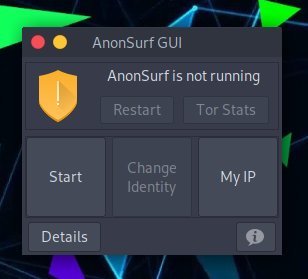
After the Vol 4 install completes and the MATE desktop is reached for the first time, do these in this order:
- Network online — Wi-Fi or Ethernet up, can ping
8.8.8.8. - System update (§ 2) — apt update + full-upgrade. 15-30 minutes.
- Firmware update (§ 3) —
fwupdmgr update. 5-15 minutes + reboot. - Set up sudo without password timeout extension (optional convenience).
- Configure timezone, locale, hostname if not set correctly at install.
- Install bare-minimum personal tools — chezmoi for dotfiles, KeePassXC, Bitwarden CLI, VS Code or VSCodium.
- Set up sandboxing baseline (§ 5) — confirm AppArmor active, install firejail profiles for browsers.
- Configure power management (§ 6) — install + enable TLP, confirm CPU governor.
- Take initial snapshot (§ 8) —
timeshift --create --comments "post-install baseline". - Reboot — confirm everything still works.
Then proceed to Vol 6 (tool inventory) and Vol 7 (workflow setup).
5.2 System updates and mirrors
Parrot OS ships with the official Parrot mirrors pre-configured in /etc/apt/sources.list.d/parrot.list. The default mirror is https://deb.parrot.sh/parrot/. For some geographies, switching to a closer mirror improves download speed.
5.2.1 The initial update
sudo apt update
sudo apt full-upgrade
apt full-upgrade (not just upgrade) is correct on a rolling distro — it allows package additions/removals to resolve dependency changes. On a fresh Parrot 6.3 install in 2026, expect 200-500 MB of updates.
After updates finish:
sudo apt autoremove
sudo apt autoclean
Reboot if the kernel was updated:
sudo reboot5.2.2 Mirror selection
Parrot’s mirror status page is at https://parrotsec.org/docs/mirrors/. To switch:
sudo nano /etc/apt/sources.list.d/parrot.listChange the URL from deb.parrot.sh to a closer mirror, e.g.:
- North America:
https://mirror.umd.edu/parrot/ - Europe:
https://mirrors.dotsrc.org/parrot/ - Asia-Pacific:
https://mirrors.jevincanders.net/parrot/or local
Save, then sudo apt update.
5.2.3 The parrot-upgrade wrapper
Parrot ships a parrot-upgrade command that wraps apt update && apt full-upgrade with a few additional sanity checks (mirror health, repo signature verification, post-upgrade cleanups). For routine updates, prefer it over raw apt:
sudo parrot-upgradeSchedule weekly. Combine with fwupdmgr updates monthly.
5.3 Firmware updates via fwupd
Vol 2 § 5 already covered fwupd in the context of the T480. Re-run after install:
sudo fwupdmgr refresh --force
fwupdmgr get-updates
sudo fwupdmgr update
Apply available updates. Some require a reboot (UEFI capsule format) — fwupd handles the staging automatically; just reboot when prompted.
Opt in to LVFS reporting (helps the project see Linux device statistics):
sudo fwupdmgr enable-remote lvfs
sudo fwupdmgr report-history
5.4 AnonSurf — what it is, when to use it, when not to
5.4.1 What AnonSurf is
AnonSurf is a Parrot-original tool (later forked to a separate kali-anonsurf for Kali users) that transparently routes the entire system’s traffic through Tor, plus DNS through Tor’s DNS, plus a kill-switch (if Tor stops, all traffic blocks rather than leaking to clear-net).
The mechanism: it installs iptables/nftables rules that redirect outbound TCP to Tor’s TransPort (typically 9040) and DNS to DNSPort (typically 9053). The kernel forwards every TCP connection through Tor, every DNS lookup through Tor’s resolver. The user sees no proxy configuration — apps “just work” through Tor.
AnonSurf v3 (Parrot 6.x) also includes obfs4 pluggable transport support for use in censored networks, and Tor circuit selection through arm/nyx GUI tooling.
5.4.2 When AnonSurf is the right tool
- OSINT collection where the target shouldn’t see the analyst’s real IP.
- Demonstrating Tor routing in a learning context.
- Quick anonymity for a single browsing session on an untrusted network.
5.4.3 When AnonSurf is the WRONG tool
This part is more important than the previous, because the failure modes bite hard.
- Active engagements. Pentesters bounce off VPNs / SOCKS5 chains, not Tor. Tor’s egress IPs are publicly listed (
https://check.torproject.org/exit-addresses); any reasonable WAF blocks them. Your nmap will be silently dropped. - Streaming, video calls, anything latency-sensitive. Tor’s three-hop circuit adds 300-2000 ms latency. Zoom-on-Tor doesn’t work.
- As a daily-driver always-on setting. AnonSurf-always-on is not the Tails / Whonix model — those distros enforce Tor isolation across kernel namespaces or VM boundaries. AnonSurf is a single-iptables-table-flip; one misconfigured
--restart-on-failuredaemon can punch through. For “always-on Tor,” use Tails or Whonix, not AnonSurf. - For uploading large files. Tor exit nodes throttle aggressively; expect 100-500 KB/s, not Wi-Fi speeds.
- Without understanding the threat model. Tor protects the IP address; it does not protect the content you transmit. If you log into Gmail under AnonSurf, Google sees that Gmail account from a random Tor exit; correlation attacks via timing / cookies / browser fingerprinting are still on the table.
5.4.4 Using AnonSurf
# Start AnonSurf (system-wide Tor)
sudo anonsurf start

# Verify current external IP is a Tor exit
curl -s https://api.ipify.org
curl -s https://check.torproject.org/api/ip

# Stop AnonSurf
sudo anonsurf stop

# Restart Tor circuit (new exit IP)
sudo anonsurf change

# Show current status
sudo anonsurf status

# Kill Tor + iptables but also clear system caches (kill running processes that may have cached non-Tor connections)
sudo anonsurf killall
The MATE system-tray applet provides one-click start/stop and shows current circuit state.
5.4.5 AnonSurf’s caveats
- DNS leaks: AnonSurf routes DNS through Tor’s DNSPort, but if an app does its own DNS resolution via system library calls bound to specific interfaces, leaks are possible. Test with https://dnsleaktest.com after starting.
- WebRTC leaks: browsers (especially Chrome / Brave) can expose the real local IP via WebRTC even with Tor. Disable WebRTC in browser preferences before browsing under AnonSurf.
- UDP unsupported: Tor only carries TCP. UDP traffic is blocked by AnonSurf’s iptables rules — many VPN clients, voice apps, and games break.
- Specific applications break: some apps timeout on the higher latency. Long-running connections die after Tor circuit refreshes.
5.4.6 The “AnonSurf on demand” workflow
The right way to use AnonSurf for daily-driver Linux:
- Default: off. Boot → MATE desktop → no AnonSurf.
- Specific task needs anonymity:
sudo anonsurf start. Do the task.sudo anonsurf stop. - Browser-isolated: prefer Tor Browser for clear browser-only Tor sessions, which doesn’t require system-wide routing. AnonSurf is for non-browser tools that need Tor.
5.5 AppArmor, firejail, ufw — the sandboxing stack
5.5.1 AppArmor
AppArmor is a Linux Security Module (LSM) that confines processes to declared file-system / network / capability permissions. Parrot enables AppArmor by default. Profiles for common applications (Firefox, Thunderbird, evince PDF viewer, libvirt, KVM) ship and are active out of the box.
Verify:
sudo aa-statusOutput should report dozens of profiles in enforce mode and a handful in complain mode.
Don’t disable AppArmor. The default profiles add real protection (e.g., the Firefox profile blocks Firefox from reading ~/.ssh/).
5.5.2 firejail
firejail is a userspace sandbox using Linux namespaces — file system, network, IPC, PID. It’s lighter than AppArmor (no kernel module), suitable for wrapping arbitrary applications. Parrot 6.x ships firejail; many default applications are silently launched through firejail via /usr/local/bin/firefox → firejail firefox.
To launch any app through firejail:
firejail --profile=/etc/firejail/firefox.profile firefox
firejail --net=none --private vim  # vim with no network and no persistent ~/
Useful patterns:
firejail --private google-chrome— Chrome with a throwaway $HOME (browser data not persisted).firejail --net=none --read-only=/tmp/sample.exe wine /tmp/sample.exe— run a sketchy Windows binary in Wine with no network and read-only file system.
For daily browser use under Parrot, the default firejail wrapping is enough. Customize only if a profile breaks a needed extension.
5.5.3 ufw — uncomplicated firewall
Parrot ships iptables/nftables at the kernel level. ufw is a friendlier user-space frontend.
Enable and set a sensible default:
sudo apt install ufw                    # may already be installed
sudo ufw default deny incoming
sudo ufw default allow outgoing
sudo ufw enable
sudo ufw status verbose
For a daily-driver laptop, “deny all incoming, allow all outgoing” is the right baseline. Add specific rules as needed (e.g., for sharing a development server on a trusted network):
sudo ufw allow from 192.168.1.0/24 to any port 8080  # allow LAN to dev server
sudo ufw allow 22/tcp                                 # allow SSH from anywhere — only on engagements
sudo ufw delete allow 22/tcp                          # remove the SSH rule when done
5.5.4 fail2ban
Optional. fail2ban watches log files for repeated authentication failures (sshd, http auth) and automatically firewalls the offending IP. Useful only when services are exposed on the laptop. For a daily-driver that opens no inbound ports, fail2ban adds no value.
5.6 Power management — TLP, thermald, NVMe runtime
The default kernel power management on Parrot is decent but conservative. Battery-life headroom on the T480 comes from a few packages:
5.6.1 TLP
TLP is the canonical Linux power management daemon for Lenovo / ThinkPad / Dell laptops. It applies platform-specific tunings (PCIe ASPM, SATA aggressive link power management, USB autosuspend, audio codec power saving) based on whether the system is on AC or battery.
Install:
sudo apt install tlp tlp-rdw
sudo systemctl enable tlp
sudo systemctl start tlp
tlp-rdw (“Radio Device Wizard”) provides Wi-Fi / Bluetooth / WWAN auto-toggle based on network connection state (e.g., turn off Wi-Fi when Ethernet plugged in).
Verify:
sudo tlp-stat -s    # system info
sudo tlp-stat -b    # battery
sudo tlp-stat -c    # config
Tunables in /etc/tlp.conf:
CPU_SCALING_GOVERNOR_ON_AC=performance/CPU_SCALING_GOVERNOR_ON_BAT=powersave(defaults are good)START_CHARGE_THRESH_BAT0=75,STOP_CHARGE_THRESH_BAT0=80— battery longevity. Cap charge at 80%, only start charging from 75% on internal battery. Trades 20% capacity for 2-3× cell lifetime. Applies same to BAT1 (rear) with*_BAT1.
Battery charge thresholds work on T480 via tp_smapi and the ACPI battery interface — TLP handles the integration.
5.6.2 thermald
thermald is Intel’s userspace thermal management daemon. It monitors CPU + GPU + chipset temperatures and adjusts the running thermal profile (cooling fan ramp, CPU throttle thresholds) to avoid thermal throttling.
sudo apt install thermald
sudo systemctl enable thermald
sudo systemctl start thermald
Combined with TLP, the i5-8250U runs cooler and sustains turbo for longer under typical workloads.
5.6.3 powertop
powertop is a one-shot tool for finding power-hungry processes:
sudo powertop
sudo powertop --auto-tune          # apply suggested tunings (be careful — disables some USB auto-suspend that may break Wi-Fi)
Inspect output in the “Tunables” tab; apply only the suggestions that don’t affect interactive devices.
5.6.4 Per-component sleep behavior
NVMe drives support autonomous power state transitions (APST). Verify it’s enabled on the T480:
sudo nvme get-feature -f 0x0c -H /dev/nvme0
# Look for "Autonomous Power State Transition Enable" = 1
If disabled, can be tuned via nvme set-feature — but the default firmware on most modern NVMe drives has APST on, and the kernel respects it.
5.7 Microphone, camera, location, telemetry kill switches
5.7.1 Microphone
- Fn+F4 mutes mic in firmware (LED on the F4 key indicates state).
- ALSA-side mute:
amixer set Capture toggle. - Per-application: in MATE Sound Preferences, set per-app mic permissions.
5.7.2 Webcam
- ThinkShutter (physical sliding cover on T480 webcams that have it) — close when not in use.
- For models without ThinkShutter: a piece of opaque tape works. Cost: free. Effectiveness: 100%.
- Disable webcam at boot via BIOS: F1 → Security → I/O Port Access → Camera = Disabled. Re-enable when needed.
- Disable webcam dynamically:
sudo modprobe -r uvcvideo
sudo modprobe uvcvideo   # re-enable
5.7.3 Location services
Linux doesn’t ship GPS-based location services by default. Browser-level location (HTML5 Geolocation API) is browser-managed; deny in Firefox settings.
5.7.4 Telemetry
Parrot itself sends no telemetry. The places telemetry sneaks in:
- VS Code (Microsoft binary) — disable
telemetry.telemetryLevelin settings, or use VSCodium (de-Microsoft’d build). - Firefox —
about:config, settoolkit.telemetry.enabledanddatareporting.healthreport.uploadEnabledtofalse. Or install the LibreWolf or hardened-Firefox variants. - Snap / Flatpak — both phone home to their respective stores. If concerned, use plain
aptinstead.
5.8 Snapshots and rollback (snapper / timeshift)
5.8.1 Why
A pre-upgrade snapshot makes apt full-upgrade safe to run with confidence — if the upgrade breaks the desktop, roll back. Critical insurance on a rolling distro where individual package updates occasionally regress.
Two main snapshot tools on Parrot’s ext4 + LVM layout:
Table 1 — Two main snapshot tools on Parrot's ext4 + LVM layout
| Tool | Approach | Best for |
|---|---|---|
| timeshift | rsync-based; snapshot is a directory tree on a target drive | rolling distros; simple to use; default-grade choice |
| snapper | LVM thin-provisioning OR btrfs CoW | If using btrfs (Parrot defaults to ext4 + LVM, so snapper-on-btrfs isn’t the default) |
For the ext4 + LVM layout described in Vol 3: timeshift is the right pick.
5.8.2 Install and configure timeshift
sudo apt install timeshift
sudo timeshift --setup     # interactive setup
Setup choices:
- Snapshot type: RSYNC (since the filesystem is ext4, not btrfs).
- Snapshot location: a separate partition or drive ideally (so a Parrot-root corruption doesn’t take the snapshots with it). If only one drive, /home is fine.
- Schedule: Monthly + Daily.
- Include/exclude: defaults are sensible. Exclude
/home/<user>/Downloads,/home/<user>/.cache.
Initial snapshot:
sudo timeshift --create --comments "post-install baseline"
sudo timeshift --list
Before each major action (kernel upgrade, manual /etc edits, AnonSurf experiments):
sudo timeshift --create --comments "before <action>"Restore (from a Live USB if the current install is unbootable):
sudo timeshift --restore --snapshot '2026-05-15_12-00-00'5.8.3 Don’t snapshot LUKS-encrypted blocks
Timeshift backs up the mounted filesystem (decrypted), not the LUKS block device — meaning snapshots are written as plaintext. Store snapshots on an encrypted external drive or LUKS volume. If snapshots go to a plain external USB, an attacker with that USB has plain access to all the snapshotted data.
5.9 Fingerprint reader setup
The T480’s fingerprint reader (Synaptics in most refurb units, Goodix in some) works on Linux via libfprint v1.94+ and the fprintd daemon.
sudo apt install fprintd libpam-fprintd

# Enroll a finger
fprintd-enroll               # follow prompts: swipe finger 5x
fprintd-list                 # lists enrolled fingers

# Enable for sudo + login
sudo pam-auth-update         # check the box for fprintd
Result: sudo and login screens accept a fingerprint swipe in addition to password.
Caveats:
- Fingerprint won’t unlock LUKS at boot (LUKS passphrase is kernel-pre-userspace; fprintd runs in userspace).
- Fingerprint won’t unlock the GNOME / MATE login keyring on first login — keyring still uses the login password.
- Hardware support varies — verify the specific reader is in libfprint’s HCL:
lsusb | grep -i finger, lookup the USB ID at https://fprint.freedesktop.org/supported-devices.html.
5.10 Cheatsheet additions
- System update:
sudo parrot-upgrade(preferred over raw apt). - Firmware update:
sudo fwupdmgr refresh && fwupdmgr get-updates && sudo fwupdmgr update. - AnonSurf start/stop:
sudo anonsurf start | stop | change | status. - AnonSurf check exit IP:
curl -s https://check.torproject.org/api/ip. - AppArmor status:
sudo aa-status. - firejail wrap:
firejail --private <app>. - ufw baseline:
sudo ufw default deny incoming && sudo ufw default allow outgoing && sudo ufw enable. - TLP status:
sudo tlp-stat -s. - Battery charge thresholds (TLP):
START_CHARGE_THRESH_BAT0=75 STOP_CHARGE_THRESH_BAT0=80in/etc/tlp.conf. - Webcam off:
sudo modprobe -r uvcvideo; on:sudo modprobe uvcvideo. - Timeshift snapshot:
sudo timeshift --create --comments "<reason>". - Timeshift restore:
sudo timeshift --restore --snapshot <name>. - Fingerprint enroll:
fprintd-enroll. - Enable fingerprint in PAM:
sudo pam-auth-update.
Comments (0)